open-wysiwyg-editor
| Install | |
|---|---|
npm install open-wysiwyg-editor |
|
| Latest Version: | 1.0.2 |
| License: | MIT |
| Last Updated: | Oct 23, 2026 |
| Links: | GitHub · npm |
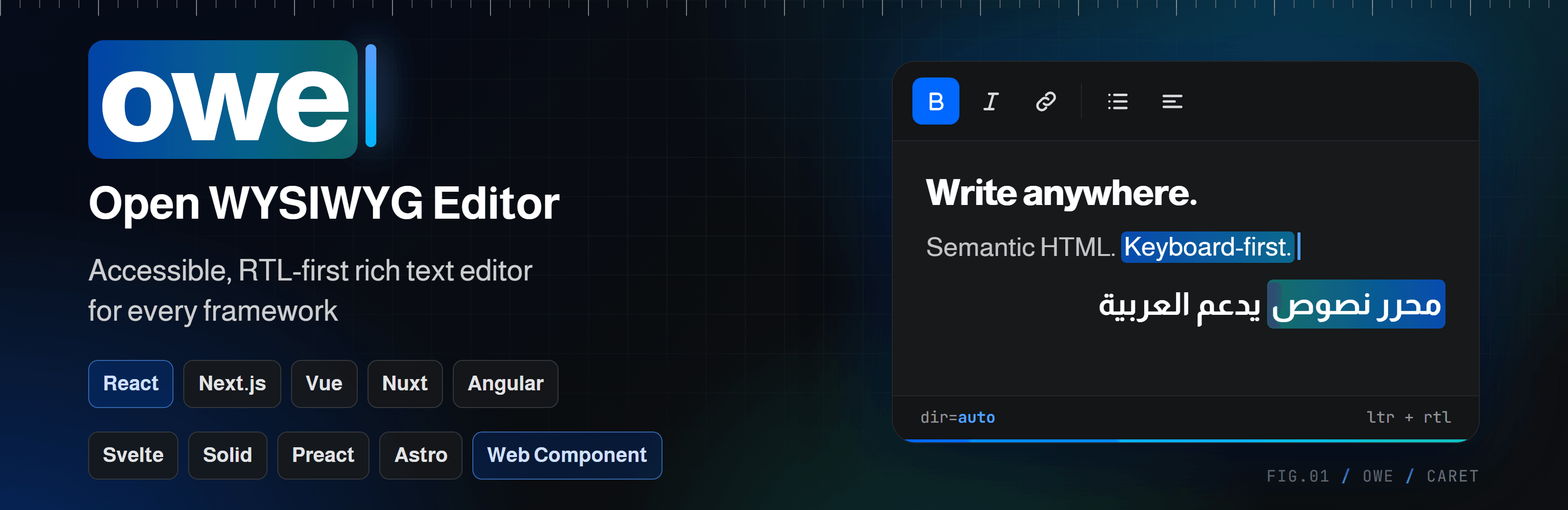
Open WYSIWYG Editor



Live demo → · GitHub · npm
An accessible rich text editor that works on any website: plain HTML/JS, React, Next.js, Preact, Vue, Nuxt, Angular, Svelte, Solid, Astro, WordPress and more. It's RTL-first, it runs under a strict Content Security Policy, and it ships its own TypeScript types. MIT licensed, with no license key, no telemetry and no cloud service.
Built on ProseMirror. Content is stored as HTML or JSON.
Features
| Area | What you get |
|---|---|
| Formatting | Headings · Bold, italic, underline, strike, inline code · Subscript / superscript · Text and highlight colors · Alignment · Text direction per block |
| Blocks | Bullet, numbered and task lists · Blockquote · Code block · Horizontal rule · Tables with caption and header rows · Images with alt text and caption · Links |
| Tools | Find & replace · HTML source view · Word and character count · Element path · Keyboard shortcut help · Undo / redo · Markdown-style typing shortcuts |
| Accessibility | WCAG 2.2 AA, ATAG 2.0 and WAI-ARIA patterns · Fully keyboard operable, no keyboard trap · Screen reader announcements · Windows High Contrast · Dark theme |
| Security | DOMPurify on every input · URL allow-list · Trusted Types · No unsafe-inline needed |
| Languages | English and Arabic built in (add your own) · Mirrored UI in RTL · dir="auto" on every block |
| Everywhere | <owe-editor> web component for plain HTML and forms · Packages for React, Next.js, Preact, Vue, Nuxt, Angular, Svelte, Solid and Astro |
| Your way | Full UI by default · Headless mode for your own UI · Custom toolbar buttons · Extensions API · Brand it with one color or CSS variables |
Every release is tested end to end in Chromium, Firefox and WebKit, under a strict CSP with Trusted Types and with axe-core accessibility checks.
Install
npm install open-wysiwyg-editor
# or
pnpm add open-wysiwyg-editor
# or
yarn add open-wysiwyg-editor
Or with no build step, from a CDN:
<link rel="stylesheet" href="https://cdn.jsdelivr.net/npm/open-wysiwyg-editor@1.0.1/dist/style.min.css"
  integrity="sha384-b7LA9M5in6uI0RSJJZ206o3E6yH2YJdquLqriMF+32aOQjNUNH7uitvYh2CebAip" crossorigin="anonymous" />
<script src="https://cdn.jsdelivr.net/npm/open-wysiwyg-editor@1.0.1/dist/open-wysiwyg-editor.global.js"
  integrity="sha384-lgMQAQkEkLamVrDDDizcj9JBoeaPc6DUKFiL+F/fj7KczjRHePrgrfCGRCnXGr7D" crossorigin="anonymous"></script>
The URLs name an exact version and the integrity hashes make the browser refuse any other bytes, so a
new release or a compromised CDN can't change the code your page runs. To upgrade, change the version and
take the new hashes from the release notes, or compute them: curl -s <url> | openssl dgst -sha384 -binary | openssl base64 -A.
Pick your framework
The core package works everywhere. Each framework also has its own small package. It re-exports the whole core API, ships the stylesheets, and handles mounting, cleanup, server-side rendering and two-way binding for you. Install one of them (it brings the core with it):
| Framework | Package | Install |
|---|---|---|
| Plain JS, HTML forms, CMSs, Lit, Alpine, htmx, Ember, Qwik | open-wysiwyg-editor |
npm install open-wysiwyg-editor |
| React, Remix, Gatsby, Vite | @open-wysiwyg-editor/react |
npm install @open-wysiwyg-editor/react |
| Next.js | @open-wysiwyg-editor/next |
npm install @open-wysiwyg-editor/next |
| Preact | @open-wysiwyg-editor/preact |
npm install @open-wysiwyg-editor/preact |
| Vue 3 | @open-wysiwyg-editor/vue |
npm install @open-wysiwyg-editor/vue |
| Nuxt | @open-wysiwyg-editor/nuxt |
npm install @open-wysiwyg-editor/nuxt |
| Angular | @open-wysiwyg-editor/angular |
npm install @open-wysiwyg-editor/angular |
| Svelte, SvelteKit | @open-wysiwyg-editor/svelte |
npm install @open-wysiwyg-editor/svelte |
| Solid, SolidStart | @open-wysiwyg-editor/solid |
npm install @open-wysiwyg-editor/solid |
| Astro | @open-wysiwyg-editor/astro |
npm install @open-wysiwyg-editor/astro |
All packages share one version number and are released together.
Usage
The core is one function, createEditor(options). It mounts the editor inside the element you pass and returns an editor instance. The framework packages do the three steps below for you. If you use the core directly, follow them in every framework:
- Load the stylesheet once:
import "open-wysiwyg-editor/style.css"(or the<link>above). - Call
createEditor()in the browser, after the element exists. It throws during server-side rendering. - Call
editor.destroy()when the element goes away.
Plain HTML / JavaScript (no framework, no bundler)
The CDN script defines the <owe-editor> tag, so one tag is enough:
<link rel="stylesheet" href="https://cdn.jsdelivr.net/npm/open-wysiwyg-editor@1.0.1/dist/style.min.css"
  integrity="sha384-b7LA9M5in6uI0RSJJZ206o3E6yH2YJdquLqriMF+32aOQjNUNH7uitvYh2CebAip" crossorigin="anonymous" />
<script src="https://cdn.jsdelivr.net/npm/open-wysiwyg-editor@1.0.1/dist/open-wysiwyg-editor.global.js"
  integrity="sha384-lgMQAQkEkLamVrDDDizcj9JBoeaPc6DUKFiL+F/fj7KczjRHePrgrfCGRCnXGr7D" crossorigin="anonymous"></script>

<owe-editor id="editor" placeholder="Write something…">
  <template><p>Hello <strong>world</strong></p></template>
</owe-editor>

<script>
  document.querySelector("#editor").addEventListener("input", (event) => {
    console.log(event.target.value); // '<p dir="auto">Hello <strong>world</strong></p>'
  });
</script>
Or call the function yourself:
<div id="editor"><p>Hello <strong>world</strong></p></div>

<script>
  const editor = OpenWysiwygEditor.createEditor({
    element: "#editor", // a selector, or document.querySelector("#editor")
    placeholder: "Write something…",
  });
  // editor.getHTML() → '<p dir="auto">Hello <strong>world</strong></p>'
</script>
This also works in WordPress, Shopify, Webflow, PHP, Django and Rails templates.
HTML forms
Use <owe-editor name="…">. It is a form-associated element, so the form submits the editor's HTML under that name, and form.reset() restores the starting content. A <label for> pointing at its id becomes the accessible name.
<form method="post">
  <label for="body">Article</label>
  <owe-editor id="body" name="body">
    <template><p>Draft…</p></template>
  </owe-editor>
  <button>Save</button>
</form>
Or mount the editor on a <textarea>. The editor hides the textarea and keeps its value in sync, so the form submits the HTML. The textarea's <label> becomes the editor's accessible name.
<form method="post">
  <label for="body">Article</label>
  <textarea id="body" name="body"><p>Draft…</p></textarea>
  <button>Save</button>
</form>
<script>
  OpenWysiwygEditor.createEditor({ element: "#body" });
</script>
Any bundler (Vite, Webpack, Parcel…), JS or TS
import { createEditor } from "open-wysiwyg-editor";
import "open-wysiwyg-editor/style.css";

const editor = createEditor({
  element: "#editor", // or an HTMLElement
  onUpdate: (editor) => console.log(editor.getHTML()),
});
To use the <owe-editor> tag with a bundler, import its entry once: import "open-wysiwyg-editor/element";.
React (Vite, CRA, Remix, Gatsby)
npm install @open-wysiwyg-editor/react
import { useState } from "react";
import { RichTextEditor } from "@open-wysiwyg-editor/react";
import "@open-wysiwyg-editor/react/style.css";

export function Article() {
  const [html, setHtml] = useState("<p>Hello</p>");
  return <RichTextEditor value={html} onChange={setHtml} placeholder="Write something…" />;
}
For a custom UI, useEditor({ ui: false }) returns { ref, editor }. Full guide →
Next.js
npm install @open-wysiwyg-editor/next
App Router: the package is already marked "use client", so you can use it straight from a Server Component. Import the stylesheet once in the layout:
// app/layout.tsx
import "@open-wysiwyg-editor/next/style.css";

export default function RootLayout({ children }: { children: React.ReactNode }) {
  return (
    <html lang="en">
      <body>{children}</body>
    </html>
  );
}
// app/articles/new/page.tsx  (a Server Component)
import { RichTextEditor } from "@open-wysiwyg-editor/next";
import { saveArticle } from "./actions";

export default function Page() {
  return (
    <form action={saveArticle}>
      <RichTextEditor name="body" defaultValue="<p>Hello</p>" />
      <button>Save</button>
    </form>
  );
}
name keeps a hidden <input> in sync, so the Server Action receives the HTML in its FormData:
// app/articles/new/actions.ts
"use server";

export async function saveArticle(formData: FormData) {
  const html = String(formData.get("body")); // sanitize again here before you store it
}
Pages Router: use the same component in any page and import the stylesheet in pages/_app.tsx. Full guide →
Preact
npm install @open-wysiwyg-editor/preact
import { useState } from "preact/hooks";
import { RichTextEditor } from "@open-wysiwyg-editor/preact";
import "@open-wysiwyg-editor/preact/style.css";

export function Article() {
  const [html, setHtml] = useState("<p>Hello</p>");
  return <RichTextEditor value={html} onChange={setHtml} class="article-editor" />;
}
Same API as the React package, with class instead of className. Full guide →
Vue 3
npm install @open-wysiwyg-editor/vue
<script setup>
import { ref } from "vue";
import { RichTextEditor } from "@open-wysiwyg-editor/vue";
import "@open-wysiwyg-editor/vue/style.css";

const html = ref("<p>Hello</p>");
</script>

<template>
  <RichTextEditor v-model="html" placeholder="Write something…" />
</template>
Pass more createEditor options with :options="{ … }". A template ref exposes editor. Full guide →
Nuxt
npm install @open-wysiwyg-editor/nuxt
// nuxt.config.ts
export default defineNuxtConfig({
  modules: ["@open-wysiwyg-editor/nuxt"],
  // optional: wysiwygEditor: { css: true, componentName: "RichTextEditor" },
});
The module adds the stylesheet and auto-imports the component, so it works in any page without an import:
<script setup>
const html = ref("<p>Hello</p>");
</script>

<template>
  <RichTextEditor v-model="html" />
</template>
Angular
npm install @open-wysiwyg-editor/angular
Add the stylesheet to angular.json, in "styles": ["node_modules/@open-wysiwyg-editor/angular/style.css"]. Then use the standalone component. It works with ngModel and reactive forms:
import { Component } from "@angular/core";
import { FormsModule } from "@angular/forms";
import { RichTextEditorComponent } from "@open-wysiwyg-editor/angular";

@Component({
  selector: "app-article",
  imports: [FormsModule, RichTextEditorComponent],
  template: `<owe-rich-text-editor [(ngModel)]="html" placeholder="Write something…" />`,
})
export class ArticleComponent {
  html = "<p>Hello</p>";
}
It starts in the browser only (safe with Angular SSR) and runs outside the zone. Full guide →
Svelte / SvelteKit
npm install @open-wysiwyg-editor/svelte
<script>
  import { richText } from "@open-wysiwyg-editor/svelte";
  import "@open-wysiwyg-editor/svelte/style.css";

  let html = "<p>Hello</p>";
</script>

<div use:richText={{ content: html, onUpdate: (e) => (html = e.getHTML()) }}></div>
Works with Svelte 3, 4 and 5. Actions never run on the server, so this is safe in SvelteKit. Full guide →
Solid / SolidStart
npm install @open-wysiwyg-editor/solid
import { createSignal } from "solid-js";
import { richText } from "@open-wysiwyg-editor/solid";
import "@open-wysiwyg-editor/solid/style.css";

export function Article() {
  const [html, setHtml] = createSignal("<p>Hello</p>");
  false && richText; // keeps the import from being tree-shaken, so `use:richText` works
  return <div use:richText={{ content: html(), onUpdate: (e) => setHtml(e.getHTML()) }} />;
}
Astro
npm install @open-wysiwyg-editor/astro
---
import { RichTextEditor } from "@open-wysiwyg-editor/astro";
---

<form method="post">
  <RichTextEditor name="body" value="<p>Hello</p>" placeholder="Write something…" />
  <button>Save</button>
</form>
The component renders <owe-editor> and loads the element and stylesheet in the browser, so it works with plain form posts and no UI framework. Full guide →
Others (Lit, Alpine, htmx, Ember, Qwik, WordPress, PHP)
Anything that can write HTML can use the <owe-editor> tag from the core package: load the CDN script (or import "open-wysiwyg-editor/element") and the stylesheet, then put the tag in your markup. It dispatches input and change events and takes part in forms, so htmx, Turbo and plain <form> posts work without glue code.
<!-- Alpine -->
<owe-editor name="body" x-on:input="html = $event.target.value"></owe-editor>
<!-- htmx: the form field is sent like any other input -->
<form hx-post="/articles" hx-swap="outerHTML">
<owe-editor name="body" value="<p>Hello</p>"></owe-editor>
<button>Save</button>
</form>
// Lit
import "open-wysiwyg-editor/element";
import "open-wysiwyg-editor/style.css";
// html`<owe-editor .value=${this.html} @input=${(e) => (this.html = e.target.value)}></owe-editor>`
In WordPress or any PHP template, add the CDN <link> and <script> in the page head or footer, and print the tag with an escaped value attribute (esc_attr( $html )).
Headless (bring your own UI)
Use the headless entry when you want the engine and every extension without the built-in UI:
import { createEditor, StarterKit } from "open-wysiwyg-editor/headless";

const editor = createEditor({ element, extensions: [StarterKit] });
boldButton.onclick = () => editor.chain().focus().toggleBold().run();
editor.subscribe(() => {
  boldButton.setAttribute("aria-pressed", String(editor.isActive("bold")));
});
From the main entry, createEditor({ ui: false }) does the same thing.
Reading and saving content
editor.getHTML();             // clean, sanitized HTML: save this
editor.getJSON();             // or ProseMirror JSON
editor.setContent("<p>…</p>"); // load new content
Still sanitize on the server. To display saved HTML on a page that has no editor, load content.css and wrap the HTML in <div class="owe-content-root"> (see Styling).
The <owe-editor> element
<owe-editor> is the full editor as an HTML tag. It is a form-associated custom element that renders in the light DOM, so style.css applies as usual (no Shadow DOM, CSP-safe). The CDN script defines it automatically. With a bundler, import "open-wysiwyg-editor/element" defines it.
| Attribute | Description |
|---|---|
name |
Form field name. The form submits the editor's HTML under it |
placeholder |
Placeholder text |
readonly |
Makes the content read-only |
disabled |
Disables the editor and leaves it out of the form |
dir |
Base direction of the content (ltr, rtl, auto) |
content-lang |
lang of the content (spellcheck and screen readers) |
label |
Accessible name. Or point a <label for> at the element's id |
theme |
auto (follows the system), light or dark |
brand |
Brand color (any CSS color): buttons, links, focus ring and selection follow it |
value |
Initial content as HTML (read once, when the editor is created) |
language |
UI language, e.g. ar (read once). Defaults to <html lang> |
toolbar |
Toolbar items separated by spaces ("bold italic | link"), or none (read once) |
placeholder, readonly, disabled, dir, content-lang, label, theme and brand follow later changes. value, language and toolbar are only read when the editor starts.
| Property | Description |
|---|---|
editor |
The live Editor, or null while the element isn't in the document |
value |
The content as HTML. Setting it loads new content |
options |
More createEditor() options (extensions, ui, labels, callbacks…). Set it before the element is added to the page. Attributes win over it |
form |
The surrounding <form>, or null |
| Event | When |
|---|---|
input |
On every change. event.target.value has the HTML |
change |
When the editor loses focus after a change |
Initial content comes from the value attribute, else from a <template> child, else from the element's own children. Use value or <template> when the content comes from users: neither can run anything before the editor sanitizes it. Content placed directly as children is parsed by the browser first.
const el = document.querySelector("owe-editor");
el.options = { language: "ar", ui: { stickyToolbar: false } };
el.value = "<p>New content</p>";
el.editor?.commands.toggleBold();
In Angular, bind the element with ngDefaultControl [(ngModel)] (or use the Angular package).
Options
createEditor({
  element,                 // container, CSS selector or <textarea>; omit to create it detached and append editor.root yourself
  content,                 // HTML string (always sanitized) or ProseMirror JSON
  extensions: [StarterKit],
  editable: true,
  autofocus: false,        // true | "start" | "end"
  placeholder: "Write something…",
  ariaLabel, ariaLabelledBy, ariaDescribedBy,

  language: "ar",          // UI language; defaults to <html lang>
  languages,               // add or replace UI languages (see i18n)
  labels: { bold: "Strong" },
  dir: "rtl",              // base direction of the content
  contentLang: "ar-EG",    // lang of the content (used for spellcheck and screen readers)

  urlPolicy: { protocols: ["https", "mailto"], allowDataImages: false, allowRelative: true },
  inputRules: true,        // Markdown-style shortcuts: "# ", "* ", "1. ", "> ", "```", **bold**…

  onCreate, onUpdate, onSelectionUpdate, onFocus, onBlur, onDestroy, onContentError,

  ui: {                    // or `false` for headless
    toolbar: ["bold", "italic", "|", "link", "textColor", "highlight", "|", "sourceCode"],
    items: { /* custom buttons, see below */ },
    statusbar: { elementPath: true, wordCount: true, characterCount: false }, // or false
    theme: "auto",         // "light" | "dark"
    brand: "#e11d48",      // one color for buttons, links, focus and selection (see Styling)
    tokens: { radius: "8px" }, // any design token, without the --owe- prefix (see Styling)
    stickyToolbar: true,
    shortcuts: { toolbar: "Alt-F10", help: "Alt-0", find: "Mod-f", link: "Mod-k" },
  },
});
Editor API
editor.getHTML();                         // clean, sanitized HTML
editor.getJSON();                         // ProseMirror JSON
editor.getText({ blockSeparator: "\n\n" });
editor.setContent(htmlOrJson, { emitUpdate: false, addToHistory: false });
editor.clearContent();
editor.isEmpty; editor.isFocused; editor.isEditable;
editor.setEditable(false);
editor.setOptions({ placeholder: "…", dir: "rtl" });

editor.commands.toggleBold();             // run one command
editor.can().toggleBold();                // would it work here?
editor.chain().focus().toggleBold().setTextColor("#b3261e").run(); // one transaction, one undo step

editor.isActive("heading", { level: 2 });
editor.getAttributes("link");             // { href, target, title }

editor.on("update", () => {});            // returns an unsubscribe function
editor.subscribe(() => {});               // store-style: fires on every change (useSyncExternalStore-friendly)
editor.announce("Saved");                 // send a message to screen readers
editor.destroy();
The main entry also exports getUI(editor), which returns focusToolbar(), openDialog(kind), openFind(), toggleSource(), isSourceMode(), update() and setTheme({ theme, brand, tokens }) (see Styling).
Commands
| Area | Commands |
|---|---|
| Marks | toggleBold toggleItalic toggleUnderline toggleStrike toggleCode toggleSubscript toggleSuperscript unsetAllMarks |
| Color | setTextColor(color) unsetTextColor setHighlight(color?) unsetHighlight toggleHighlight(color?) |
| Blocks | setParagraph setHeading(level) toggleHeading(level) clearNodes toggleBlockquote toggleCodeBlock setHorizontalRule setHardBreak |
| Lists | toggleBulletList toggleOrderedList toggleTaskList sinkListItem liftListItem |
| Links & images | setLink({ href, text?, title?, newTab? }) unsetLink setImage({ src, alt, caption? }) updateImage |
| Tables | insertTable({ rows, cols, withHeaderRow, caption }) addRowBefore/After addColumnBefore/After deleteRow deleteColumn deleteTable mergeCells splitCell toggleHeaderRow toggleHeaderColumn setTableCaption |
| Layout | setTextAlign("start" | "center" | "end" | "justify") setTextDirection("ltr" | "rtl" | "auto") and the matching unset… |
| Find | setSearch({ query, caseSensitive, wholeWord }) findNext findPrevious replaceCurrent(text) replaceAll(text) clearSearch |
| General | undo redo focus blur selectAll |
Color commands accept hex, rgb(), hsl() or named colors. Anything else is refused and the command returns false.
Feature guide
Toolbar
The default toolbar contains:
undo redo | blockType | bold italic underline strike code | textColor highlight | link | bulletList orderedList taskList | blockquote codeBlock | align direction | image table horizontalRule | removeFormat | find sourceCode help
subscript and superscript are also available. A toolbar item only appears when its extension is enabled. On narrow screens and at 400% zoom the toolbar wraps onto more lines instead of scrolling sideways (WCAG 1.4.10).
To add your own button:
import { createEditor, DEFAULT_TOOLBAR } from "open-wysiwyg-editor";

createEditor({
  element,
  ui: {
    toolbar: [...DEFAULT_TOOLBAR, "|", "timestamp"],
    items: {
      timestamp: {
        label: "Insert date",
        text: "Date",           // or icon: "<built-in name>" | ["M4 12h16", …] (24×24 SVG paths)
        // shortcut: "Mod-Shift-d" only shows the key in the tooltip; bind it with an extension keymap
        run: (editor) => {
          editor.view.dispatch(editor.state.tr.insertText(new Date().toLocaleDateString()));
          editor.focus();
        },
        isEnabled: (editor) => editor.isEditable,
      },
    },
  },
});
Text and background color
The Text color and Highlight menu buttons open a palette of named swatches. Every built-in color has at least 4.5:1 contrast (WCAG AA): text colors against white, and highlights behind dark text. Each swatch is a menu radio item announced by name ("Dark red"), and the trigger button reports the current color.
Custom… opens a dialog with a color picker and a hex field. As you type, the dialog shows the contrast ratio live and warns when the color is below the AA minimum.
- The output is portable:
<span style="color: #b3261e">and<mark style="background-color: #fff2a8">. - Inside the editor, colors are applied through the CSSOM, never as
stylestrings, so the live view stays clean under strict CSP. - When you paste, noise colors are dropped: Word and Google Docs add black text, white or transparent backgrounds and
windowtext. Real colors are kept. - Set your own palettes with
StarterKit.configure({ textColor: { palette: [{ name: "Brand", value: "#0b57d0" }] } }). - The shortcut Ctrl/⌘ + Shift + H toggles the highlight.
The color helpers are exported: normalizeColor, contrastRatio, luminance, parseColor, TEXT_PALETTE and HIGHLIGHT_PALETTE.
HTML source view
The Source code button switches the editing area to a formatted, editable view of the HTML. When you switch back, the HTML is sanitized and parsed into the document again. Your edits become a single undo step. While the source view is open, the formatting buttons are disabled. It is also available from code: getUI(editor).toggleSource().
General HTML support (opt-in)
By default the editor keeps only the markup its schema understands. This is the safest choice and gives the most predictable output. Add HtmlSupport to also keep other HTML the editor doesn't model, such as wrapper <div> and <section> elements, <details>, <dl>, <abbr>, <span lang>, classes, data-* attributes and ids:
import { createEditor, StarterKit, HtmlSupport } from "open-wysiwyg-editor";

createEditor({ element, extensions: [StarterKit, HtmlSupport] }); // "safe" preset
You can also allow exactly what you want:
HtmlSupport.configure({
  allow: [
    { name: "section", classes: ["card", /^theme-/] },
    { name: "p", attributes: ["data-*"], styles: ["text-indent"] },
  ],
  disallow: [{ name: "p", attributes: ["data-secret"] }], // disallow always wins
});
Some things are always removed, whatever the rules say:
- event handlers
javascript:and similar URLsurl()andexpression()in stylescontenteditable,tabindexandhidden- the editor's own classes
- ids that could clobber DOM globals
Attributes stored in JSON are validated again before output. Allowed style values are written to the output only. In the live editor they still need style-src-attr 'unsafe-inline', so leave styles out if you need the editor to stay fully CSP-clean.
More
- Tables. Caption and header rows are on by default. Rows and columns can be inserted, deleted, merged and split, and header rows or columns can be toggled. Tab moves between cells.
- Images. The dialog asks for alt text, offers a "decorative image" option, and accepts an optional caption. Pasted or dropped files are uploaded only through your own
uploadfunction:StarterKit.configure({ image: { upload: async (file) => url } }). Without one, nothing is inserted, so you never get silent base64 data or surprise network calls. - Links. The dialog has URL, text, title and "open in new tab" fields (new-tab links always get
rel="noopener noreferrer"). Pasting a URL over selected text turns it into a link. Add rel values for user-generated content withlink: { rel: "nofollow ugc" }. - Paste cleanup. Pastes from Word, Google Docs and web pages are cleaned. Word's fake lists become real lists, and junk spans, comments and styles are stripped.
- Find & replace. Supports case-sensitive and whole-word search (word boundaries work in Arabic and CJK too), and announces the match count ("2 of 5 matches") and how many matches were replaced.
- Status bar. Shows an element path (a breadcrumb that selects the element you click) and word and character counts that segment words correctly in Arabic and CJK. Set a limit with
characterCount: { limit: 5000 }. - Configure or remove anything. For example:
StarterKit.configure({ table: false, heading: { levels: [2, 3] }, textAlign: { output: "class" } }).
Security
| Layer | What it does |
|---|---|
| Input | Every input path (initial content, setContent, paste, drop, source view) passes through DOMPurify. Script-capable elements are removed before parsing. |
| Model | Only schema-known content survives, unless HtmlSupport is added, and even then its blocklist applies. |
| Output | getHTML() is produced by a serializer that does not use the DOM. It validates tag and attribute names, escapes every value and checks every URL again. |
| URLs | Allowed by default: http, https, mailto and tel, plus relative URLs. data: images are off unless urlPolicy.allowDataImages is set. |
| CSP | Works under script-src 'self'; style-src 'self'; require-trusted-types-for 'script'. The live view never writes inline style strings. |
| Trusted Types | Adds one policy named open-wysiwyg-editor to your trusted-types directive, or pass your own with setTrustedTypesPolicy(). |
Still sanitize on the server. Never trust HTML that comes from the client. Report vulnerabilities through SECURITY.md.
Recommended CSP:
Content-Security-Policy: default-src 'self'; script-src 'self'; style-src 'self';
  img-src 'self' https: data:; require-trusted-types-for 'script';
  trusted-types open-wysiwyg-editor
If your published pages also forbid inline styles, use textAlign: { output: "class" } and the content stylesheet.
Accessibility
- Toolbar. The toolbar follows the ARIA toolbar pattern with a single tab stop and a roving tabindex. Arrow keys, Home and End move between buttons, and the arrows follow RTL direction. Buttons announce their pressed or expanded state and their keyboard shortcuts.
- Menus and dialogs. Menus follow the APG menu-button pattern. Dialogs are native
<dialog>elements with labelled fields, inline error messages and focus returned to where you were. - No keyboard trap. In the text, Tab indents lists and moves between table cells. Press Esc and then Tab to leave the editor.
- Announcements. Live regions announce results such as "2 of 5 matches", "Link inserted" and "Some HTML isn't supported and was removed or simplified" (shown when the source view had to clean up HTML).
- Visual accessibility. Focus is always visible. The editor supports Windows High Contrast (
forced-colors), honorsprefers-reduced-motion, and offers a dark theme. - Help for authors (ATAG part B). Images prompt for alt text, tables get headers and a caption by default, and color pickers report contrast. An accessibility checker that locates problems, explains them and repairs them is in progress.
| Shortcut | Action |
|---|---|
| Alt + F10 | Move focus to the toolbar |
| Esc | Return from the toolbar to the text |
| Alt + 0 | Open the list of keyboard shortcuts |
| Ctrl/⌘ + K | Insert or edit a link |
| Ctrl/⌘ + F | Find & replace |
| Ctrl/⌘ + B / I / U | Bold / italic / underline |
| Ctrl/⌘ + Shift + H | Highlight |
| Ctrl/⌘ + Alt + 1…6 / 0 | Heading 1 to 6 / paragraph |
| Ctrl/⌘ + Shift + 7 / 8 / 9 | Numbered, bulleted or task list |
The help dialog (Alt + 0) lists every shortcut for the current platform.
i18n and RTL
import { createEditor, arabicLabels } from "open-wysiwyg-editor";

createEditor({ element, language: "ar" });           // built in: en, ar
createEditor({
  element,
  language: "fr",
  languages: [{ code: "fr", name: "Français", dir: "ltr", labels: { bold: "Gras" /* … */ } }],
});
Untranslated labels fall back to English, and plurals use Intl.PluralRules. The UI mirrors itself in RTL languages. In the content, every block that has text gets dir="auto", so Arabic and English paragraphs each display correctly in the same document. The direction button sets a block's direction explicitly.
Styling
| File | Use |
|---|---|
open-wysiwyg-editor/style.css (.min.css) |
The editor, its UI and its content styles |
open-wysiwyg-editor/content.css (.min.css) |
Only the content styles, for published pages: wrap saved HTML in <div class="owe-content-root"> |
Each framework package ships the same files under its own name, for example @open-wysiwyg-editor/vue/style.css and @open-wysiwyg-editor/vue/content.css, because package managers like pnpm don't expose the core package to your app.
The editor's look comes from its own API: the brand and theme options and attributes, and the design tokens below. Your page's CSS doesn't change it. Resets such as Tailwind's preflight, element rules like button {} or h2 {}, and utility classes on a wrapper don't reach into the editor, so it looks the same in any app. Inside the editor, every rule is unlayered and two classes more specific than its selector reads, so only a more specific selector or !important overrides one. Use tokens to theme it instead: a token you set always wins, wherever you set it.
One color
Pick your brand color and the whole editor follows it, in light and dark: the pressed toolbar buttons, the dialog buttons, links, the focus ring, the caret, the text selection and the gradient edge of the card.
createEditor({ element, ui: { brand: "#e11d48" } });
<owe-editor brand="#e11d48" theme="dark"></owe-editor>
.owe { --owe-brand: #e11d48; }
All three do the same thing. brand and the attribute take any CSS color. They also pick black or white for the text on brand-colored buttons (--owe-on-brand), by contrast, when the color is a hex, rgb(), hsl() or basic named color. With plain CSS, set --owe-on-brand yourself if white doesn't read well on your color. --owe-brand can be set on .owe, on a wrapper or on :root.
Everything else is derived from the brand with color-mix(), so you only override what you want to change:
| Token | Derived as |
|---|---|
--owe-primary |
The brand. Pressed toolbar buttons, primary dialog buttons, the current find match |
--owe-primary-hover |
--owe-primary mixed 15% toward black |
--owe-accent |
Text and link color. The brand mixed 30% toward black in light, 40% toward white in dark |
--owe-accent-soft |
The brand at 18% over --owe-bg |
--owe-focus, --owe-caret |
--owe-accent |
--owe-selection |
The brand at 22% opacity in light, 45% in dark |
--owe-on-accent |
--owe-on-brand |
--owe-gradient |
linear-gradient(90deg, var(--owe-brand), var(--owe-brand-2)) |
Setting one of these tokens yourself always wins over the derived value. ui.brand also sets --owe-brand-2 to a lighter tint of the brand, so the card edge fades from your color. With plain CSS the second stop stays #00b8ff: set --owe-brand-2 to the same color as --owe-brand for a solid edge.
The editor can't pick your colors for you. --owe-accent keeps 4.5:1 on white for typical brands, but a very pale brand (yellow, light cyan) or a very dark one in dark mode may need an explicit --owe-accent. Pressed buttons need 3:1 against the toolbar (WCAG 1.4.11): for a very dark brand in dark mode, set --owe-btn-active-bg: var(--owe-accent) and --owe-btn-active-color to a dark color.
Design tokens
Set any token in your own CSS, on .owe, on a wrapper or on :root, in or out of a cascade layer, or pass it as ui.tokens without the --owe- prefix (tokens: { bg: "#0b0d10", radius: "8px" }). Tokens set from JavaScript are applied through the CSSOM, so they work under a strict CSP. Unknown names are ignored, and so are values that contain ;, {, }, < or \, or that call url(), image(), image-set() or src(). In TypeScript the names are the ThemeToken type.
| Token | Light | Dark | Styles |
|---|---|---|---|
--owe-brand |
#0066ff |
same | The one brand color (see above) |
--owe-brand-2 |
#00b8ff |
same | Second color of the gradient edge |
--owe-on-brand |
#ffffff |
same | Text and icons on brand fills |
--owe-primary |
brand | brand | Solid fills: pressed buttons, primary buttons |
--owe-primary-hover |
brand, 15% darker | same | Hover on those fills |
--owe-accent |
brand, 30% darker (#003c9e) |
brand, 40% lighter (#75a9ff) |
Links, checked menu items, the current path item |
--owe-accent-soft |
#d1e3ff |
#132744 |
A brand tint for your own UI. The editor itself doesn't use it |
--owe-focus |
accent | accent | Focus ring, selected image and table outlines |
--owe-caret |
accent | accent | Text caret |
--owe-selection |
brand, 22% opacity | brand, 45% opacity | Selected text and table cells |
--owe-gradient |
brand to brand-2 | same | Bottom edge of the card |
--owe-bg |
#ffffff |
#17191b |
Card and editing area |
--owe-chrome |
#fafbfc |
#131517 |
Toolbar, find bar and status bar |
--owe-surface |
#f4f6f8 |
#1e2124 |
Menus and dialogs |
--owe-surface-2 |
#f1f3f5 |
#25282b |
Hover backgrounds, keys in the shortcut list |
--owe-field-bg |
#ffffff |
#101214 |
Inputs and selects |
--owe-code-bg |
#f4f6f8 |
#0f1112 |
Code, the source view |
--owe-text |
#101112 |
#ffffff |
Headings and UI text |
--owe-body |
#1b1f24 |
#dcdedf |
Paragraph text |
--owe-text-2 |
#3d434a |
#c3c7cb |
Quotes |
--owe-muted |
#54595f |
#a1a7ad |
Placeholder, hints, shortcuts, status bar |
--owe-icon |
#3a3f45 |
#d2d4d5 |
Toolbar icons |
--owe-border |
#8a929a |
#6b7279 |
Input and swatch borders (3:1 on the card) |
--owe-border-subtle |
#e3e6ea |
#25282b |
Card edge and dividers |
--owe-popup-border |
#d5d9de |
#33383d |
Menu and dialog edge |
--owe-danger |
#b3261e |
#f2b8b5 |
Errors and destructive buttons |
--owe-warning |
#8a5300 |
#f6c66b |
Find-match outline |
--owe-success |
#146c2e |
#8bd6a0 |
For your own success messages. The editor itself doesn't use it |
--owe-mark |
#fff2a8 |
#6b4e00 |
<mark> and find matches |
--owe-shadow |
soft grey shadow | black shadow | Menus and dialogs |
--owe-backdrop |
rgb(16 17 18 / 0.45) |
rgb(4 5 16 / 0.65) |
Behind dialogs |
--owe-font |
system-ui, "Segoe UI", "Noto Sans Arabic", … |
same | UI and content typeface. No web fonts are bundled |
--owe-font-mono |
ui-monospace, Menlo, Consolas, … |
same | Code and the status bar |
--owe-font-size, --owe-line-height |
1rem, 1.65 |
same | Content text |
--owe-radius |
24px |
same | The card |
--owe-radius-sm, -md, -lg |
10px, 12px, 16px |
same | Controls, menus, dialogs |
--owe-btn-size |
40px |
same | Toolbar button size |
--owe-target |
32px |
same | Minimum height of menu items, the status bar and small controls |
--owe-pad-x, --owe-pad-y |
clamp(16px, 4vw, 32px), 28px |
same | Padding of the editing area |
--owe-z-popover |
1000 |
same | z-index of menus and tooltips |
In dark mode the editor uses the dark column when the system prefers dark, or when theme is dark. theme: "light" turns that off.
Button tokens
These restyle the buttons, the toolbar and the card without touching any selector. Like every token, set them on .owe or on any element around it, such as :root or your dashboard wrapper. The default in the table is what the editor uses when you don't set them.
| Token | Default | Styles |
|---|---|---|
--owe-btn-color |
--owe-icon |
Toolbar button icon and text |
--owe-btn-bg |
transparent |
Toolbar button background |
--owe-btn-hover-color |
--owe-text |
Button and path item text on hover |
--owe-btn-hover-bg |
--owe-surface-2 |
Hover background of buttons, menu items and path items |
--owe-btn-active-color |
--owe-on-accent |
Text and icon of a pressed or toggled button |
--owe-btn-active-bg |
--owe-primary |
Background of a pressed or toggled button |
--owe-btn-active-hover-bg |
--owe-btn-active-bg, 15% darker |
Hover on a pressed button |
--owe-btn-radius |
--owe-radius-sm |
Corners of buttons, menu items and path items |
--owe-btn-primary-bg |
--owe-primary |
Primary button in dialogs (Insert, Apply) |
--owe-btn-primary-color |
--owe-on-accent |
Text of the primary button |
--owe-btn-primary-hover-bg |
--owe-primary-hover |
Primary button on hover |
--owe-toolbar-bg |
--owe-chrome |
Toolbar, find bar and status bar background |
--owe-toolbar-border |
--owe-border-subtle |
Lines between toolbar, content and status bar |
--owe-editor-border |
--owe-border-subtle |
Border of the card |
--owe-editor-radius |
--owe-radius |
Corners of the card, toolbar and status bar |
A dark toolbar over a light editing area, with smaller corners:
.owe {
  --owe-toolbar-bg: #0f172a;
  --owe-toolbar-border: #0f172a;
  --owe-btn-color: #e2e8f0;
  --owe-btn-hover-bg: #1e293b;
  --owe-btn-hover-color: #ffffff;
  --owe-btn-radius: 6px;
  --owe-editor-radius: 8px;
}
Windows High Contrast (forced-colors) and prefers-contrast: more still take over where they must: pressed buttons use the system highlight colors whatever you set.
Match your dashboard
Point the tokens at the variables your design system already defines. Put the CSS anywhere, in or out of a layer: the editor never declares a token itself, so yours always wins. Because the tokens read your variables when they are used, the colors follow your light and dark themes without any script.
Tell the editor when your dashboard is dark as well: set theme to dark (<owe-editor theme="dark">, ui.theme or setTheme()). That switches the parts that are derived from the brand for dark backgrounds (links, selection), the highlight color and color-scheme, so scrollbars and native controls match. With theme left on auto, the editor follows the system setting.
shadcn/ui (Tailwind v4 variables):
.owe {
  --owe-brand: var(--primary);
  --owe-brand-2: var(--primary);
  --owe-on-brand: var(--primary-foreground);
  --owe-bg: var(--card);
  --owe-text: var(--card-foreground);
  --owe-body: var(--card-foreground);
  --owe-chrome: var(--muted);
  --owe-surface: var(--popover);
  --owe-surface-2: var(--accent);
  --owe-field-bg: var(--background);
  --owe-muted: var(--muted-foreground);
  --owe-icon: var(--foreground);
  --owe-border-subtle: var(--border);
  --owe-popup-border: var(--border);
  /* --owe-border draws input outlines, which need 3:1; shadcn's --border is much lighter */
  --owe-border: color-mix(in oklab, var(--foreground) 45%, var(--card));
  --owe-radius: var(--radius);
  --owe-radius-sm: calc(var(--radius) - 2px);
  --owe-font: inherit;
}
Bootstrap 5.3 (data-bs-theme switches light and dark):
.owe {
  --owe-brand: var(--bs-primary);
  --owe-brand-2: var(--bs-primary);
  --owe-accent: var(--bs-link-color);
  --owe-bg: var(--bs-body-bg);
  --owe-chrome: var(--bs-tertiary-bg);
  --owe-surface: var(--bs-body-bg);
  --owe-surface-2: var(--bs-secondary-bg);
  --owe-field-bg: var(--bs-body-bg);
  --owe-text: var(--bs-emphasis-color);
  --owe-body: var(--bs-body-color);
  --owe-muted: var(--bs-secondary-color);
  --owe-icon: var(--bs-body-color);
  --owe-border-subtle: var(--bs-border-color);
  --owe-popup-border: var(--bs-border-color);
  --owe-radius: var(--bs-border-radius-xl);
  --owe-radius-sm: var(--bs-border-radius);
  --owe-font: inherit;
}
Material UI (v6 and later, with createTheme({ cssVariables: true, colorSchemes: { dark: true } })):
.owe {
  --owe-brand: var(--mui-palette-primary-main);
  --owe-brand-2: var(--mui-palette-primary-main);
  --owe-on-brand: var(--mui-palette-primary-contrastText);
  --owe-accent: var(--mui-palette-primary-main);
  --owe-bg: var(--mui-palette-background-paper);
  --owe-chrome: var(--mui-palette-background-default);
  --owe-surface: var(--mui-palette-background-paper);
  --owe-field-bg: var(--mui-palette-background-paper);
  --owe-text: var(--mui-palette-text-primary);
  --owe-body: var(--mui-palette-text-primary);
  --owe-muted: var(--mui-palette-text-secondary);
  --owe-icon: var(--mui-palette-text-secondary);
  --owe-border: var(--mui-palette-text-secondary);
  --owe-border-subtle: var(--mui-palette-divider);
  --owe-popup-border: var(--mui-palette-divider);
  --owe-btn-hover-bg: var(--mui-palette-action-hover);
  --owe-radius: calc(var(--mui-shape-borderRadius) * 3);
  --owe-radius-sm: var(--mui-shape-borderRadius);
  --owe-font: inherit;
}
A plain dark dashboard with its own palette:
.owe {
  --owe-brand: #38bdf8;
  --owe-on-brand: #0b1120; /* white is only 2:1 on this blue */
  --owe-bg: #0f172a;
  --owe-chrome: #0b1120;
  --owe-surface: #1e293b;
  --owe-surface-2: #263449;
  --owe-field-bg: #0b1120;
  --owe-text: #f8fafc;
  --owe-body: #e2e8f0;
  --owe-muted: #94a3b8;
  --owe-icon: #cbd5e1;
  --owe-border: #64748b;
  --owe-border-subtle: #1e293b;
  --owe-popup-border: #334155;
  --owe-radius: 12px;
}
Then switch the editor to its dark theme with <owe-editor theme="dark">, or the same from JavaScript, without any CSS. brand picks the dark text on this blue by itself:
createEditor({
  element,
  ui: {
    theme: "dark",
    brand: "#38bdf8",
    tokens: { bg: "#0f172a", chrome: "#0b1120", surface: "#1e293b", radius: "12px" },
  },
});
Changing the theme later
<owe-editor> follows changes to its theme and brand attributes. For an editor you created with createEditor(), call setTheme() on its UI. It replaces the whole theme, so pass everything you want to keep:
import { getUI } from "open-wysiwyg-editor";

getUI(editor)?.setTheme({ theme: "dark", brand: "#e11d48", tokens: { radius: "8px" } });
The framework components read ui once, when the editor starts, so call setTheme() when your own state changes:
const { ref, editor } = useEditor({ ui: { brand } });
useEffect(() => {
  if (editor) getUI(editor)?.setTheme({ brand });
}, [editor, brand]);
applyTheme(element, { theme, brand, tokens }) is the function behind setTheme(). Use it on any element, for example the .owe-content-root that shows saved HTML. CSS variables also change at runtime: set --owe-brand on .owe, or on a wrapper, whenever you like.
Extensions
Everything is built from extensions. You can write your own the same way:
import { defineExtension } from "open-wysiwyg-editor";

const Timestamp = defineExtension({
  name: "timestamp",
  commands: () => ({
    insertTimestamp: () => (state, dispatch) => {
      dispatch?.(state.tr.insertText(new Date().toISOString()));
      return true;
    },
  }),
  keymap: ({ editor }) => ({ "Mod-Shift-d": () => editor.commands.insertTimestamp() }),
});

declare module "open-wysiwyg-editor" {
  interface CommandMap { insertTimestamp: [] }
}

createEditor({ element, extensions: [StarterKit, Timestamp] });
defineExtension also accepts nodes, marks, globalAttributes, inputRules, plugins (raw ProseMirror plugins), onCreate and onDestroy. Call .configure(options) on any extension to change its options.
Writing your own integration
The framework packages are thin wrappers around a few helpers that the core package exports, so you can wrap the editor for any other framework in the same way:
| Helper | What it does |
|---|---|
RUNTIME_OPTIONS |
The options an existing editor can change through setOptions(): editable, placeholder, ariaLabel, ariaLabelledBy, ariaDescribedBy, dir, contentLang |
pickRuntimeOptions(options) |
Returns only those options from an options object |
sameRuntimeOptions(a, b) |
true when two such objects hold the same values, so you can skip a setOptions() call |
forwardCallbacks(get) |
Returns onCreate, onUpdate, onSelectionUpdate, onFocus, onBlur, onDestroy and onContentError handlers that always call the latest options' versions, so changing a callback never recreates the editor |
syncContent(editor, content) |
Loads bound content into the editor, and skips HTML the editor itself just produced, so typing never resets the cursor |
import {
  createEditor, forwardCallbacks, pickRuntimeOptions, sameRuntimeOptions, syncContent,
  type Editor, type EditorOptions,
} from "open-wysiwyg-editor";

function mount(element: HTMLElement, initial: Omit<EditorOptions, "element">) {
  let options = initial;
  let runtime = pickRuntimeOptions(options);
  const editor: Editor = createEditor({ ...options, element, ...forwardCallbacks(() => options) });

  return {
    update(next: Omit<EditorOptions, "element">) {
      options = next; // callbacks pick this up through forwardCallbacks
      if (next.content !== undefined) syncContent(editor, next.content);
      const nextRuntime = pickRuntimeOptions(next);
      if (!sameRuntimeOptions(runtime, nextRuntime)) editor.setOptions((runtime = nextRuntime));
    },
    destroy: () => editor.destroy(),
  };
}
Remember the three rules from Usage: load the stylesheet, start in the browser only, and destroy the editor when the element goes away. The Svelte and Solid packages are small, complete examples.
Package contents
| Package | Import | Format | Use it for |
|---|---|---|---|
open-wysiwyg-editor |
open-wysiwyg-editor |
ESM + CJS + .d.ts |
The engine, every extension and the accessible UI |
open-wysiwyg-editor/headless |
ESM + CJS + .d.ts |
The engine and extensions without UI code | |
open-wysiwyg-editor/element |
ESM + CJS + .d.ts |
Defines the <owe-editor> element |
|
open-wysiwyg-editor/style.css (.min.css) |
CSS | Editor, UI and content styles | |
open-wysiwyg-editor/content.css (.min.css) |
CSS | Content styles only, for pages that display saved HTML | |
dist/open-wysiwyg-editor.global.js |
IIFE | <script> tag; exposes window.OpenWysiwygEditor and defines <owe-editor> |
|
@open-wysiwyg-editor/react |
@open-wysiwyg-editor/react |
ESM + CJS + .d.ts |
<RichTextEditor> and useEditor() (React 18+) |
@open-wysiwyg-editor/next |
@open-wysiwyg-editor/next |
ESM + CJS + .d.ts |
The React package with "use client" for the App Router |
@open-wysiwyg-editor/preact |
@open-wysiwyg-editor/preact |
ESM + CJS + .d.ts |
<RichTextEditor> and useEditor() on preact/hooks |
@open-wysiwyg-editor/vue |
@open-wysiwyg-editor/vue |
ESM + CJS + .d.ts |
<RichTextEditor v-model> (Vue 3.3+) |
@open-wysiwyg-editor/nuxt |
@open-wysiwyg-editor/nuxt |
Nuxt module | Auto-imported component and stylesheet |
@open-wysiwyg-editor/angular |
@open-wysiwyg-editor/angular |
Angular package (ng-packagr) | Standalone component with forms support (Angular 21+) |
@open-wysiwyg-editor/svelte |
@open-wysiwyg-editor/svelte |
ESM + CJS + .d.ts |
use:richText action (Svelte 3, 4, 5) |
@open-wysiwyg-editor/solid |
@open-wysiwyg-editor/solid |
ESM + CJS + .d.ts |
use:richText directive (Solid 1.6+) |
@open-wysiwyg-editor/astro |
@open-wysiwyg-editor/astro |
.astro component + .d.ts |
RichTextEditor.astro, which renders <owe-editor> |
Every framework package re-exports the whole core API and ships style.css, style.min.css, content.css and content.min.css.
Browser support
The editor targets current versions of Chrome, Edge, Firefox and Safari, on desktop and mobile. Every change is tested end to end in Chromium, Firefox and WebKit, under a strict CSP with Trusted Types and with axe-core accessibility checks.
Development
npm install
npm run build      # builds every package
npm run check      # lint + build + typecheck + unit tests
npm run e2e        # end-to-end + axe tests in Chromium, Firefox and WebKit (Playwright)
npm run dev        # serve the website locally (http://localhost:3000/open-wysiwyg-editor/)
Layout:
README.md CHANGELOG.md CONTRIBUTING.md SECURITY.md LICENSE
examples/        the documentation website + live demo: one Next.js page in English and Arabic (deployed to GitHub Pages)
test/e2e/        Playwright end-to-end + axe tests
scripts/         serve-e2e, size-check, license-check, copy-styles, publish, render-banner
packages/<name>/ core, react, next, preact, vue, nuxt, angular, svelte, solid, astro
Every push to main rebuilds examples/ and deploys it as the live demo. This README is the npm page of the core package: it is copied to packages/core/README.md when that package is packed.
See CONTRIBUTING.md, SECURITY.md and the changelog.
License
MIT © alhassan-ahmed
Related Packages
Nuxt module for open-wysiwyg-editor: auto-imported and styles. Accessible (WCAG...
Modern ESLint config with flat config support for Vue, React, Svelte, TypeScript...
Vue 3 component for open-wysiwyg-editor: . Accessible (WCAG 2.2 AA), RTL-first,...
Accessibility scanner for humans and AI agents: CLI, MCP server and skill that r...
Version History
| Version | Released | License |
|---|---|---|
| 1.0.2 | MIT | |
| 1.0.1 | MIT | |
| 1.0.0 | MIT | |
| 0.1.0 | MIT |