notify-zh
Notify zh ✨





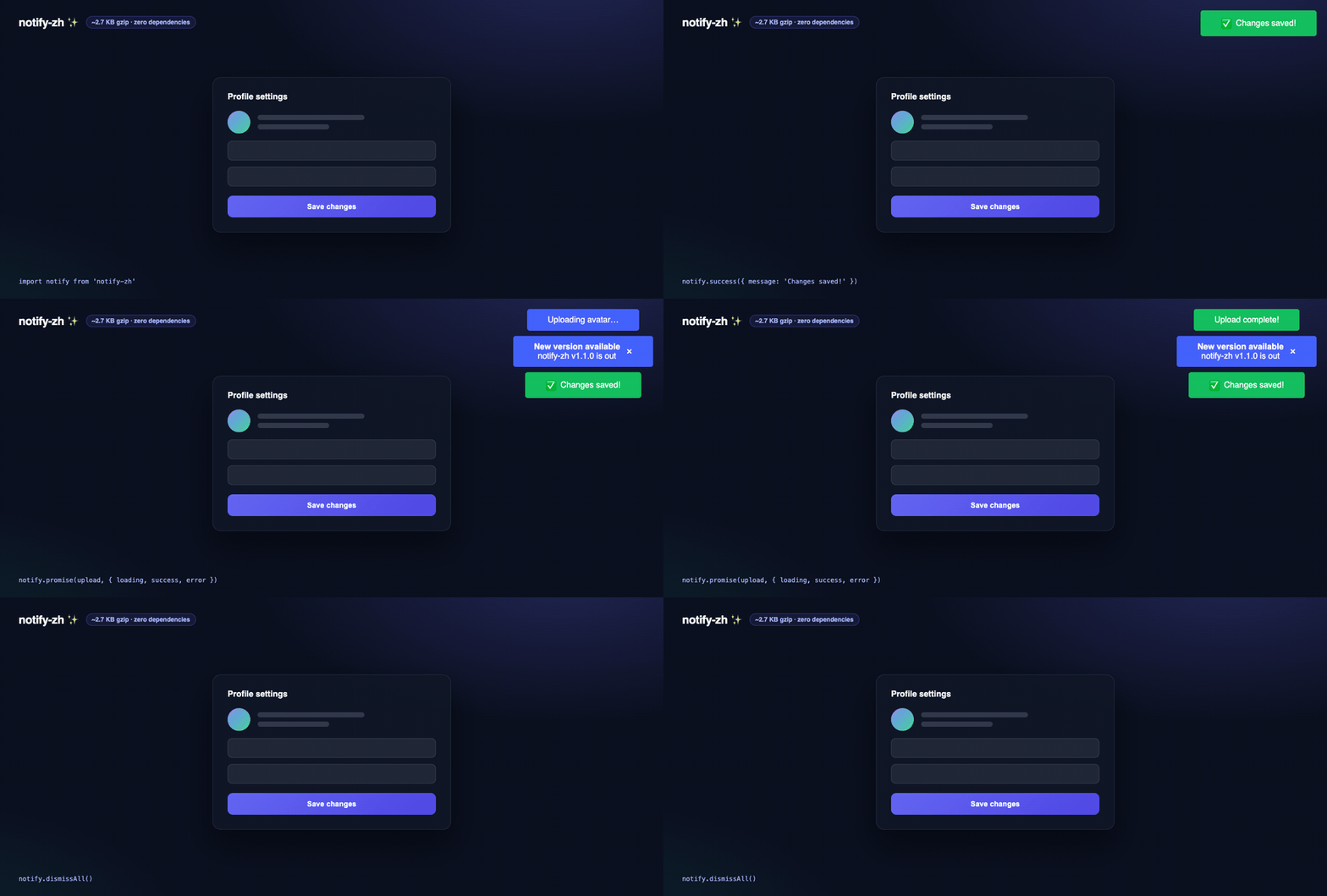
Toast notifications in ~2.7 KB gzipped, zero dependencies. One import that works identically in Vanilla JS, React, Next.js, Vue, Angular, and Svelte — no provider to mount, no CSS file to include, SSR-safe out of the box.
Website · Try it on StackBlitz · Changelog · Docs for AI
Table of contents
- Features
- Installation
- Usage
- Examples (StackBlitz)
- API Reference
- Styling & CSS frameworks
- Comparison
- FAQ
- TypeScript
- Docs for AI assistants
✨ Features
- 🚀 Extremely Lightweight: Tiny footprint (≈2.7 KB gzipped).
- 🤝 Promise API:
notify.promise()shows loading → success/error automatically. - ✅ Zero Dependencies: No external libraries needed.
- 🔧 Simple API: Get started in minutes with an intuitive API.
- 🎨 Highly Customizable: Use custom HTML icons and easily integrate with any CSS framework (Tailwind, Bootstrap, etc.) or your own styles by providing custom classes and disabling default styles.
- 🌐 Universal Compatibility: Works everywhere JavaScript runs in the browser, plus a CDN build for no-bundler setups.
- 🖥️ SSR-Safe: Calls are silent no-ops on the server — no
typeof windowguards needed in Next.js/Nuxt. - ♿ Accessible: Errors/warnings render with
role="alert", success/info withrole="status". - 🎯 TypeScript Ready: Written in TypeScript with types included.
- 🤖 AI-Friendly Docs: llms.txt and llms-full.txt for coding assistants.
📦 Installation
Install notify-zh using your favorite package manager:
npm install notify-zh
# or
yarn add notify-zh
Or use it directly from a CDN without any bundler (exposes window.notify):
<script src="https://unpkg.com/notify-zh"></script>
<script>
  notify.success({ message: 'Hello from the CDN!' })
</script>
🚀 Usage
notify-zh exports a single pre-initialized instance, ready to use immediately after import.
// Import the default instance
import notify from 'notify-zh'

// Basic usage anywhere in your client-side JavaScript code
notify.success({ message: 'Action completed!' })

notify.error({
  message: 'Something went wrong!',
  time: 5000 // Show for 5 seconds
})

// Using different positions
notify.info({
  message: 'Information message',
  position: 'top-right'
})

// With custom icon and title
notify.warning({
  message: 'Please check your input',
  title: 'Validation Warning',
  icon: { el: '⚠️' },
  position: 'bottom-left'
})

// Configure global settings
notify.config({
  defaultTime: 4000,
  position: 'top-right',
  backgrounds: {
    success: '#10B981',
    error: '#EF4444'
  }
})

// Track a promise: loading → success/error automatically
await notify.promise(saveUser(), {
  loading: 'Saving…',
  success: 'User saved!',
  error: (e) => `Failed: ${e.message}`
})

// Dismiss a specific notification by id
const id = notify.info({ message: 'Uploading…', time: Infinity })
notify.dismiss(id)

// Sticky notification with a close button
notify.warning({
  message: 'Session about to expire',
  time: Infinity,
  closable: true
})

// Dismiss everything currently on screen
notify.dismissAll()
Here are examples for different environments:
🍦 Vanilla JavaScript
<!DOCTYPE html>
<html>
<head>
    <title>Notify zh Demo</title>
    <script type="module">
        // Import directly from node_modules or your bundled assets
        import notify from './node_modules/notify-zh/dist/index.mjs'; // Adjust path as needed

        function showInfo() {
            notify.info({
                message: 'This is an informational message.',
                time: 5000 // Show for 5 seconds
            });
        }

        function setup() {
            const btn = document.getElementById('infoButton');
            if (btn) {
                btn.addEventListener('click', showInfo);
            }
        }
        document.addEventListener('DOMContentLoaded', setup);
    </script>
</head>
<body>
    <h1>Notify zh - Vanilla JS</h1>
    <button id="infoButton">Show Info Notification</button>
</body>
</html>
⚛️ React / Next.js
Works identically in React and Next.js (client-side components). Calls are SSR-safe no-ops on the server, so you don't need typeof window guards.
import React from 'react'
import notify from 'notify-zh'

function MyComponent() {
  const handleSuccess = () => {
    notify.success({
      message: 'Item added!',
      time: 2500,
      icon: { el: `<span style="margin-right: 8px;">✅</span>` }
    })
  }

  return (
    <div>
      <h2>React/Next.js Example</h2>
      <button onClick={handleSuccess}>Show Success</button>
    </div>
  )
}
export default MyComponent
💚 Vue.js
<template>
  <div>
    <h2>Vue Example</h2>
    <button @click="showWarning">Show Warning</button>
  </div>
</template>

<script>
import notify from 'notify-zh';

export default {
  name: 'VueNotifyExample',
  methods: {
    showWarning() {
      notify.warning({
        message: 'Please check the input fields.',
        time: 4000,
      });
    }
  }
}
</script>
🅰️ Angular
// my-component.component.ts
import { Component } from '@angular/core'
import notify from 'notify-zh' // Import the instance

@Component({
  selector: 'app-my-component',
  template: `
    <h2>Angular Example</h2>
    <button (click)="showInfo()">Show Info</button>
  `
})
export class MyComponent {
  showInfo() {
    notify.info({
      message: 'System maintenance upcoming.',
      time: 6000
    })
  }
}
🧪 Examples
Ready-to-run projects in examples/ — open them in your browser with one click:
| Framework | One click | Local |
|---|---|---|
| Vanilla JS | Open in StackBlitz | cd examples/vanilla && npm i && npm run dev |
| React | Open in StackBlitz | cd examples/react && npm i && npm run dev |
| Vue 3 | Open in StackBlitz | cd examples/vue && npm i && npm run dev |
| Svelte 5 | Open in StackBlitz | cd examples/svelte && npm i && npm run dev |
⚙️ API Reference
Methods
The imported Notify object provides the following methods:
notify.success(options)— green toast,role="status". Returns a numeric id.notify.error(options)— red toast,role="alert". Returns a numeric id.notify.warning(options)— orange toast,role="alert". Returns a numeric id.notify.info(options)— blue toast,role="status". Returns a numeric id.notify.promise(promise, messages, options?)— sticky loading toast, replaced by success/error when the promise settles. Returns the same promise.notify.dismiss(id)— dismiss one notification by its id (also removes queued ones).notify.dismissAll()— dismiss every visible notification and clear the queue.notify.config(config)— set global defaults (call once at startup).
notify.promise()
const user = await notify.promise(
  fetch('/api/user').then((r) => r.json()),
  {
    loading: 'Loading user…',
    success: (u) => `Welcome back, ${u.name}!`,
    error: (e) => `Could not load user: ${e.message}`
  },
  { position: 'top-right' } // optional: options applied to all three states
)
success and error accept either a plain string or a function that receives the resolved value / rejection reason. The promise is returned as-is, so awaiting it behaves exactly like awaiting the original — including rethrowing on failure.
Options (PropsOptions)
All notification methods accept an options object:
| Option | Type | Default | Description |
|---|---|---|---|
| message | string | — (required) | The text content. Rendered as plain text (XSS-safe). |
| time | number | 3000 | Duration in ms before auto-closing. Infinity = sticky (never auto-closes). |
| position | NotificationPosition | 'center-top' | Position where the notification appears. |
| icon.el | string | undefined | Optional HTML string for a custom icon element (emoji or inline SVG). Only pass trusted markup — it is injected as HTML. |
| title | string | undefined | Optional bold title rendered above the message. Rendered as plain text. |
| closable | boolean | false | Show an accessible close (×) button. Overrides the global closable config. |
Available Positions
The position option accepts the following values:
'top-left'- Top left corner'top-right'- Top right corner'bottom-left'- Bottom left corner'bottom-right'- Bottom right corner'center-top'- Top center (default)'center-bottom'- Bottom center'center'- Screen center
Configuration (notify.config(options))
Set global configuration options that apply to all subsequent notifications. Call this early in your application setup.
import notify from 'notify-zh';
notify.config({
defaultTime: 5000, // Default display time: 5 seconds
// --- For CSS Framework Integration ---
disableDefaultStyles: true, // Disable built-in CSS
classNames: { /_ ... see Styling section ... _/ }
});
The config method accepts an object (Partial
| Option | Type | Default | Description |
|---|---|---|---|
| defaultTime | number | 3000 | Default auto-close time in milliseconds. |
| position | NotificationPosition | 'center-top' | Default position for all notifications. |
| backgrounds | object | {} | Object to override default background colors per type (success, error, warning, info). Ignored if using classNames. |
| maxWidth | string | undefined | Maximum width for notifications. |
| width | string | undefined | Fixed width for notifications. |
| disableDefaultStyles | boolean | false | If true, prevents the library from injecting its default CSS. Essential for using custom framework classes. |
| classNames | object | {} | An object to provide custom CSS class names, replacing the library's defaults. See details below. |
| maxVisible | number | unlimited | Max notifications visible at once per position. Extra ones queue and appear as older ones close. |
| closable | boolean | false | Show a close (×) button on every notification. |
| pauseOnHover | boolean | true | Pause the auto-close timer while the pointer hovers a notification. |
Default Background Colors
The library comes with these default background colors:
{
  warning: '#F09200',  // Orange
  error: '#DE350B',    // Red
  success: '#13BF5F',  // Green
  info: '#4261fb'      // Blue
}
🎨 Styling & CSS Framework Integration
You have two main ways to style notifications:
-
Using Default Styles (Easiest)By default, notify-zh injects basic CSS for functional notifications with default colors and animations. You can slightly customize the background colors using notify.config({ backgrounds: { ... } }).
-
Using Custom Classes (Tailwind CSS, Bootstrap, etc.).
For complete control and integration with CSS frameworks:Disable Default Styles: Set
-
disableDefaultStyles: true in the config.
-
Provide Custom Classes: Use the classNames object in the config to map your framework's classes (or your own custom classes) to the notification elements.
-
notify.config({
  disableDefaultStyles: true, // REQUIRED for custom classes
  classNames: {
    // Class(es) for the base notification element (replaces .notifyCustom)
    base: 'p-4 mb-2 rounded-md shadow-lg text-white max-w-sm pointer-events-auto flex items-center',

    // Additional classes applied based on notification type
    success: 'bg-green-500', // Example: Tailwind success background
    error: 'bg-red-600', // Example: Tailwind error background
    warning: 'bg-yellow-500', // Example: Tailwind warning background
    info: 'bg-blue-500', // Example: Tailwind info background

    // Classes for animations (You'll need to define these animations in your CSS)
    animateIn: 'animate-fade-in', // Example: Your custom fade-in animation class
    animateOut: 'animate-fade-out' // Example: Your custom fade-out animation class
  }
})

// Example usage with Tailwind - Icon uses Tailwind classes too!
notify.success({
  message: 'Tailwind styled notification!',
  icon: {
    el: `<svg class="w-5 h-5 mr-2 text-white" fill="currentColor" viewBox="0 0 20 20"><path fill-rule="evenodd" d="M10 18a8 8 0 100-16 8 8 0 000 16zm3.707-9.293a1 1 0 00-1.414-1.414L9 10.586 7.707 9.293a1 1 0 00-1.414 1.414l2 2a1 1 0 001.414 0l4-4z" clip-rule="evenodd"></path></svg>`
  }
})
Key classNames Properties:
- base: Applied to every notification element.
- success, error, warning, info: Applied in addition to base based on the notification type. When one of these is set, the library skips its inline background color for that type so your class always wins.
- animateIn, animateOut: Applied during the show/hide animations.
⚖️ Comparison
How notify-zh compares to popular alternatives (facts as of v1.1.0; sizes change — check bundlephobia):
| notify-zh | react-hot-toast | sonner | Toastify JS | Notyf | |
|---|---|---|---|---|---|
| Works without React | ✅ | ❌ React only | ❌ React only | ✅ | ✅ |
| No component/provider to mount | ✅ | ❌ <Toaster /> |
❌ <Toaster /> |
✅ | ✅ |
| Zero dependencies | ✅ | ❌ | ✅ | ✅ | ✅ |
| Promise API (loading → result) | ✅ | ✅ | ✅ | ❌ | ❌ |
| Sticky + close button + hover pause | ✅ | ✅ | ✅ | partial | partial |
| Queue with visible cap | ✅ | ❌ | ❌ | ❌ | ❌ |
| SSR-safe without guards | ✅ | — | — | — | — |
| Size (min+gzip) | ~2.7 KB | see bundlephobia | see bundlephobia | see bundlephobia | see bundlephobia |
If you're all-in on React and want rich JSX toasts, sonner is excellent. If you want one tiny library that works in every project — including that legacy jQuery page and your Next.js app — that's what notify-zh is for.
❓ FAQ
The toast doesn't appear in Next.js/Nuxt — why?
Since v1.1.0 all calls are SSR-safe no-ops on the server, so nothing crashes — but a toast fired during server render never shows. Fire notifications from client-side events (clicks, effects), and in the App Router use 'use client' components.
Can a notification stay until the user closes it?
Yes: notify.warning({ message: '…', time: Infinity, closable: true }).
How do I use Tailwind/Bootstrap classes?
Set disableDefaultStyles: true and map your classes via classNames in notify.config() — see Styling. When a per-type class is set, the library skips its inline background so your class always wins.
Is icon.el safe?
message and title are always rendered as plain text (XSS-safe). Only icon.el is injected as HTML so you can pass inline SVG — never pass user-generated content to it.
Does it work with a strict CSP (no inline styles)?
The default styles are injected as a <style> tag, which requires style-src to allow it. With a strict CSP, set disableDefaultStyles: true and style toasts with your own stylesheet classes via classNames.
Why doesn't the toast auto-close while I hover it?
That's pauseOnHover (on by default) — the timer resumes when the pointer leaves. Disable with notify.config({ pauseOnHover: false }).
📘 TypeScript
All public types ship with the package:
import notify from 'notify-zh'
import type {
  PropsOptions,
  PropsConfig,
  PromiseMessages,
  NotificationPosition
} from 'notify-zh'
🤖 Docs for AI assistants
If you use Claude, Cursor, Copilot, or any other coding assistant, point it at:
- llms.txt — compact overview following the llms.txt spec
- llms-full.txt — the complete API reference in one plain-text file, ready to paste into a prompt or index as context
The repo also includes an AGENTS.md with instructions for AI agents contributing to the library itself.
Related Packages
Lightweight and customizable toast notifications for web applications.
Version History
| Version | Released | License |
|---|---|---|
| 1.1.0 | MIT | |
| 1.0.5 | MIT | |
| 1.0.4 | MIT | |
| 1.0.3 | MIT | |
| 1.0.2 | MIT | |
| 1.0.1 | MIT | |
| 1.0.0 | MIT | |
| 0.1.5 | MIT | |
| 0.1.4 | MIT | |
| 0.1.3 | MIT | |
| 0.1.2 | MIT | |
| 0.1.0 | MIT |