ai-suspended-ball-chat
AISuspendedBallChat(AI助手组件)
一个功能强大的AI聊天Vue3组件,支持流式响应、图片上传、语音播报、历史记录管理等功能。该AI组件可以作为悬浮球或独立面板使用。
⚠️使用场景注意: 当前是Vue3专用组件版本,如果您的业务是其他技术栈(例如React、Vue2、原生应用等),请使用 ai-chat-embed 版本→。
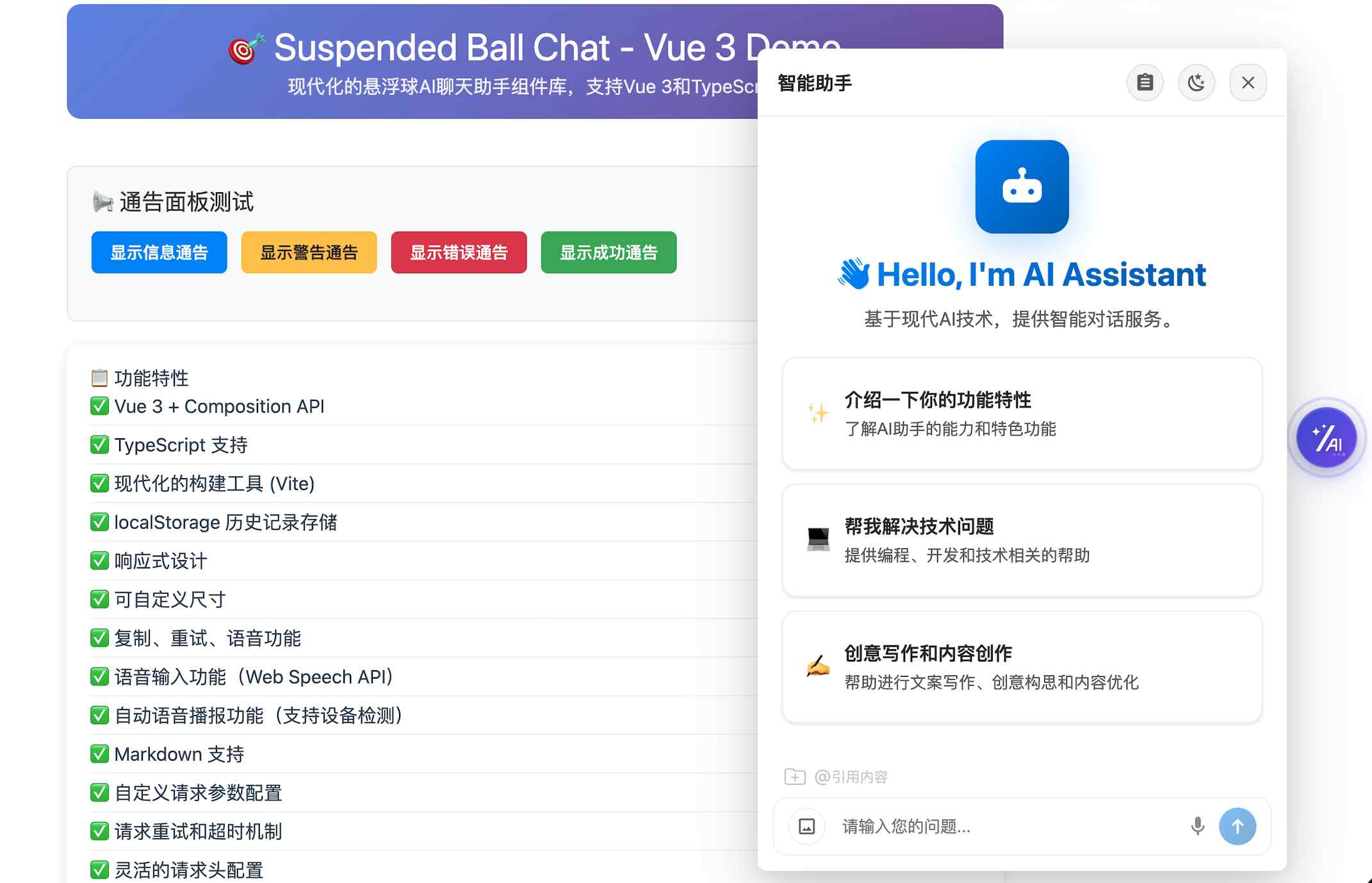
《组件落地场景体验1-AI简历助手》: 点击直达案例1🔗
《组件落地场景体验2-AI编程助手》: 点击直达案例2🔗
🔔 温馨提示: 如果您觉得阅读文档困难,也可以选择咨询在线AI助手: 🤖点击直达咨询→
✨ 特性
- 🤖 AI对话: 支持与AI进行自然语言对话
- 📡 多模式请求: 支持普通请求和流式(SSE)响应、WebSocket三种模式
- 🖼️ 图片上传: 支持图片上传和AI图像识别
- 🎤 语音输入: 支持语音转文字输入,便捷的语音交互
- 🔊 语音播报: 支持AI回复内容的语音播报
- 📝 获取AI消息: 支持将AI内容插入到用户的编辑器或其他应用
- 💾 历史记录: 本地存储对话历史,支持历史记录管理
- 🎨 主题切换: 支持白天/夜间模式切换
- 🔗 引用内容: 支持选择引用页面中(上传)的文本作为上下文
- 📱 自定义接口: 支持用户自定义后端接口
- 🔧 高度可配置: 丰富的配置选项和回调函数
- 🚀 TypeScript支持: 完整的TypeScript类型定义
- ☎️ 问题工单搜集: 支持搜集需人工处理的问题
- 📅 渲染自定义组件: 对话流中支持渲染自定义系列的组件(shoelace)
- 📊 ECharts 图表渲染: 支持在 Markdown 中使用 echarts 代码块渲染图表
- 🎛️ 更多抽屉: 支持自定义"更多"抽屉面板,可通过插槽渲染自定义内容
📦 安装
npm install ai-suspended-ball-chat
# 或
yarn add ai-suspended-ball-chat
# 或
pnpm add ai-suspended-ball-chat
🚀 快速开始
基础使用
流式响应模式
<template>
  <div id="app">
    <SuspendedBallChat
      :url="apiUrl"
      :app-name="appName"
      :domain-name="domainName"
      :enable-streaming="true"
      :enable-context="true"
      :enable-local-storage="true"
      :enable-voice-input="true"
      :callbacks="callbacks"
    />
  </div>
</template>

<script>
import { SuspendedBallChat } from 'ai-suspended-ball-chat'

export default {
  name: 'App',
  components: {
    SuspendedBallChat
  },
  data() {
    return {
      apiUrl: 'https://your-api-endpoint.com/chat',
      appName: 'my-app',
      domainName: 'user123',
      callbacks: {
        onUserMessage: (message) => {
          console.log('用户发送消息:', message)
        },
        onAssistantMessage: (message, res) => {
          console.log('AI回复:', message, res)
        },
        onError: (error) => {
          console.error('发生错误:', error)
        }
      }
    }
  }
}
</script>
普通请求模式
<template>
  <div id="app">
    <SuspendedBallChat
      :url="apiUrl"
      :app-name="appName"
      :domain-name="domainName"
      :enable-streaming="false"
      :enable-context="true"
      :enable-local-storage="true"
      :enable-voice-input="true"
      :callbacks="callbacks"
    />
  </div>
</template>

<script>
import { SuspendedBallChat } from 'ai-suspended-ball-chat'

export default {
  name: 'App',
  components: {
    SuspendedBallChat
  },
  data() {
    return {
      apiUrl: 'https://your-api-endpoint.com/chat',
      appName: 'my-app',
      domainName: 'user123',
      callbacks: {
        onUserMessage: (message) => {
          console.log('用户发送消息:', message)
        },
        onAssistantMessage: (message, res) => {
          console.log('AI回复:', message, res)
        },
        onError: (error) => {
          console.error('发生错误:', error)
        }
      }
    }
  }
}
</script>
使用ChatPanel组件
<template>
  <div>
    <ChatPanel
      :url="apiUrl"
      :app-name="appName"
      :domain-name="domainName"
      :enable-streaming="true"
      :enable-context="true"
      :callbacks="callbacks"
      @close="handleClose"
    />
  </div>
</template>

<script>
import { ChatPanel } from 'ai-suspended-ball-chat'

export default {
  name: 'App',
  components: {
    ChatPanel
  },
  data() {
    return {
      apiUrl: 'https://your-api-endpoint.com/chat',
      appName: 'my-app',
      domainName: 'user123',
      callbacks: {
        onUserMessage: (message) => {
          console.log('用户发送消息:', message)
        },
        onAssistantMessage: (message, res) => {
          console.log('AI回复:', message, res)
        },
        onError: (error) => {
          console.error('发生错误:', error)
        }
      }
    }
  },
  methods: {
    handleClose() {
      console.log('聊天面板已关闭')
    }
  }
}
</script>
使用Composition API
<template>
  <div id="app">
    <SuspendedBallChat
      :url="apiUrl"
      :app-name="appName"
      :domain-name="domainName"
      :enable-streaming="true"
      :enable-context="true"
      :enable-local-storage="true"
      :enable-voice-input="true"
      :callbacks="callbacks"
    />
  </div>
</template>

<script setup>
import { SuspendedBallChat } from 'ai-suspended-ball-chat'

const apiUrl = 'https://your-api-endpoint.com/chat'
const appName = 'my-app'
const domainName = 'user123'

const callbacks = {
  onUserMessage: (message) => {
    console.log('用户发送消息:', message)
  },
  onAssistantMessage: (message, res) => {
    console.log('AI回复:', message, res)
  },
  onError: (error) => {
    console.error('发生错误:', error)
  }
}
</script>
自定义图标
你可以通过 custom-icon-url 属性来自定义悬浮球的图标:
<template>
  <div id="app">
    <SuspendedBallChat
      :url="apiUrl"
      :app-name="appName"
      :domain-name="domainName"
      custom-icon-url="https://example.com/your-custom-icon.png"
      :enable-streaming="true"
      :enable-context="true"
      :enable-local-storage="true"
    />
  </div>
</template>

<script setup>
import { SuspendedBallChat } from 'ai-suspended-ball-chat'

const apiUrl = 'https://your-api-endpoint.com/chat'
const appName = 'my-app'
const domainName = 'user123'
</script>
注意事项:
- 支持PNG、JPG、SVG等常见图片格式
- 建议使用28x28像素或更大尺寸的图片
- 如果不提供
custom-icon-url,将使用默认的SVG图标 - 自定义图标会自动适应悬浮球的大小和样式
自定义AI助手头像
你可以通过 assistant-config 属性来自定义AI助手的头像:
<template>
  <div id="app">
    <SuspendedBallChat
      :url="apiUrl"
      :app-name="appName"
      :domain-name="domainName"
      :assistant-config="assistantConfig"
      :enable-streaming="true"
      :enable-context="true"
      :enable-local-storage="true"
    />
  </div>
</template>

<script setup>
import { SuspendedBallChat } from 'ai-suspended-ball-chat'

const apiUrl = 'https://your-api-endpoint.com/chat'
const appName = 'my-app'
const domainName = 'user123'

const assistantConfig = {
  avatar: 'https://example.com/assistant-avatar.png',
  name: '智能助手',
  description: '您的专属AI助手'
}
</script>
注意事项:
- 支持PNG、JPG、SVG等常见图片格式
- 建议使用32x32像素或更大尺寸的图片
- 如果不提供
assistant-config.avatar,将使用默认的SVG图标 - 自定义头像会自动适应头像容器的大小和样式
自定义"更多"抽屉
启用 show-more-button 后,点击头部"更多"按钮会从右侧滑出抽屉,内容通过 #more 插槽自定义:
<template>
  <SuspendedBallChat
    :show-more-button="true"
    more-drawer-title="更多"
  >
    <template #more="{ close }">
      <div style="padding: 20px;">
        <p>这里放你的自定义内容</p>
        <button @click="close">关闭</button>
      </div>
    </template>
  </SuspendedBallChat>
</template>
ChatPanel 组件用法相同。插槽参数 { close } 可用于关闭抽屉。
自定义聊天内容区插槽
ChatPanel、SuspendedBallChat 还支持在聊天内容区上下方注入自定义内容,适合补充公告、说明、快捷操作等能力。
<template>
  <ChatPanel :url="apiUrl" :app-name="appName" :domain-name="domainName">
    <template #chat-box-head="{ uiHistory, showWelcomeScreen, isStreaming }">
      <div>
        <p>顶部插槽示例</p>
        <span>消息数:{{ uiHistory.length }}</span>
      </div>
    </template>

    <template #chat-box-footer="{ uiHistory, showWelcomeScreen, isStreaming }">
      <div>
        <span>底部插槽示例:当前共 {{ uiHistory.length }} 条消息</span>
      </div>
    </template>
  </ChatPanel>
</template>
这两个插槽当前对外暴露的上下文为:
uiHistory:当前 UI 历史消息列表showWelcomeScreen:是否正在显示欢迎页isStreaming:是否正在流式输出
自定义欢迎区插槽
ChatPanel、SuspendedBallChat 还支持通过 #welcome 自定义欢迎区内容。一旦传入该插槽,就会覆盖默认欢迎内容,不再渲染组件内置的头像、标题、描述和默认任务布局。
<template>
  <ChatPanel
    :url="apiUrl"
    :app-name="appName"
    :domain-name="domainName"
    :welcome-config="welcomeConfig"
    :preset-tasks="presetTasks"
  >
    <template #welcome="{ title, welcomeConfig, presetTasks, onTaskClick }">
      <div>
        <h2>{{ welcomeConfig?.title || title }}</h2>
        <p>{{ welcomeConfig?.description }}</p>

        <button
          v-for="task in presetTasks"
          :key="task.id"
          @click="onTaskClick(task)"
        >
          {{ task.title }}
        </button>
      </div>
    </template>
  </ChatPanel>
</template>
该插槽当前对外暴露的上下文为:
welcomeConfig:欢迎区配置对象presetTasks:预设任务列表onTaskClick:触发预设任务点击的函数
📋 API 参考
SuspendedBallChat Props
| 属性名 | 类型 | 默认值 | 说明 |
|---|---|---|---|
url |
string |
'/nlweb/query' |
API接口地址 |
app-name |
string |
'ai-chat' |
应用名称 |
disable-input |
boolean |
'false' |
是否禁用输入框 |
custom-placeholder |
string |
'请输入你的问题...' |
输入框的placeholder |
show-task-running-box |
boolean |
false |
是否显示任务执行中提示框 |
task-running-text |
string |
'任务执行正在进行中' |
任务执行中提示文本 |
size |
'small' | 'medium' | 'large' |
'medium' |
聊天面板大小 |
location |
'left-top' | 'left-center' | 'left-bottom' | 'right-top' | 'right-center' | 'right-bottom' |
'right-center' |
悬浮球位置 |
custom-icon-url |
string |
- | 自定义悬浮球图标URL |
max-input-length |
number |
2000 |
用户输入最大字符数限制 |
enable-streaming |
boolean |
false |
是否启用流式响应 |
enable-context |
boolean |
true |
是否启用上下文记忆 |
allow-history-search |
boolean |
false |
是否启用记录搜索功能 |
enable-local-storage |
boolean |
true |
是否启用本地存储 |
domain-name |
string |
default |
用户域,可以关联用户id实现用户维度的区分 |
storage-key |
string |
'ai-chat-history' |
本地存储键名 |
max-history-count |
number |
50 |
最大历史记录数量(非alpha版本中这个值建议设置不大于200避免影响性能;alpha版本为虚拟化版本不受限制) |
context-history-count |
number |
10 |
作为上下文参与请求的历史消息条数(会自动向上取偶数;仅在 enable-context=true 时生效) |
enable-image-upload |
boolean |
false |
是否启用图片上传 |
enable-multi-image-upload |
boolean |
false |
是否启用多图上传能力,开启后最多支持上传3张图片 |
supported-custom-context |
boolean |
false |
否启用页面内容(文件内容)选择引用功能 |
enable-voice-input |
boolean |
false |
是否启用语音输入 |
enable-deep-thinking |
boolean |
false |
是否显示深度思考模式开关;开启后用户可在输入区切换该模式,发送请求时会影响请求参数中的 isThinkMode 值 |
custom-tools |
ChatInputCustomTool[] |
[] |
输入区顶部自定义工具配置;支持通过数组渲染自定义工具按钮,可选激活态,并可通过 clickCallback 响应点击事件 |
show-avatar |
boolean |
true |
是否显示聊天头像(移动端小屏幕会强制隐藏) |
align-user-messages-right |
boolean |
false |
是否将用户消息布局到右侧,开启后更接近传统聊天界面布局 |
enable-auto-speech |
boolean |
false |
是否启用AI助理完成输出后自动语音播报 |
title |
string |
'AI助手' |
聊天面板标题 |
show-header |
boolean |
true |
是否显示头部 |
show-close-button |
boolean |
true |
是否显示关闭按钮 |
show-clear-button |
boolean |
false |
是否显示清除按钮 |
show-theme-toggle |
boolean |
false |
是否显示白天/夜间模式切换按钮 |
show-feedback-button |
boolean |
false |
是否显示工单提交按钮 |
show-more-button |
boolean |
false |
是否显示"更多"按钮,点击后从右侧滑出抽屉面板 |
more-drawer-title |
string |
'更多' |
"更多"抽屉面板的标题 |
enable-fullscreen-toggle |
boolean |
false |
是否启用全屏切换功能(仅悬浮球模式下显示全屏切换按钮) |
welcome-config |
WelcomeConfig |
- | 欢迎界面配置 |
preset-tasks |
PresetTask[] |
- | 预设任务列表 |
assistant-config |
AssistantConfig |
- | AI助手配置 |
custom-request-config |
CustomRequestConfig |
- | 自定义请求配置 |
callbacks |
ChatCallbacks |
- | 回调函数 |
ChatPanel Props
| 属性名 | 类型 | 默认值 | 说明 |
|---|---|---|---|
url |
string |
'/nlweb/query' |
API接口地址 |
app-name |
string |
'ai-chat' |
应用名称 |
disable-input |
boolean |
'false' |
是否禁用输入框 |
custom-placeholder |
string |
'请输入你的问题...' |
自定义输入框的placeholder |
show-task-running-box |
boolean |
false |
是否显示任务执行中提示框 |
task-running-text |
string |
'任务执行正在进行中' |
任务执行中提示文本 |
max-input-length |
number |
2000 |
用户输入最大字符数限制 |
enable-streaming |
boolean |
false |
是否启用流式响应 |
enable-context |
boolean |
true |
是否启用上下文记忆 |
allow-history-search |
boolean |
false |
是否启用记录搜索功能 |
enable-local-storage |
boolean |
true |
是否启用本地存储 |
domain-name |
string |
default |
用户域,可以关联用户id实现用户维度的区分 |
storage-key |
string |
'ai-chat-history' |
本地存储键名 |
max-history-count |
number |
50 |
最大历史记录数量(非alpha版本中这个值建议设置不大于200避免影响性能;alpha版本为虚拟化版本不受限制) |
context-history-count |
number |
10 |
作为上下文参与请求的历史消息条数(会自动向上取偶数;仅在 enable-context=true 时生效) |
enable-image-upload |
boolean |
false |
是否启用图片上传 |
enable-multi-image-upload |
boolean |
false |
是否启用多图上传能力,开启后最多支持上传3张图片 |
supported-custom-context |
boolean |
false |
否启用页面内容(文件内容)选择引用功能 |
enable-voice-input |
boolean |
false |
是否启用语音输入 |
enable-deep-thinking |
boolean |
false |
是否显示深度思考模式开关;开启后用户可在输入区切换该模式,发送请求时会影响请求参数中的 isThinkMode 值 |
custom-tools |
ChatInputCustomTool[] |
[] |
输入区顶部自定义工具配置;支持通过数组渲染自定义工具按钮,可选激活态,并可通过 clickCallback 响应点击事件 |
show-avatar |
boolean |
true |
是否显示聊天头像(移动端小屏幕会强制隐藏) |
align-user-messages-right |
boolean |
false |
是否将用户消息布局到右侧,开启后更接近传统聊天界面布局 |
enable-auto-speech |
boolean |
false |
是否启用AI助理完成输出后自动语音播报 |
title |
string |
'AI助手' |
聊天面板标题 |
show-header |
boolean |
true |
是否显示头部 |
show-close-button |
boolean |
true |
是否显示关闭按钮 |
show-clear-button |
boolean |
false |
是否显示清除按钮 |
show-theme-toggle |
boolean |
false |
是否显示白天/夜间模式切换按钮 |
show-feedback-button |
boolean |
false |
是否显示工单提交按钮 |
show-more-button |
boolean |
false |
是否显示"更多"按钮,点击后从右侧滑出抽屉面板 |
more-drawer-title |
string |
'更多' |
"更多"抽屉面板的标题 |
welcome-config |
WelcomeConfig |
- | 欢迎界面配置 |
preset-tasks |
PresetTask[] |
- | 预设任务列表 |
assistant-config |
AssistantConfig |
- | AI助手配置 |
custom-request-config |
CustomRequestConfig |
- | 自定义请求配置 |
callbacks |
ChatCallbacks |
- | 回调函数 |
Events
| 事件名 | 参数 | 说明 |
|---|---|---|
close |
- | 聊天面板关闭时触发 |
Methods
SuspendedBallChat Methods
你可以通过
ref获取组件实例并调用以下方法(Vue 3script setup/ Options API 均可)。
| 方法名 | 参数 | 返回值 | 说明 |
|---|---|---|---|
sendMessage |
message: string |
- | 主动发起AI对话 |
getChatState |
- | ChatState |
获取聊天状态 |
clearHistory |
- | - | 清除对话历史 |
stopRequest |
- | - | 停止当前请求 |
isStreaming |
- | boolean |
检查是否正在流式响应 |
openPanel |
- | - | 打开聊天面板 |
closePanel |
- | boolean |
关闭聊天面板 |
isPanelVisible |
- | boolean |
检查面板是否可见 |
getUiHistory |
- | ChatMessage[] |
获取当前 UI 历史列表(内存快照) |
reloadUiHistory |
- | Promise<ChatMessage[]> |
从本地存储重载并返回最新 UI 历史列表 |
setUiHistory |
nextUiHistory: ChatMessage[] |
- | 主动设置 UI 历史列表(用于从后端注入历史,内部会进行必要校验;校验失败会提示且不会写入) |
ChatPanel Methods
| 方法名 | 参数 | 返回值 | 说明 |
|---|---|---|---|
sendMessage |
message: string |
- | 主动发起AI对话 |
getChatState |
- | ChatState |
获取聊天状态 |
clearHistory |
- | - | 清除对话历史 |
stopRequest |
- | - | 停止当前请求 |
isStreaming |
- | boolean |
检查是否正在流式响应 |
scrollToBottom |
- | - | 滚动到底部 |
getUiHistory |
- | ChatMessage[] |
获取当前 UI 历史列表(内存快照) |
reloadUiHistory |
- | Promise<ChatMessage[]> |
从本地存储重载并返回最新 UI 历史列表 |
setUiHistory |
nextUiHistory: ChatMessage[] |
- | 主动设置 UI 历史列表(用于从后端注入历史,内部会进行必要校验;校验失败会提示且不会写入) |
🔌 自定义后端接口需要返回数据格式
流式响应格式(Server-Sent Events)
响应头设置:
Content-Type: text/event-stream
Cache-Control: no-cache
Connection: close
Access-Control-Allow-Origin: *
数据格式:
每行返回一个JSON对象,以\n\n分隔
{"code": 0, "result": "Vue.js是一个用于构建", "is_end": false}
{"code": 0, "result": "用户界面的渐进式", "is_end": false}
{"code": 0, "result": "JavaScript框架。", "is_end": false}
{"code": 0, "result": "", "is_end": true}
字段说明:
| 字段 | 类型 | 说明 |
|---|---|---|
code |
number |
状态码,0表示成功 |
result |
string |
返回的文本内容片段 |
is_end |
boolean |
是否为最后一个数据块 |
📅 支持渲染一些自定义组件(Shoelace Components)
组件支持在 Markdown 中通过占位符语法渲染自定义组件(主要是shoelace库的组件)。后端在流式响应中下发组件配置,前端会把占位符替换成组件挂载点并渲染对应组件。
| 项目 | 位置 | 类型 | 说明 | |
|---|---|---|---|---|
| 占位符语法 | Markdown 文本 | [[~n]] |
n 为数字编号,例如 [[~1]]、[[~2]]、[[~3]]。 |
|
| 组件数据块标识 | SSE 单个 JSON 数据块 | type: "custom-component" |
表示本块用于描述自定义组件(不可更改)。 | |
| 组件渲染位置 | SSE 单个 JSON 数据块 | result: "[[~n]]" |
需要与 Markdown 中的占位符编号一致,用于绑定组件数据与挂载位置。 | |
| 组件配置 | SSE 单个 JSON 数据块 | props: object |
组件工厂消费的配置对象。props.type 决定渲染哪种组件。props.data 是不同组件需要的数据(其中 data.id? 可用于区分不同组件实例),具体参考下面案例说明。 |
内置组件类型(props.type):
| props.type | 组件 | data 关键字段 | 说明 |
|---|---|---|---|
card |
DefaultCard | id?、title、 description、 imageUrl 、jumpLink |
默认卡片组件(支持点击跳转)。 |
sl-card |
ShoelaceCard | id?、title、 description 、imageUrl 、jumpLink、buttonText?、buttonLink? |
基于 Shoelace 的卡片组件(支持点击跳转,支持底部按钮独立跳转) |
sl-gallery |
ShoelaceGallery | id?、images: {src, alt?, jumpUrl?}[] |
基于 Shoelace 的轮播组件(支持点击跳转)。 |
sl-qr-code |
ShoelaceQrCode | id?、qrCodeUrl、 errorCorrection? 、size? |
基于 Shoelace 的二维码组件。 |
sl-image-comparer |
ShoelaceImageComparer | id?、before: {src, alt?}、after: {src, alt?} |
基于 Shoelace 的图片对比组件。 |
sl-card-group |
ShoelaceCardGroup | id?、items: {imageUrl?, videoUrl?, title?, description?, jumpLink?}[] |
基于 Shoelace 的横向媒体卡片组(图片/视频自适应宽度,支持点击跳转)。 |
select-list-card |
SelectListCard | id?、title?、multiple?、confirmText?、options: {label, value, disabled?}[] |
可选择列表项组件(支持单选/多选),点击确认后会派发全局事件供业务层消费。 |
input-form-card |
InputFormCard | id?、title?、placeholder?、submitText?、required?、requiredMessage?、clearAfterSubmit? |
输入表单组件,支持必填校验,提交后会派发全局事件供业务层消费。 |
sources-card |
SourcesCard | id?、title?、defaultExpanded?、items: {title?, url?, icon?}[] |
来源列表组件,默认折叠/展开来源条目,支持文本链接跳转,适合知识库来源、引用来源等场景。 |
thinking-card |
ThinkingCard | id?、title?、status?(running/done)、content? |
思考过程组件。流式过程中显示 loading 且不可展开,完成后显示完成图标并支持展开/收起。 |
tool-call |
ToolCallCard | id?、name?、status?(running/done)、content?、icon? |
工具调用组件。流式过程中不可展开,完成后支持查看工具调用结果。 |
| 持续增加中... | 持续增加中.. | 持续增加中.. | 持续增加中... |
如果你不了解shoelace组件库的功能可以前往官网体验: shoelace组件官网:https://shoelace.style
流式请求模式下的渲染自定义组件的数据块示例:
// card组件的数据块示例
{
  "code": 0,
  "result": "[[~1]]",// 固定格式,其中的数字可以更改
  "type": "custom-component", // 固定值,不可更改
  "props": {
    "type": "card",
    "data": {
      "id": "1",
      "title": "自定义组件测试",
      "description": "...",
      "jumpLink": "https://www.example.com",
      "imageUrl": "https://picsum.photos/id/1016/800/520"
    }
  }
}

// sl-card组件的数据块示例

{
  "code": 0,
  "result": "[[~2]]",// 固定格式,其中的数字可以更改
  "type": "custom-component", // 固定值,不可更改
  "props": {
    "type": "sl-card",
    "data": {
      "id": "2",
      "title": "自定义-ShoelaceCard组件",
      "description": "...",
      "jumpLink": "https://www.example.com",
      "buttonText": "点击按钮",
      "buttonLink": "https://www.baidu.com",
      "imageUrl": "https://picsum.photos/id/1016/800/520"
    }
  }
}


// sl-gallery组件的数据块示例

{
  "code": 0,
  "result": "[[~3]]", // 固定格式,其中的数字可以更改
  "type": "custom-component", // 固定值,不可更改
  "props": {
    "type": "sl-gallery",
    "data": {
      "id": "3",
      "images": [
        {
          "src": "https://picsum.photos/id/1015/800/520",
          "alt": "mountains",
          "jumpUrl": "https://www.baidu.com"
        },
        {
          "src": "https://picsum.photos/id/1016/800/520",
          "alt": "waterfall",
          "jumpUrl": "https://www.baidu.com"
        },
        {
          "src": "https://picsum.photos/id/1018/800/520",
          "alt": "sunset"
        }
      ]
    }
  }
}

// sl-qr-code组件的数据块示例

{
  "code": 0,
  "result": "[[~6]]", // 固定格式,其中的数字可以更改
  "type": "custom-component", // 固定值,不可更改
  "props": {
    "type": "sl-qr-code", // 组件类型
    "data": {
      "id": "6",
      "title": "自定义-ShoelaceQrCode组件", // 组件标题
      "qrCodeUrl": "https://www.baidu.com",// 二维码内容
      "errorCorrection": "M",// 容错率:L/M/H/Q
      "size": 200,// 二维码大小
    }
  }
},


// sl-image-comparer组件的数据块示例

{
  "code": 0,
  "result": "[[~7]]", // 固定格式,其中的数字可以更改
  "type": "custom-component", // 固定值,不可更改
  "props": {
    "type": "sl-image-comparer", // 组件类型
    "data": {
      "id": "7",
      "before": {
        "src": "https://images.unsplash.com/photo-1517331156700-3c241d2b4d83?ixlib=rb-1.2.1&ixid=eyJhcHBfaWQiOjEyMDd9&auto=format&fit=crop&w=800&q=80&sat=-100&bri=-5",
        "alt": "Grayscale version of kittens in a basket looking around."
      },
      "after": {
        "src": "https://images.unsplash.com/photo-1517331156700-3c241d2b4d83?ixlib=rb-1.2.1&ixid=eyJhcHBfaWQiOjEyMDd9&auto=format&fit=crop&w=800&q=80",
        "alt": "Color version of kittens in a basket looking around."
      }
    }
  }
},


// sl-card-group组件的数据块示例

{
  "code": 0,
  "result": "[[~8]]", // 固定格式,其中的数字可以更改
  "type": "custom-component", // 固定值,不可更改
  "props": {
    "type": "sl-card-group", // 组件类型
    "data": {
      "id": "8",
      "items": [
        {
          "imageUrl": "https://picsum.photos/id/1011/360/520",
          "title": "色拉寺的辩经很有意思,但标题太长需要省略显示",
          "description": "这里是描述,超过一行时应该出现省略号。",
          "jumpLink": "https://www.example.com"
        },
        {
          "imageUrl": "https://picsum.photos/id/1025/420/520",
          "title": "带你了解:色拉寺的辩经与流派文化",
          "description": "点击卡片会跳转到 jumpLink;如果没给 jumpLink,则会打开媒体地址。",
          "jumpLink": "https://www.baidu.com"
        },
        {
          "videoUrl": "https://interactive-examples.mdn.mozilla.net/media/cc0-videos/flower.mp4",
          "title": "远看像:短视频卡片(videoUrl 优先)",
          "description": "这是一个视频示例(muted/playsinline/autoplay/loop),用于测试宽度由媒体撑开。",
          "jumpLink": "https://developer.mozilla.org/"
        }
      ]
    }
  }
},

// select-list-card 组件的数据块示例
{
  "code": 0,
  "result": "[[~9]]", // 固定格式,其中的数字可以更改
  "type": "custom-component",// 固定值,不可更改
  "props": {
    "type": "select-list-card",// 组件类型
    "data": {
      "id": "9",
      "title": "可选择列表项(单选)",
      "multiple": false, // 是否是多选
      "confirmText": "确认选择",
      "options": [
        { "label": "选项 A", "value": "A" },
        { "label": "选项 B", "value": "B" },
        { "label": "选项 C(禁用)", "value": "C", "disabled": true },
        { "label": "选项 D", "value": "D" }
      ]
    }
  }
},

// input-form-card 组件的数据块示例
{
  "code": 0,
  "result": "[[~11]]", // 固定格式,其中的数字可以更改
  "type": "custom-component",// 固定值,不可更改
  "props": {
    "type": "input-form-card",// 组件类型
    "data": {
      "id": "11",
      "title": "请输入你的姓名:",
      "placeholder": "输入框",
      "submitText": "提交按钮",
      "required": true, // 是否是必须的
      "requiredMessage": "姓名不能为空",
      "clearAfterSubmit": false // 是否在提交后清空输入内容
    }
  }
},

// sources-card 组件的数据块示例
{
  "code": 0,
  "result": "[[~12]]", // 固定格式,其中的数字可以更改
  "type": "custom-component",// 固定值,不可更改
  "props": {
    "type": "sources-card",// 组件类型
    "data": {
      "id": "12",
      "title": "Used 3 sources",
      "defaultExpanded": false,
      "items": [
        {
          "title": "Data source from twitter",
          "url": "https://x.ant.design/components/overview",
          "icon": "📧"
        },
        {
          "title": "Data source from youtube",
          "url": "https://x.ant.design/components/overview",
          "icon": "https://cdn.simpleicons.org/youtube/FF0000"
        },
        {
          "title": "Data source from github",
          "url": "https://x.ant.design/components/overview",
          "icon": "⏰"
        }
      ]
    }
  }
},

// tool-call 组件的数据块示例
{
  "code": 0,
  "result": "[[~100]]", // 首次创建时使用占位符
  "type": "custom-component",
  "props": {
    "type": "tool-call",
    "data": {
      "id": "100",
      "name": "daily_news",
      "status": "running",
      "content": "正在调用 daily_news 接口..."
    }
  }
},

// tool-call 组件完成后原位更新
{
  "code": 0,
  "result": "", // 更新事件不要再次携带占位符
  "type": "custom-component",
  "props": {
    "type": "tool-call",
    "update": true,
    "ccIndex": "100",
    "data": {
      "id": "100",
      "name": "daily_news",
      "status": "done",
      "content": "调用成功,取回 5 条热点"
    }
  }
},

// thinking-card 组件的数据块示例
{
  "code": 0,
  "result": "[[~90]]", // 首次创建时使用占位符
  "type": "custom-component",
  "props": {
    "type": "thinking-card",
    "data": {
      "id": "90",
      "title": "深度思考中",
      "status": "running",
      "content": ""
    }
  }
},

// thinking-card 组件流式更新思考内容
{
  "code": 0,
  "result": "", // 更新事件使用 ccIndex 指定原组件
  "type": "custom-component",
  "props": {
    "type": "thinking-card",
    "update": true,
    "ccIndex": "90",
    "data": {
      "id": "90",
      "title": "深度思考中",
      "status": "running",
      "content": "正在分析用户问题..."
    }
  }
},

// thinking-card 组件完成更新
{
  "code": 0,
  "result": "",
  "type": "custom-component",
  "props": {
    "type": "thinking-card",
    "update": true,
    "ccIndex": "90",
    "data": {
      "id": "90",
      "title": "深度思考过程",
      "status": "done",
      "content": "已完成问题分析。"
    }
  }
},
📣 业务层如何接收 SelectListCard / InputFormCard 的提交结果
这类自定义组件是在 Markdown 渲染阶段动态挂载的(不是你模板里手写的组件标签)。因此业务层建议通过全局事件接收交互结果。
SelectListCard 确认选择事件:
- 事件名:
cc-select-list-confirm detail结构:{ id?: any; selected: any; data: any }
InputFormCard 表单提交事件:
- 事件名:
cc-input-form-submit detail结构:{ id?: any; value: string; data: any }
// 业务层监听(示例)
window.addEventListener('cc-select-list-confirm', (e) => {
  const { id, selected, data } = e.detail || {}
  console.log('[SelectListCard] 确认选择:', { id, selected, data })
})

window.addEventListener('cc-input-form-submit', (e) => {
  const { id, value, data } = e.detail || {}
  console.log('[InputFormCard] 表单提交:', { id, value, data })
})
普通请求模式(非流式)同样支持自定义组件:后端在 JSON 响应中可选返回
result.customComponents(key 为编号n),前端会自动写入消息并渲染 Markdown 中的[[~n]]。
普通 JSON 响应示例(可选 customComponents):
{
  "code": 0,
  "result": {
    "answer": "这里是正文... [[~1]] ... [[~2]]",
    "customComponents": {
      "1": {
        "type": "card",
        "data": {
          "id": "1",
          "title": "自定义-卡片组件",
          "description": "...",
          "jumpLink": "https://www.example.com",
          "imageUrl": "https://picsum.photos/id/1016/800/520"
        }
      },
      "2": {
        "type": "sl-card",
        "data": {
          "id": "2",
          "title": "自定义-ShoelaceCard组件",
          "description": "...",
          "jumpLink": "https://www.example.com",
          "buttonText": "点击按钮",
          "buttonLink": "https://www.baidu.com",
          "imageUrl": "https://picsum.photos/id/1016/800/520"
        }
      }
    }
  }
}
🍡 完整的node后端流式响应示例:
// node后端流式响应示例
let mockDataArr = [
  // 思考过程(组件协议):[[~90]] 占位符渲染 thinking-card,内容和状态通过 update+ccIndex 原位更新
  { "code": 0, "result": "[[~90]]", "type": "custom-component",
    "props": { "type": "thinking-card", "data": { "id": "90", "status": "running", "title": "深度思考中", "content": "" } } },
  { "code": 0, "result": "", "type": "custom-component",
    "props": { "type": "thinking-card", "update": true, "ccIndex": "90", "data": { "id": "90", "status": "running", "title": "深度思考中", "content": "好的,因为用户输入太简短,无法确定具体需求。" } } },
  { "code": 0, "result": "", "type": "custom-component",
    "props": { "type": "thinking-card", "update": true, "ccIndex": "90", "data": { "id": "90", "status": "done", "title": "深度思考过程", "content": "好的,因为用户输入太简短,无法确定具体需求。直接回复请求更多信息即可。" } } },
  // 工具调用(新协议):[[~100]] 占位符渲染 tool-call 组件,running→done 通过 update+ccIndex 同位更新
  { "code": 0, "result": "[[~100]]", "type": "custom-component",
    "props": { "type": "tool-call", "data": { "id": "100", "name": "daily_news", "status": "running", "content": "正在调用 daily_news 接口...\n参数: { date: \"2026-09-04\" }" } } },
  { "code": 0, "result": "", "type": "custom-component",
    "props": { "type": "tool-call", "update": true, "ccIndex": "100", "data": { "id": "100", "name": "daily_news", "status": "done", "content": "调用成功,取回 5 条热点:\n1. 习近平出席2026年上合组织峰会\n2. 9月3日纪念抗战胜利81周年\n3. 《医疗保障法》将于2027年1月1日施行\n4. 前7月规模以上工业企业利润同比增长17.6%\n5. 国家为13周岁女孩免费补种HPV疫苗" } } },
  // 正式内容
  {"code": 0, "result": "# Vue.js特点介绍\n\n", "is_end": false},
  {"code": 0, "result": "## 1. 渐进式框架\n", "is_end": false},
  {"code": 0, "result": "Vue.js采用渐进式设计,", "is_end": false},
  {"code": 0, "result": "可以逐步集成到现有项目中。\n\n", "is_end": false},
  {"code": 0, "result": "## 2. 响应式数据绑定\n", "is_end": false},
  {"code": 0, "result": "数据变化时自动更新DOM,", "is_end": false},
  {"code": 0, "result": "无需手动操作。\n\n", "is_end": false},
  {"code": 0, "result": "```javascript\n", "is_end": false},
  {"code": 0, "result": "// Vue响应式示例\n", "is_end": false},
  {"code": 0, "result": "data() {\n  return {\n", "is_end": false},
  {"code": 0, "result": "    message: 'Hello Vue!'\n", "is_end": false},
  {"code": 0, "result": "  }\n}\n```\n\n", "is_end": false},
  // 特殊片段1: 这是一个渲染自定义DefaultCard组件的片段
  // { code: 0,
  //   result: "[[~1]]",
  //   type: "custom-component",
  //   props: {
  //     type: 'card',
  //     name: "TestComponent",
  //     data: {
  //     id: "1",
  //     title: "自定义-卡片组件",
  //     description: "这是一个模拟的自定义组件数据块,用于测试前端的组件渲染能力。",
  //     jumpLink: "https://www.example.com",
  //     imageUrl: "https://picsum.photos/id/1016/800/520",
  //     }
  //   }
  // },
  {"code": 0, "result": "以上就是Vue.js的主要特点。", "is_end": false},
  {"code": 0, "result": "", "is_end": true}
]

// 流式响应示例
res.writeHead(200, {
  'Content-Type': 'text/event-stream',
  'Cache-Control': 'no-cache',
  'Connection': 'close',
  'Access-Control-Allow-Origin': '*'
})

mockDataArr.forEach((data, index) => {
  // 注意:每行返回一个JSON对象,以'\n\n'分隔
  res.write(JSON.stringify(data) +'\n\n');
  if (index === mockDataArr.length - 1) {
    res.end()
  }
})
WebSocket 流式响应兼容格式
组件当前会自动识别 ws:// / wss://,并兼容以下两类 WebSocket 分片格式:
1. 兼容原有流式格式
{"code": 0, "result": "# Vue.js特点介绍\n\n", "is_end": false}
{"code": 0, "result": "以上就是Vue.js的主要特点。", "is_end": false}
{"code": 0, "result": "", "is_end": true}
说明:这类格式与原有 SSE/流式分片定义保持一致,result 为字符串分片,is_end 为结束标识。
2. 更常见的业务型 WebSocket 协议
{"code": 0, "type": "token", "data": {"content": "# Vue.js特点介绍\n\n"}, "is_end": false}
{"code": 0, "type": "token", "data": {"content": "以上就是Vue.js的主要特点。"}, "is_end": false}
{"code": 0, "type": "finish", "data": {"content": "# Vue.js特点介绍\n\n以上就是Vue.js的主要特点。"}, "is_end": true}
说明:对于 type: "token" / "finish" 这类消息,前端会优先读取 data.content;同时也兼容 data.text、data.delta、result.answer、result 等字段。
3. WebSocket 自定义组件片段
如果需要在 WebSocket 流式返回中插入自定义组件,也兼容以下形式:
{
  "code": 0,
  "type": "finish",
  "data": {
    "content": "这里是正文... [[~1]]",
    "customComponents": {
      "1": {
        "type": "card",
        "data": {
          "id": "1",
          "title": "自定义-卡片组件",
          "description": "这是一个模拟的自定义组件数据块,用于测试前端的组件渲染能力。",
          "jumpLink": "https://www.example.com",
          "imageUrl": "https://picsum.photos/id/1016/800/520"
        }
      }
    }
  },
  "is_end": true
}
==温馨提示:==
如果你不知道如何实现一个后端AI Agent的接口,可以使用下面这个现成的Node版本“Agent脚手架”: https://github.com/mingle98/AI-Agent-Node
普通响应格式(JSON)
成功响应:
{
  "code": 0,
  "result": {
    "answer": "Vue.js是一个用于构建用户界面的渐进式JavaScript框架。它具有以下特点:\n\n1. **渐进式框架**:可以逐步采用\n2. **响应式数据绑定**:数据变化自动更新视图\n3. **组件化开发**:提高代码复用性\n4. **虚拟DOM**:提升性能\n5. **易学易用**:学习成本低"
  }
}
错误响应格式
错误响应统一格式:
{
  "code": 1,
  "message": "错误描述",
  "error": "详细错误信息"
}
常见错误码:
| 错误码 | 说明 |
|---|---|
0 |
成功 |
1 |
参数错误 |
2 |
认证失败 |
3 |
服务限流 |
4 |
服务异常 |
5 |
上下文过长 |
错误响应示例:
{
  "code": 1,
  "message": "参数错误",
  "error": "query参数不能为空"
}
{
  "code": 4,
  "message": "服务异常",
  "error": "AI服务暂时不可用,请稍后重试"
}
🔌 使用官方免费提供的AI接口
如果你不希望自己去实现这个接口,您也可以选择官方免费提供的API接口
接口文档:https://luckycola.com.cn/public/docs/shares/sdk/ai-assistant.html
<SuspendedBallChat
  :app-name="appName"
  :domain-name="domainName"
  :enable-streaming="true"
  :enable-context="true"
  :enable-local-storage="true"
  :callbacks="callbacks"
  url="https://luckycola.com.cn/aiTools/openAiAssistant"
  :custom-request-config="{
    headers: {
      'X-Custom-Header': 'custom-value',
    },
    customParams: {
      // 自定义的系统提示词
      systemPrompt: '你是一位精通各种编程语言的高级工程师,可以帮我用户解答各种编程问题.',
      // 官网(luckycola.com.cn)[用户中心]获取的AppKey
      appKey: '643d*********a',
      // 接口是否使用普通请求模式(非流式)
      jsonMode: false,
    },
    requestParamProcessor: (baseParams, customParams) => {
      // ...
    }
    // ...组件其他详细配置请查看组件文档:https://www.npmjs.com/package/ai-suspended-ball-chat
/>
🔧 高级配置
悬浮球全屏模式配置
悬浮球模式支持通过配置开启“全屏”按钮。开启后,在桌面端打开悬浮聊天面板时,头部会出现全屏切换按钮;点击后会进入全屏覆盖层模式,使用白色页面覆盖底层内容,并以固定宽度内容区居中展示。
注意:
- 该功能默认关闭
- 仅
SuspendedBallChat组件支持该入口,ChatPanel独立模式不会显示该按钮- 移动端/小屏幕(宽度
<= 768px)不显示该按钮- 当 AI 正在流式回复时,该按钮会自动禁用,避免切换布局影响交互
<template>
  <SuspendedBallChat
    :url="apiUrl"
    :app-name="appName"
    :domain-name="domainName"
    :enable-streaming="true"
    :enable-fullscreen-toggle="true"
  />
</template>
配置项
| 配置项 | 类型 | 默认值 | 说明 |
|---|---|---|---|
enableFullscreenToggle |
boolean |
false |
是否开启悬浮球聊天面板的全屏切换按钮 |
行为说明
- 打开悬浮球聊天面板后,若配置开启且当前不是小屏设备,则头部显示全屏按钮
- 点击后进入全屏覆盖层模式,聊天区域会在页面中居中展示
- 退出全屏后恢复悬浮球面板布局
自定义请求配置
const customRequestConfig = {
  headers: {
    'Authorization': 'Bearer your-token',
    'Content-Type': 'application/json'
  },
  timeout: 30000,
  retryCount: 3,
  retryDelay: 1000
}
欢迎界面配置
const welcomeConfig = {
  title: '欢迎使用AI助手',
  description: '我是您的智能助手,有什么可以帮助您的吗?',
  avatar: 'https://example.com/avatar.png'
}
获取/设置历史列表数据
getUiHistory():获取当前内存中的 UI 历史列表快照reloadUiHistory():从本地存储重载后,返回最新 UI 历史列表setUiHistory(nextUiHistory):业务方从后端获取历史列表后,主动注入到组件中渲染(会做必要格式校验;校验失败会console.error+alert,并拒绝写入)
import { ref } from 'vue'
import type { SuspendedBallChatInstance, ChatMessage } from 'ai-suspended-ball-chat'

const chatRef = ref<SuspendedBallChatInstance>()

const onGet = () => {
  const list = chatRef.value?.getUiHistory() || []
  console.log('uiHistory:', list)
}

const onReload = async () => {
  const list = (await chatRef.value?.reloadUiHistory()) || []
  console.log('uiHistory (reloaded):', list)
}

// 从后端拿到历史后注入
const onSetFromServer = (serverList: ChatMessage[]) => {
  const serverUiHistory: any[] = [
    {
      id: 1,
      role: 'assistant',
      content: '(模拟后端历史)你好,我是服务端下发的第一条消息',
      timestamp: Date.now() - 60_000
    },
    {
      id: 2,
      role: 'user',
      content: '(模拟后端历史)收到,我来继续对话',
      timestamp: Date.now() - 55_000
    },
    {
      id: 3,
      role: 'assistant',
      content: '(模拟后端历史)已注入成功,你可以继续发送新消息',
      timestamp: Date.now() - 50_000
    },
  ]
  chatRef.value?.setUiHistory(serverUiHistory)
}
否启用页面内容(文件内容)选择引用功能
<SuspendedBallChat
  :supported-custom-context="true"
/>
自定义工具 custom-tools 配置示例
适用于在输入区顶部扩展业务工具按钮,例如“联网搜索”“插入模板”“生成周报”等。支持普通点击按钮和可激活按钮两种模式。
<template>
  <SuspendedBallChat
    :custom-tools="customTools"
  />
</template>

<script setup>
import { ref } from 'vue'

const chatRef = ref()

const customTools = [
  {
    id: 'tool-network-search',
    toolName: '联网搜索',
    icon: 'https://example.com/icons/network-search.png',
    enableActive: true,
    clickCallback: ({ id, toolName, icon, active, enableActive }) => {
      console.log('自定义工具点击:', { id, toolName, icon, active, enableActive })
      chatRef.value?.sendMessage('请使用联网搜索能力,帮我检索并总结今天 AI 领域的 3 条重要资讯。')
    }
  },
  {
    id: 'tool-meeting-template',
    toolName: '会议模板',
    icon: 'https://example.com/icons/template.png',
    enableActive: false,
    clickCallback: ({ id, toolName, icon, active, enableActive }) => {
      console.log('自定义工具点击:', { id, toolName, icon, active, enableActive })
      chatRef.value?.sendMessage('请帮我生成一个会议纪要模板,包含会议主题、参会人、待办事项和风险项。')
    }
  }
]
</script>
字段说明:
id:工具唯一标识toolName:按钮文案icon:可选,按钮图标 URLenableActive:是否支持激活态;为true时点击会切换激活/非激活样式clickCallback:点击回调,可在这里执行发送消息、切换业务状态等操作
建议:
- 需要“模式开关类”能力时,使用
enableActive: true - 需要“快捷指令类”能力时,使用
enableActive: false
AI助手配置
const assistantConfig = {
  avatar: 'https://example.com/assistant-avatar.png',
  name: '智能助手',
  description: '您的专属AI助手'
}
预设任务配置
const presetTasks = [
  {
    icon: '💡',
    title: '创意写作',
    description: '帮助您进行创意写作和内容创作'
  },
  {
    icon: '📊',
    title: '数据分析',
    description: '协助您进行数据分析和可视化'
  },
  {
    icon: '🔧',
    title: '技术支持',
    description: '提供技术问题和编程帮助'
  }
]
消息插入功能使用示例
新增的"获取AI消息"功能允许用户将AI回复的内容直接插入到其他应用或编辑器中,这在代码编辑器、文档编辑等场景中非常有用。
启用插入功能:
<SuspendedBallChat
  :enable-insert-message="true"
  :callbacks="callbacks"
/>
注意: enable-insert-message 默认为 false,需要显式设置为 true 才能显示插入按钮。
// 示例:将AI回复插入到代码编辑器
const callbacks = {
  clickAssistantMsgCallback: (message, index, messageObj) => {
    console.log('插入内容:', { message, index, messageObj })
    // 这里可以将消息内容插入到用户的编辑器或其他地方
    console.log(`准备插入内容: ${message.substring(0, 100)}...`)
    // 去掉思考过程和布局调用提示的内容
    let filterContent = message.replace(/<details[\s\S]*?<\/details>/g, '').replace(/<div\s+data-tool[\s\S]*?<\/div>/g, '');
    console.log(`准备插入内容(过滤版本): ${filterContent.substring(0, 100)}...`)
  }
}
回调函数配置
const callbacks = {
  // 用户发送消息时触发
  onUserMessage: (message) => {
    console.log('用户消息:', message)
  },

  // AI回复时触发
  onAssistantMessage: (message, res) => {
    console.log('AI回复:', message, res)
  },

  // 图片选择回调(用户选择图片后触发)
  onImageSelect: (imageData) => {
    console.log('图片选择:', imageData)
  },

  // 图片移除回调(用户移除已选择图片后触发)
  onImageRemove: () => {
    console.log('图片移除')
  },

  // 流式响应时触发
  onStreamData: (data) => {
    console.log('流式数据回调函数:', data)
  },

  // 流式(或普通请求)响应结束时触发
  onRequestEnd: (response) => {
     console.log('请求结束:', response)
  },

  // 发生错误时触发
  onError: (error) => {
    console.error('错误:', error)
  },

  // 历史会话已清除时候触发
  onClearHistory: () => {
    console.log('历史会话已清除')
  },

  // 预制任务点击时候触发
  onPresetTaskClick: (task) => {
    console.log('预制任务点击:', task)
  },

  // 点击AI助理消息"插入含义"按钮时触发
  clickAssistantMsgCallback: (message, index, messageObj) => {
    console.log('插入内容:', { message, index, messageObj })
    // 这里可以将消息内容插入到用户的编辑器或其他地方
    console.log(`准备插入内容: ${message.substring(0, 100)}...`)
    // 去掉思考过程和布局调用提示的内容
    let filterContent = message.replace(/<details[\s\S]*?<\/details>/g, '').replace(/<div\s+data-tool[\s\S]*?<\/div>/g, '');
    console.log(`准备插入内容(过滤版本): ${filterContent.substring(0, 100)}...`)
  },

  // 工单提交时触发
  onFeedbackSubmit: (data) => {
    console.log('工单提交:', data)
    // data 包含:
    // - issue: string (问题标题,最多30字)
    // - description: string (问题描述,最多2000字)
    // - images: FeedbackImageData[] (图片数组,最多3张)
    // - contact: string (联系方式,邮箱或手机号)

    // 示例:发送到后端
    fetch('/api/feedback', {
      method: 'POST',
      headers: { 'Content-Type': 'application/json' },
      body: JSON.stringify({
        issue: data.issue,
        description: data.description,
        images: data.images.map(img => img.base64), // 使用base64
        contact: data.contact
      })
    })

    // 或者使用FormData上传原始文件
    const formData = new FormData()
    formData.append('issue', data.issue)
    formData.append('description', data.description)
    formData.append('contact', data.contact)
    data.images.forEach((img, index) => {
      formData.append(`image_${index}`, img.file) // 使用原始File对象
    })
    fetch('/api/feedback', {
      method: 'POST',
      body: formData
    })
  }
}
🎫 工单提交功能
组件支持收集需要人工处理的问题反馈,方便用户提交工单。
启用工单功能
<template>
  <SuspendedBallChat
    :show-feedback-button="true"
    :callbacks="callbacks"
  />
</template>

<script>
export default {
  data() {
    return {
      callbacks: {
        onFeedbackSubmit: (data) => {
          console.log('收到工单:', data)
          // 处理工单提交
          this.submitFeedback(data)
        }
      }
    }
  },
  methods: {
    async submitFeedback(data) {
      try {
        // 方式1: 使用JSON格式(base64图片)
        const response = await fetch('/api/feedback', {
          method: 'POST',
          headers: { 'Content-Type': 'application/json' },
          body: JSON.stringify({
            issue: data.issue,
            description: data.description,
            images: data.images.map(img => ({
              base64: img.base64,
              name: img.name,
              type: img.type,
              size: img.size
            })),
            contact: data.contact
          })
        })

        if (response.ok) {
          alert('工单提交成功!')
        }
      } catch (error) {
        console.error('工单提交失败:', error)
      }
    }
  }
}
</script>
📱 响应式设计
组件完全支持响应式设计,在不同屏幕尺寸下都能提供良好的用户体验:
- 桌面端: 完整的聊天界面,支持拖拽和调整大小
- 平板端: 适配中等屏幕,优化触摸交互
- 移动端: 移动优先设计,支持手势操作
🔒 安全性
- 支持HTTPS请求
- 输入内容过滤和清理
- 防止XSS攻击
- 安全的本地存储
🌐 浏览器支持
- Chrome 88+
- Firefox 85+
- Safari 14+
- Edge 88+
📋 类型定义
AssistantConfig
interface AssistantConfig {
  avatar?: string      // AI助手头像URL
  name?: string        // AI助手名称
  description?: string // AI助手描述
}
📝 Markdown 渲染增强
组件支持对 Markdown 内容进行增强渲染,包括高亮标记、Callout 提示框等语法。
高亮标记语法
支持使用 == == 语法高亮文本,可指定自定义颜色。
基本用法:
这是一段 ==高亮文本== 示例
自定义颜色:
支持十六进制颜色: =={#ff6b6b}红色高亮==
支持颜色名称: =={#FFD93D}黄色高亮==
渲染效果:
- 基础高亮使用默认黄色背景
- 自定义颜色使用 CSS 变量动态设置
- 支持跨行断行显示
Callout 提示框
支持使用 ::: 语法创建多种类型的提示框。
语法格式:
:::type 标题
提示内容,支持完整的 Markdown 语法
:::
支持的类型:
| 类型 | 说明 | 示例 |
|---|---|---|
tip |
提示信息,绿色边框 | :::tip 提示 |
info |
信息说明,蓝色边框 | :::info 信息 |
note |
普通注释,灰色边框 | :::note 注意 |
warning |
警告信息,黄色边框 | :::warning 警告 |
danger |
危险提示,红色边框 | :::danger 危险 |
完整示例:
:::tip 提示
这是一个提示信息,支持**粗体**和*斜体*。
:::

:::warning 注意事项
1. 第一项注意
2. 第二项注意
   - 子项 A
   - 子项 B
:::
特性说明:
- Callout 内部支持完整的 Markdown 语法
- 标题可自定义,不填写则显示类型大写名称
- 五种预设样式,适配不同场景
- 自动处理内部内容的 Markdown 渲染
📊 Markdown 渲染 ECharts 图表
组件支持在 Markdown 内容中通过 echarts 代码块渲染 ECharts 图表。
1) 宿主页面引入 ECharts(CDN)
该能力默认不打包 ECharts,请在你的宿主页面通过 script 标签手动引入(示例:index.html):
<!-- ECharts CDN -->
<script src="https://cdn.jsdelivr.net/npm/echarts@5/dist/echarts.min.js"></script>
<!-- <script src="https://unpkg.com/echarts@5.0.0/dist/echarts.min.js"></script> -->
2) Markdown 语法
在 AI 回复(或任意 Markdown 内容)中输出如下代码块:
\`\`\`echarts
{
  "title": { "text": "每周销量" },
  "tooltip": {},
  "xAxis": { "type": "category", "data": ["Mon","Tue","Wed","Thu","Fri","Sat","Sun"] },
  "yAxis": { "type": "value" },
  "series": [
    { "type": "bar", "data": [120, 200, 150, 80, 70, 110, 130] }
  ]
}
\`\`\`
下面是流式响应中返回的 echarts 代码块示例:
{ code: 0, result: "## 📊 ECharts 图表测试\n\n" },
  { code: 0, result: "下面是一个柱状图(使用 echarts 代码块,内容为 JSON 配置):\n\n" },
  { code: 0, result: "```echarts\n{\n  \"title\": { \"text\": \"每周销量\" },\n  \"tooltip\": {},\n  \"xAxis\": { \"type\": \"category\", \"data\": [\"Mon\",\"Tue\",\"Wed\",\"Thu\",\"Fri\",\"Sat\",\"Sun\"] },\n  \"yAxis\": { \"type\": \"value\" },\n  \"series\": [\n    { \"type\": \"bar\", \"data\": [120, 200, 150, 80, 70, 110, 130] }\n  ]\n}\n```\n\n" },
  { code: 0, result: "再来一个折线图:\n\n" },
  { code: 0, result: "```echarts\n{\n  \"title\": { \"text\": \"温度趋势\" },\n  \"tooltip\": { \"trigger\": \"axis\" },\n  \"legend\": { \"data\": [\"最高\", \"最低\"] },\n  \"xAxis\": {\n    \"type\": \"category\",\n    \"boundaryGap\": false,\n    \"data\": [\"Mon\",\"Tue\",\"Wed\",\"Thu\",\"Fri\",\"Sat\",\"Sun\"]\n  },\n  \"yAxis\": { \"type\": \"value\" },\n  \"series\": [\n    { \"name\": \"最高\", \"type\": \"line\", \"data\": [11, 11, 15, 13, 12, 13, 10], \"smooth\": true },\n    { \"name\": \"最低\", \"type\": \"line\", \"data\": [1, -2, 2, 5, 3, 2, 0], \"smooth\": true }\n  ]\n}\n```\n\n" },
  { code: 0, result: "饼图:\n\n" },
  { code: 0, result: "```echarts\n{\n  \"title\": { \"text\": \"浏览器份额\", \"left\": \"center\" },\n  \"tooltip\": { \"trigger\": \"item\" },\n  \"legend\": { \"orient\": \"vertical\", \"left\": \"left\" },\n  \"series\": [\n    {\n      \"name\": \"Share\",\n      \"type\": \"pie\",\n      \"radius\": \"55%\",\n      \"center\": [\"50%\", \"60%\"],\n      \"data\": [\n        { \"value\": 1048, \"name\": \"Chrome\" },\n        { \"value\": 735, \"name\": \"Firefox\" },\n        { \"value\": 580, \"name\": \"Edge\" },\n        { \"value\": 484, \"name\": \"Safari\" },\n        { \"value\": 300, \"name\": \"Other\" }\n      ]\n    }\n  ]\n}\n```\n\n" },
下面是非流式响应中返回的 echarts 代码块示例:
{
  "code": 0,
  "result": {
    "answer": `
### 📊 ECharts 图表测试

下面是一个柱状图(使用 echarts 代码块,内容为 JSON 配置):

\`\`\`echarts
{
  "title": { "text": "每周销量" },
  "tooltip": {},
  "xAxis": { "type": "category", "data": ["Mon","Tue","Wed","Thu","Fri","Sat","Sun"] },
  "yAxis": { "type": "value" },
  "series": [
    { "type": "bar", "data": [120, 200, 150, 80, 70, 110, 130] }
  ]
}
\`\`\`

再来一个折线图:

\`\`\`echarts
{
  "title": { "text": "温度趋势" },
  "tooltip": { "trigger": "axis" },
  "legend": { "data": ["最高", "最低"] },
  "xAxis": {
    "type": "category",
    "boundaryGap": false,
    "data": ["Mon","Tue","Wed","Thu","Fri","Sat","Sun"]
  },
  "yAxis": { "type": "value" },
  "series": [
    { "name": "最高", "type": "line", "data": [11, 11, 15, 13, 12, 13, 10], "smooth": true },
    { "name": "最低", "type": "line", "data": [1, -2, 2, 5, 3, 2, 0], "smooth": true }
  ]
}
\`\`\`

饼图:

\`\`\`echarts
{
  "title": { "text": "浏览器份额", "left": "center" },
  "tooltip": { "trigger": "item" },
  "legend": { "orient": "vertical", "left": "left" },
  "series": [
    {
      "name": "Share",
      "type": "pie",
      "radius": "55%",
      "center": ["50%", "60%"],
      "data": [
        { "value": 1048, "name": "Chrome" },
        { "value": 735, "name": "Firefox" },
        { "value": 580, "name": "Edge" },
        { "value": 484, "name": "Safari" },
        { "value": 300, "name": "Other" }
      ]
    }
  ]
}
\`\`\`

`
  }
}
3) 注意事项
- 配置格式: 当前 echarts 代码块内容以
JSON.parse解析,因此需要是严格 JSON(不支持函数等 JS 写法)。
❓ 常见问题
Q: 样式不生效怎么办?
A: 从v0.1.33版本开始,样式已经内联到JS中,不再需要单独导入CSS文件。直接导入组件即可:
import { SuspendedBallChat } from 'ai-suspended-ball-chat'
// 不需要再导入 CSS 文件
Q: 如何自定义API接口?
A: 通过url属性设置API接口地址,通过custom-request-config配置请求参数:
<SuspendedBallChat
  :url="'https://your-api.com/chat'"
  :custom-request-config="{
    headers: { 'Authorization': 'Bearer token' },
    timeout: 30000
  }"
/>
Q: 如何禁用流式响应?
A: 设置enable-streaming="false"即可:
<SuspendedBallChat :enable-streaming="false" />
Q: 如何清除聊天历史?
A: 通过ref调用clearHistory方法:
const chatRef = ref()

const clearHistory = () => {
  chatRef.value.clearHistory()
}
Q: 如何获取聊天状态?
A: 通过ref调用getChatState方法:
const chatRef = ref()

const getState = () => {
  const state = chatRef.value.getChatState()
  console.log('聊天状态:', state)
}
Q: 如何启用/禁用语音输入功能?
A: 通过enable-voice-input属性控制语音输入功能:
<!-- 启用语音输入 -->
<SuspendedBallChat :enable-voice-input="true" />

<!-- 禁用语音输入 -->
<SuspendedBallChat :enable-voice-input="false" />
Q: 如何限制登录后才能使用?
A: 可以通过disable-input配合custom-placeholder属性来实现:
原理逻辑是: 如果用户未登录就禁用输入框并通过输入框的placeholder提示“登录后可发送消息”
<template>
  <div id="app">
    <SuspendedBallChat
      :disable-input="!isLogin"
      :custom-placeholder="isLogin ? '请输入你的消息' : '登录后可发送消息'"
    />
  </div>
</template>

<script setup>
import { ref } from 'vue'
import { SuspendedBallChat } from 'ai-suspended-ball-chat'

const isLogin = ref(false)
const apiUrl = 'https://your-api-endpoint.com/chat'
const appName = 'my-app'
const domainName = 'user123'
Q: 语音输入不工作怎么办?
A: 请检查以下几点:
- 确保浏览器支持Web Speech API
- 确保已授权麦克风权限
- 确保网站使用HTTPS协议(本地开发可使用localhost)
- 检查浏览器控制台是否有错误信息
支持的浏览器:
- Chrome 25+
- Firefox 44+
- Safari 14.1+
- Edge 79+
Q: 如何自定义语音输入的语言?
A: 目前语音输入默认使用中文简体(zh-CN).
Q: 如何在小助理消息中支持解析mermaid语法
A: 如果需要支持解析mermaid语法请提前在你的项目中引入资源:https://cdn.jsdelivr.net/npm/mermaid@11.10.1/dist/mermaid.min.js 或者 https://unpkg.com/mermaid@11.10.1/dist/mermaid.min.js
Q: 组件是否支持“深度思考模式”?
A: beta版本已支持“独立协议的深度思考模式”,如需使用请下载beta版本.主版本中将不支持“独立协议的深度思考模式”,但是你仍然可以通过后端流式响应的“思考过程内容”通过包裹<details><summary >思考过程</summary>思考的内容</details>这种方式间接实现“深度思考模式”的功能(也可以使用自定义组件中的thinking-card组件实现),下面附上实现的关键代码.
export function escapeHtml(input) {
return String(input)
.replaceAll("&", "&")
.replaceAll("<", "<")
.replaceAll(">", ">")
.replaceAll('"', """)
.replaceAll("'", "'");
}
export function wrapThinkingOpen(summaryText = "深度思考过程") {
return `<details open style="margin: 8px 0; padding: 0;"><summary style="cursor: pointer; color: #999; font-size: 13px;position: relative;left: -2px;font-weight: 500;padding-bottom: 3px;">${escapeHtml(summaryText)} 🌀 </summary><div style="border-left: 2px solid #d9d9d9; padding-left: 8px; color: #999; font-size: 12px; font-family: inherit;">`;
}
export function wrapThinkingClose() {
return `</div></details>\n\n---\n`;
}
这种
<details><summary >实现“深度思考功能”的方案已经在下面这个开源Node Agent脚手架项目中已经实现,可参考: https://github.com/mingle98/AI-Agent-Node
Q: 不同版本功能上是否有差异?
A: 是的,当前有三个版本: 正式版、beta版本、alpha版本。他们的差异如下:
-
正式版: 稳定版,功能最新且齐全,但此版本不支持“独立协议的深度思考模式”,但是你可以通过后端将“思考内容”用
<details><summary >包裹间接实现这个功能(也可以使用自定义组件中的thinking-card组件实现). -
beta版本: 这是一个差异版本,对齐正式版90%的功能,支持“独立协议的深度思考模式”,但是此版本不支持“渲染自定义组件”等功能,具体参考 beta版本文档🔗
-
alpha版本: 这是一个实验版本, 对齐正式版100%的功能, 唯一的差异是此版本已经将“对话列表虚拟化”了以提升性能,此版本和主版本一样不支持“独立协议的深度思考模式”, 可能存在一些未知Bug,谨慎使用.
总结: 根据您的需求选择需要的版本, 无特殊需求建议使用正式版。
📦 包体积优化建议
由于本组件支持代码高亮、数学公式等诸多功能,包体积较大。在业务场景使用建议按需加载:
1. 动态导入(推荐)
// 在需要时才加载组件
const loadChatComponent = async () => {
  const { SuspendedBallChat } = await import('ai-suspended-ball-chat')
  return SuspendedBallChat
}
2. 路由懒加载
// router.js
const routes = [
  {
    path: '/chat',
    component: () => import('ai-suspended-ball-chat').then(m => m.SuspendedBallChat)
  }
]
3. 条件渲染(组合式 API)
<template>
  <div>
    <button @click="showChat = true">打开AI助手</button>
    <SuspendedBallChat
      v-if="showChat"
      :url="apiUrl"
      :app-name="appName"
      :domain-name="domainName"
    />
  </div>
</template>

<script setup>
import { ref } from 'vue'
import { SuspendedBallChat } from 'ai-suspended-ball-chat'

const showChat = ref(false)
const apiUrl = ref('your-api-url')
const appName = ref('your-app-name')
const domainName = ref('your-domain-name')
</script>
4. 使用Suspense(Vue 3)
<template>
  <Suspense>
    <template #default>
      <SuspendedBallChat
        :url="apiUrl"
        :app-name="appName"
        :domain-name="domainName"
      />
    </template>
    <template #fallback>
      <div>加载中...</div>
    </template>
  </Suspense>
</template>

<script setup>
import { SuspendedBallChat } from 'ai-suspended-ball-chat'
</script>
5. 按需导入特定功能
// 如果只需要聊天面板,可以只导入ChatPanel
import { ChatPanel } from 'ai-suspended-ball-chat'
6. 组合式API按需加载
<template>
  <div>
    <button @click="loadChat">加载AI助手</button>
    <component :is="chatComponent" v-if="chatComponent" />
  </div>
</template>

<script setup>
import { ref } from 'vue'

const chatComponent = ref(null)

const loadChat = async () => {
  if (!chatComponent.value) {
    const { SuspendedBallChat } = await import('ai-suspended-ball-chat')
    chatComponent.value = SuspendedBallChat
  }
}
</script>
7. 工厂函数模式
// chatFactory.js
export const createChatComponent = async (type = 'SuspendedBallChat') => {
  const { [type]: Component } = await import('ai-suspended-ball-chat')
  return Component
}

// 在组件中使用(组合式 API)
<script setup>
import { createChatComponent } from './chatFactory'
import { ref, onMounted } from 'vue'

const SuspendedBallChat = ref(null)
const ChatPanel = ref(null)

onMounted(async () => {
  SuspendedBallChat.value = await createChatComponent('SuspendedBallChat')
  ChatPanel.value = await createChatComponent('ChatPanel')
})
</script>
优化效果:
- 初始包体积减少 60-80%
- 首屏加载速度提升
- 按需加载,提升用户体验
- 支持多种Vue版本和写法
📄 问题与交流
1、问题建议可提交issue: https://github.com/mingle1998/AISuspendedBallChat/issues
2、或者加入我们的QQ群: 592895347
3、组件npm地址: https://www.npmjs.com/package/ai-suspended-ball-chat
4、组件CDN资源地址: https://unpkg.com/ai-suspended-ball-chat@latest/dist/suspended-ball-chat.umd.js
Related Packages
Vue 3 AI chat UI — streaming, custom tool cards, voice & image input, light/dark...
Browser-ready JavaScript widgets and CSS for CrestApps AI chat sessions and chat...
AI chat and agent UI components as Web Components, with the agent loop inside —...
Embeddable AI chat as a framework-light web component — the Aurora Glass design,...
Version History
| Version | Released | License |
|---|---|---|
| 0.3.83 | MIT | |
| 0.3.82 | MIT | |
| 0.3.81 | MIT | |
| 0.3.80 | MIT | |
| 0.3.79 | MIT | |
| 0.3.78 | MIT | |
| 0.3.77 | MIT | |
| 0.3.76 | MIT | |
| 0.3.75 | MIT | |
| 0.3.74 | MIT | |
| 0.3.73 | MIT | |
| 0.3.72 | MIT | |
| 0.3.71 | MIT | |
| 0.3.70 | MIT | |
| 0.3.69 | MIT | |
| 0.3.68 | MIT | |
| 0.3.66 | MIT | |
| 0.3.65 | MIT | |
| 0.3.64 | MIT | |
| 0.3.63 | MIT | |
| 0.3.62 | MIT | |
| 0.3.61 | MIT | |
| 0.3.60 | MIT | |
| 0.3.59 | MIT | |
| 0.3.58 | MIT | |
| 0.3.57 | MIT | |
| 0.3.56 | MIT | |
| 0.3.55 | MIT | |
| 0.3.54 | MIT | |
| 0.3.53 | MIT |
Showing the latest 30 of 235. See every release on npm
Pre-releases (284)
| Version | Released | License |
|---|---|---|
| 0.3.83-beta.1 | MIT | |
| 0.3.83-alpha.1 | MIT | |
| 0.3.82-alpha.1 | MIT | |
| 0.3.81-beta.1 | MIT | |
| 0.3.81-alpha.1 | MIT | |
| 0.3.80-beta.1 | MIT | |
| 0.3.80-alpha.3 | MIT | |
| 0.3.80-alpha.2 | MIT | |
| 0.3.80-alpha.1 | MIT | |
| 0.3.79-beta.1 | MIT | |
| 0.3.79-alpha.1 | MIT | |
| 0.3.78-beta.1 | MIT | |
| 0.3.78-alpha.1 | MIT | |
| 0.3.77-beta.1 | MIT | |
| 0.3.77-alpha.1 | MIT | |
| 0.3.76-beta.1 | MIT | |
| 0.3.76-alpha.1 | MIT | |
| 0.3.75-beta.1 | MIT | |
| 0.3.75-alpha.1 | MIT | |
| 0.3.74-beta.1 | MIT | |
| 0.3.74-alpha.1 | MIT | |
| 0.3.73-beta.1 | MIT | |
| 0.3.73-alpha.1 | MIT | |
| 0.3.72-beta.1 | MIT | |
| 0.3.72-alpha.1 | MIT | |
| 0.3.71-beta.1 | MIT | |
| 0.3.71-alpha.1 | MIT | |
| 0.3.70-beta.1 | MIT | |
| 0.3.70-alpha.1 | MIT | |
| 0.3.68-beta.1 | MIT |
Showing the latest 30 of 284. See every release on npm