vue-responsive-video-background-player
Responsive Video Background Player for Vue 2 & 3 ⚡️
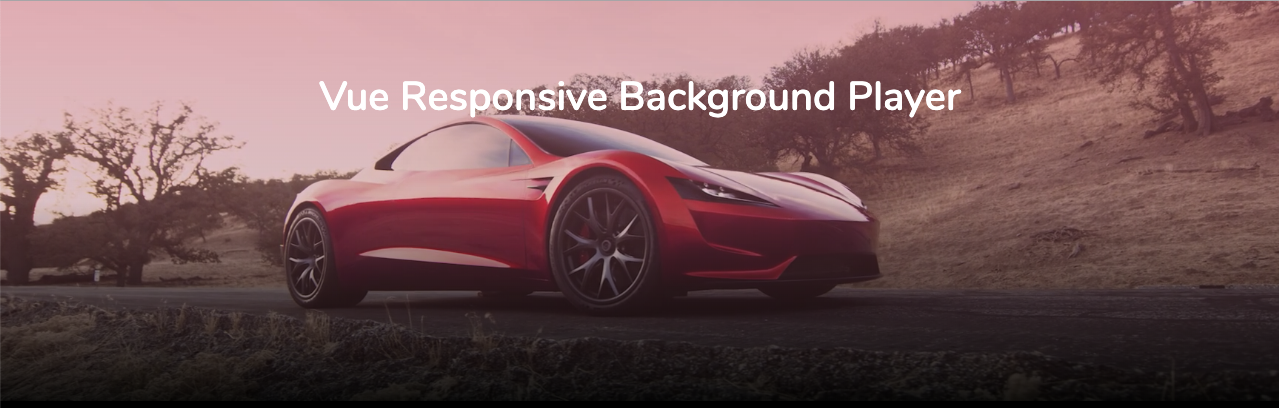
If you are looking to play videos in the background, you've found the right Vue package! 😜 (Heads up: No YouTube videos... yet!)
Prerequisites: Vue 3.2 or newer for version 2.x of this package. For Vue 2, use version 1.x.
Installation in 2 Steps
1: Add with npm 💻
# For Vue 3.x.x
npm install vue-responsive-video-background-player

# For Vue 2.x.x
npm install vue-responsive-video-background-player@1x
2a: Import the component
<script setup>
import VideoBackground from 'vue-responsive-video-background-player';
</script>
Or register it globally:
import { createApp } from 'vue';
import VideoBackground from 'vue-responsive-video-background-player';

const app = createApp(App);
app.component('VideoBackground', VideoBackground);
2b: Install as a plugin
import { createApp } from 'vue';
import { Plugin } from 'vue-responsive-video-background-player';

const app = createApp(App);
app.use(Plugin);
The plugin registers the component as VideoBackground. You can use it as <VideoBackground> or <video-background>.
(3: Only for Nuxt users)
Nuxt 3 and Nuxt 4
Since version 2.5.0 the component works with server-side rendering. Create a plugin file, for example plugins/video-background.ts:
import { Plugin } from 'vue-responsive-video-background-player';

export default defineNuxtPlugin((nuxtApp) => {
    nuxtApp.vueApp.use(Plugin);
});
Then use the <video-background> tag in any page. The server renders the section, the poster, the overlay and your slot content. The server does not know the window width, so the browser adds the video after hydration.
The component injects its CSS with JavaScript. Until the JavaScript runs, the page shows the server HTML without these styles. Since version 2.6.0, add the CSS file to nuxt.config.ts. Then the server HTML has its styles from the start, and the poster shows before the JavaScript runs:
export default defineNuxtConfig({
    css: ['vue-responsive-video-background-player/style.css'],
});
If you prefer to render the component only in the browser, name the plugin file video-background.client.ts and wrap the component in <ClientOnly>:
<ClientOnly>
    <video-background src="/videos/hero.mp4" style="height: 100vh;" />
</ClientOnly>
A .client plugin alone is not enough: the server cannot resolve the component, and Vue reports a hydration mismatch.
Nuxt 2 (package version 1.x)
Thanks to @skoulix for his instructions:
Again this is only for Nuxt.js users. Gridsome users click here. At your nuxt.config.js locate the part where you declare your plugins and import the file. Example:
plugins: [
  {
    src: '~/plugins/vue-video-background',
    ssr: false
  }
]
Now the component is globally available and can be used at any .vue file without issues.
TypeScript
Since version 2.5.0 the package contains type declarations for the props, the events, the player methods and the plugin. If you added a declare module 'vue-responsive-video-background-player' file for older versions, you can delete it.
import type { VideoBackgroundSource } from 'vue-responsive-video-background-player';

const sources: VideoBackgroundSource[] = [
    { src: '/videos/mobile.mp4', res: 638, autoplay: true },
];
Usage - (or to make it runnable 🏃♂️)
Easiest version 🔍
 <video-background
    src="<your-video-path>.mp4"
    style="max-height: 400px; height: 100vh;"
 >
    <h1 style="color: white;">Hello welcome!</h1>
 </video-background>
Advanced version 🌐
 <video-background
    src="<your-default-video-path>.mp4"
    poster="/images/mainfoto.jpg"
    :sources="[
        {src: '<your-tablet-video-path>.mp4', res: 900, autoplay: true},
        {src: '<your-mobile-video-path>.mp4', res: 638, autoplay: true, poster: '<your-mobile-background-image-path>.png'}
    ]"
    style="max-height: 400px; height: 100vh;"
    overlay="linear-gradient(45deg,#2a4ae430,#fb949e6b)"
>
    <h1 style="color: white;">Hallo welcome!</h1>
</video-background>
Demo ⚡️
https://avidofood.github.io/vue-responsive-video-background-player/
Props
This package is for responsive videos depicting different video resolution. Have you ever visited my favorite car company Tesla? Have a look, they use a lot of video background videos and are using different resolutions for each device.
Props values
src(required:true)
This is your path to your video. You can just use this value for showing your video in every resolution.
Note for Vite and Nuxt: Put the video in the
publicfolder and use the path from the site root, for examplesrc="/videos/hero.mp4". Or import the file, for exampleimport heroVideo from '@/assets/hero.mp4', and bind it with:src="heroVideo". With Vue CLI, bind it like this::src="require(`@/assets/video/timelapse.mp4`)". Read here why
The component sets the type attribute of the video for .mp4, .m4v, .webm, .ogv, .ogg and .m3u8 files. For other URLs, for example a URL without a file extension, it sets no type, and the browser checks the file itself.
HLS (
.m3u8): Safari, iOS and some other browsers play HLS streams natively. For the other browsers, give the component hls.js with thehlsprop. See HLS streams.
poster(default:'')
This is your first background image that is shown before the video is loaded.
Note: The same as for
srcapplies. With Vue CLI, bind the image like this::poster="require(`@/assets/img/logo.png`)".
sources(default:[])
This is the main reason for this package. I wanted to have the possibility to change the resolution of the video when the resize event is fired.
To make it work, sources is an array that contains objects. For example:
[{src: '<your-mobile-video-path>.mp4', res: 638, autoplay: true, poster: '<your-mobile-background-image-path>.png'}]
To make it work you need at least src, res, autoplay.
poster is optional.
res stand for resolution. This example means that between 0px and 638px of the window's width only the mobile video will be shown. After that your default src.
autoplay(default:true)
The video is going to be played immediately when the video is ready. If you are setting it to false, you can start the video just by this.$refs.videobackground.player.play(). But remember to set ref=videobackground to the HTML tag <video-background>, so that it can work.
-
overlay(default:'') If you love overlays, then copy the overlay from the advanced example. -
muted(default:true)
Browsers block autoplay for most videos with sound. If the browser blocks the video, the poster stays visible and the component emits error.
loop(default:true)
Loops through the video. You can catch the event ended to show only the poster.
preload(default:auto)
https://developer.mozilla.org/en-US/docs/Web/HTML/Element/video#preload
objectFit(default:cover)
So the video fits perfectly in the container
objectPosition(default:center)
So the video fits exact position in the container
the value is also used as a poster background-position
posterBgSize(default:cover)
So the poster fits perfectly in the container
Using the same values for
objectFitandposterBgSizeis recommended
playsWhen(default:canplay)
If some of your users have a slow connection, use canplaythrough. Learn more in video events.
playbackRate(default:1.0)
The playbackRate property sets the current playback speed of the video. Example but negative values didn't work for me?
transition(default:fade)
You can add your own transition styles here. If you set it to an empty string, the video shows without a transition.
The fade transition takes one second. For a different duration, give the transition your own name and add the CSS for it:
<video-background src="/videos/hero.mp4" transition="slow-fade" />

<style>
.slow-fade-enter-active,
.slow-fade-leave-active {
    transition: opacity 3s;
}
.slow-fade-enter-from,
.slow-fade-leave-to {
    opacity: 0;
}
</style>
pauseButton(default:false)
Shows a button that pauses and plays the video. See Pause button and accessibility.
pauseLabel(default:'Pause background video') andplayLabel(default:'Play background video')
The accessible names of the pause button. Screen readers read them. Set them for other languages.
respectReducedMotion(default:false)
If the user turned on "reduce motion" in the system settings, the component shows only the poster and does not load the video.
pauseWhenHidden(default:false)
Pauses the video while it is off screen or the page is in the background. See Less loading and less work.
lazy(default:false)
Loads the video when the section comes within 200px of the viewport.
keepLargerSource(default:false)
If the window gets smaller, the component keeps a larger video that already loads, and does not load the smaller one (#14).
hls(default:null) andhlsConfig(default:undefined)
The Hls class of hls.js and the options for new Hls(). See HLS streams.
Pause button and accessibility
A background video that plays for more than five seconds needs a way to pause it. This is WCAG 2.2, success criterion 2.2.2 (Level A). It applies to decorative videos too. Set pause-button for this:
<video-background
    src="/videos/hero.mp4"
    poster="/images/hero.jpg"
    pause-button
    respect-reduced-motion
>
    <h1>Hello welcome!</h1>
</video-background>
The button:
- is a native
<button>, so it works with the keyboard and with screen readers - comes before your content, so it is first in the tab order inside the section
- changes its label between
pauseLabelandplayLabel - shows "play" when the browser blocked autoplay, for example on iOS in Low Power Mode. A tap on it then starts the video
- shows "play" when the video failed to load. A tap on it loads the video again
- keeps the video paused when the window switches to another source
The button sits in the bottom right corner. Its styles use the selector button.videobg-pause-button, so CSS resets of Bootstrap or Tailwind do not change them. A selector with two classes overrides them, for example with a class on the component:
<video-background class="hero" src="/videos/hero.mp4" pause-button />
.hero .videobg-pause-button {
    top: 16px;
    bottom: auto;
}
In a <style scoped> block, write .hero :deep(.videobg-pause-button) instead.
To use your own icon, fill the pause-button slot. The slot gets paused. The label stays on the button, so put only an icon in the slot:
<video-background src="/videos/hero.mp4" pause-button>
    <template #pause-button="{ paused }">
        <my-icon :name="paused ? 'play' : 'pause'" />
    </template>
</video-background>
respect-reduced-motion follows the prefers-reduced-motion setting of the user. With "reduce motion" on, only the poster shows, and the video does not load. The pause button then offers "play". If the user turns the setting on while the video plays, the video pauses. This is good practice, but it does not replace the pause button.
Less loading and less work
lazyloads the video when the section comes within 200px of the viewport. Until then, the poster shows. For a video at the top of the page,lazybrings nothing.pause-when-hiddenpauses the video while it is off screen or the page is in the background. It plays again when the user sees it. Browsers do not do this themselves for a video that starts withplay(). A video that the user paused stays paused.keep-larger-sourcekeeps a larger video when the window gets smaller, for example when a phone turns from landscape to portrait.
To show only the poster on small screens, give that source an empty src. The component then loads no video for these windows:
<video-background
    src="/videos/hero.mp4"
    poster="/images/hero.jpg"
    :sources="[{ src: '', res: 638, autoplay: false, poster: '/images/hero-mobile.jpg' }]"
/>
HLS streams
Safari and iOS play HLS streams (.m3u8) themselves. Other browsers need hls.js. The component does not include hls.js. Install it and give the Hls class to the component:
npm install hls.js
<script setup>
import Hls from 'hls.js';
import VideoBackground from 'vue-responsive-video-background-player';
</script>

<template>
    <video-background
        src="https://example.com/hero.m3u8"
        poster="/images/hero.jpg"
        :hls="Hls"
        :hls-config="{ maxBufferLength: 10 }"
    />
</template>
If the browser supports hls.js, hls.js plays the stream, also in Safari. This is the recommendation of hls.js. Otherwise, for example on iPhones before iOS 17.1, the browser plays the stream itself. A sources entry can also be an HLS stream.
You can also load hls.js later, for example with import('hls.js'), and set the prop when it arrives. Until then, the browser tries to play the stream itself. A browser without HLS support emits error for that try. Then the component starts hls.js.
If hls.js stops with a fatal error, the poster stays, and the component emits error with a CustomEvent. Its detail holds the error data of hls.js.
CSS file
The component injects its CSS with JavaScript. Since version 2.6.0, the package also contains the CSS as a file:
import 'vue-responsive-video-background-player/style.css';
Use the file in two cases:
- With server-side rendering, the server HTML has its styles before the JavaScript runs. For Nuxt, see Nuxt 3 and Nuxt 4.
- With a Content Security Policy that blocks injected
<style>elements, the styles still apply. The browser still reports the blocked<style>element.
Slots
- default: your content on top of the video
pause-button: the icon of the pause button. It getspaused(truewhile the video does not play).
Events
ready: Video is loaded. The event fires once for each video that loads.playing: Video is playingpaused: Video is pausederror: The video failed, for example because the file is missing, or the browser blocked playback. The event carries the error event of the video or the error ofplay(). For a fatal hls.js error, it carries aCustomEventwith the error data of hls.js indetail. The poster stays visible.loading: A new video is loading, for example after a resizeended: Video finished. This event fires only withloopset to false.
Methods
If you happen to need more control over the player, you can use the internal methods. For that, you need to set ref=videobackground to the HTML tag <video-background>. After that you can call all methods like this this.$refs.videobackground.player.play().
play(): Plays the video and returns a promise. The promise resolves after playback starts or after the browser blocks it. If the video waits because oflazyorrespectReducedMotion, or if it failed to load,play()loads it first.pause(): Pauses the videostop(): Pauses the video and goes back to the start. Callplay()to start it again.show(): Shows the videohide(): Hides the video and shows the posterload(): Hides the video and loads it again after one secondvideo: The<video>element, for examplethis.$refs.videobackground.player.video
play(), pause() and stop() count for the current video, also before it is ready. If the window switches to another source, the autoplay of that source decides again. A choice with the pause button stays.
Development
You need Node.js 22.22.2 or newer on the 22 line, 24.15.0 or newer on the 24 line, or Node.js 26 or newer (see .nvmrc). jsdom 30, which the tests use, needs these versions.
npm install
npm test          # unit tests and type checks
npm run lint
npm run build     # builds dist/ and the demo
npm pack and npm publish build dist/ first.
Releases
- Set the new version in
package.jsonand add it toCHANGELOG.md. - Merge the change into
master. - Push a tag with the version number, for example
git tag 2.5.2 && git push origin 2.5.2.
The Release workflow then runs the lint and the tests, and publishes the package to npm. It uses npm trusted publishing, so it needs no npm token and no 2FA prompt. The tag must match the version in package.json and must be on master. Run the workflow by hand to check the setup. That run publishes nothing.
On npmjs.com, the trusted publisher of the package points to this repository, the workflow release.yml and the environment npm-publish. Under "Allowed actions", it must allow npm publish. A new trusted publisher expires if it does not publish within 2 days, so create it right before a release.
Security
If you discover any security problems, please, don't email me. (I'm a bit scared 😱) avidofood@protonmail.com
Credits
Now comes the best part! 😍 This package was inspired by:
Wow, you really read all that?! If you enjoyed this, hit the ⭐️ button to give me a 🤩 face.
Changelog
See CHANGELOG.md.
Related Packages
Version History
| Version | Released | License |
|---|---|---|
| 2.6.0 | MIT | |
| 2.5.1 | MIT | |
| 2.5.0 | MIT | |
| 2.4.1 | MIT | |
| 2.4.0 | MIT | |
| 2.3.1 | MIT | |
| 2.3.0 | MIT | |
| 2.2.3 | MIT | |
| 2.2.2 | MIT | |
| 2.2.1 | MIT | |
| 2.2.0 | MIT | |
| 2.1.3 | MIT | |
| 2.1.2 | MIT | |
| 2.1.1 | MIT | |
| 2.1.0 | MIT | |
| 2.0.2 | MIT | |
| 2.0.1 | MIT | |
| 2.0.0 | MIT | |
| 1.3.5 | MIT | |
| 1.3.4 | MIT | |
| 1.3.3 | MIT | |
| 1.3.2 | MIT | |
| 1.3.1 | MIT | |
| 1.3.0 | MIT | |
| 1.2.3 | MIT | |
| 1.2.2 | MIT | |
| 1.2.1 | MIT | |
| 1.2.0 | MIT | |
| 1.1.4 | MIT | |
| 1.1.3 | MIT |
Showing the latest 30 of 42. See every release on npm