quill-tablekit
| Install | |
|---|---|
npm install quill-tablekit |
|
| Latest Version: | 0.1.3 |
| License: | MIT |
| Last Updated: | Oct 24, 2026 |
| Links: | GitHub · npm |
quill-tablekit






quill-tablekit is a Quill 2 module for tables you can actually edit: merge cells, resize columns, and paste tables from Word, Excel or Markdown.
- Demo
- Features
- Installation
- Usage
- Frameworks
- Options
- Keyboard Shortcuts
- API
- TypeScript
- Saving Content
- Cleanup / Destroy
- Problems
- Docs
- License
Demo
Features
- Insert tables from the toolbar, with the mouse or keyboard
- Add, move, duplicate, select and delete rows and columns
- Merge and split cells
- Sort by any column (numbers, dates and text)
- Resize columns, rows and the whole table by dragging
- Responsive or fixed pixel widths
- Equal column widths, equal row heights, fit to content, fit to width
- Header row and header column
- Cell colors and alignment
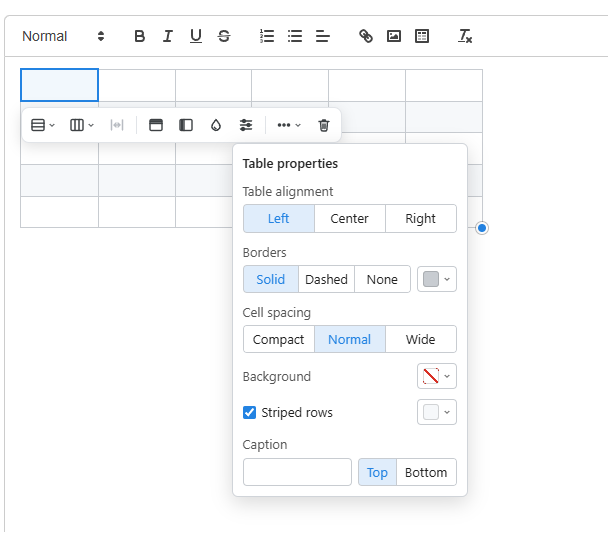
- Table borders, spacing, alignment, stripes and captions
- Action bar next to the cell, and an optional right-click menu
- Tab and arrow keys between cells
- Add a line above or below a table
- Paste tables from Word, Excel, Google Docs or Markdown
- Paste text with tabs into cells
- Copy cells into Excel, or copy a table as Markdown
- Undo for every change
- Clean HTML from
getSemanticHTML() - Read-only and zoomed editors
- Translatable, with your own colors, icons and menu
- API for your own buttons
- TypeScript types included
- Works with
resize-quill-imageandquill-image-alt
Installation
npm
npm install quill-tablekit
You also need quill 2.x. It's a peer dependency, so it isn't installed for you. Quill 1 isn't supported.
Compatible with
react-quill-new, since it uses Quill 2.x under the hood.
CDN
Load Quill first, then the module. The module is available as a global QuillTableKit variable.
unpkg:
<link href="https://unpkg.com/quill@2.0.3/dist/quill.snow.css" rel="stylesheet" />
<script src="https://unpkg.com/quill@2.0.3/dist/quill.js"></script>
<script src="https://unpkg.com/quill-tablekit/dist/index.iife.js"></script>
jsDelivr:
<link href="https://cdn.jsdelivr.net/npm/quill@2.0.3/dist/quill.snow.css" rel="stylesheet" />
<script src="https://cdn.jsdelivr.net/npm/quill@2.0.3/dist/quill.js"></script>
<script src="https://cdn.jsdelivr.net/npm/quill-tablekit/dist/index.iife.js"></script>
You can pin to a specific version:
<script src="https://unpkg.com/quill-tablekit@0.1.0/dist/index.iife.js"></script>
Then register and use it:
<script>
  Quill.register('modules/tableKit', QuillTableKit)

  const quill = new Quill('#editor', {
    theme: 'snow',
    modules: { toolbar: [['bold', 'italic'], ['table']], tableKit: true },
  })
</script>
Note: Quill must be loaded before
quill-tablekit. The CDN build readsQuillfrom the global scope when it loads.
Usage
1. Import the module
import TableKit from 'quill-tablekit'
2. Register the module with Quill
Quill.register('modules/tableKit', TableKit)
3. Configure the Quill editor
Add 'table' to the toolbar to get the table button:
const quill = new Quill(editorContainer, {
  modules: {
    toolbar: [
      ['bold', 'italic'],
      ['link', 'table'],
    ],
    tableKit: true,
  },
  theme: 'snow',
})
The module's CSS is added for you. Don't turn on Quill's own table module at the same time, since both use the same button.
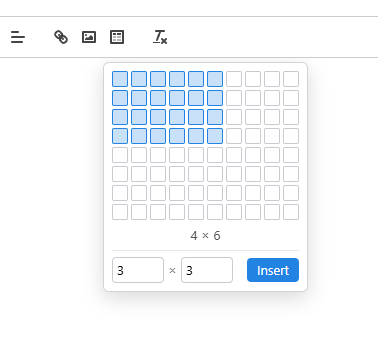
Click the table button and pick a size. Then click into the table and a small bar shows up with everything else. Usage explains all of it.
Frameworks
It works with React, Vue, Svelte, Angular, Next.js, Nuxt and others. Examples are in Frameworks.
Options
You can change the behavior by passing an object instead of true. Everything is optional:
tableKit: {
  sortable: true,
  contextMenu: true,
  colors: ['#ffffff', '#fff2cc', '#d9ead3', '#cfe2f3'],
}
Option Descriptions
| Option | Type | Default | Description |
|---|---|---|---|
pickerRows |
number |
8 |
Rows in the size picker grid. |
pickerColumns |
number |
10 |
Columns in the size picker grid. |
maxRows |
number |
100 |
Most rows a table can get from the picker or a paste. |
maxColumns |
number |
30 |
Most columns a table can get from the picker or a paste. |
actionBar |
boolean |
true |
Shows the bar with buttons next to the cell you're in. |
contextMenu |
boolean |
false |
Right-click on a cell opens the table menu instead of the browser's menu. |
resizable |
boolean |
true |
Lets you drag to resize columns, rows and the whole table. |
sortable |
boolean |
false |
Adds Sort A → Z and Sort Z → A. |
responsiveWidths |
boolean |
true |
Saves widths as a share of the editor, so tables follow its width. false saves px. |
minColumnWidth |
number |
40 |
Narrowest a column can get, in px. |
menu |
array |
every item | Which actions the menu and the action bar show. See Menu Items. |
colors |
array |
15 colors | The colors in the properties panel. Any CSS color works. |
icons |
object |
built in | Your own icons. See Icons. |
labels |
object |
English | Every text the module shows, for example to translate it. See Labels. |
Menu Items
List the ones you want to keep. They always show in this order:
insertRowAbove · insertRowBelow · insertColumnLeft · insertColumnRight · moveRowUp · moveRowDown · moveColumnLeft · moveColumnRight · duplicateRow · duplicateColumn · sortAscending · sortDescending · insertParagraphAbove · insertParagraphBelow · equalColumnWidths · fitToContent · fitToWidth · equalRowHeights · selectRow · selectColumn · copyTable · copyAsMarkdown · mergeCells · splitCell · headerRow · headerColumn · cellProperties · tableProperties · deleteRow · deleteColumn · deleteTable
tableKit: {
  menu: ['insertRowBelow', 'insertColumnRight', 'mergeCells', 'splitCell', 'deleteTable'],
}
The two sort items only show with sortable: true. With an empty list there's no menu and no action bar, but every action still works from the API.
Labels
Only pass the texts you want to change, for example to translate them. Each menu item has a label with the same name:
tableKit: {
  labels: {
    insertTable: 'Вставить таблицу',
    insertRowAbove: 'Inserează rând deasupra',
    insertRowBelow: 'Zeile unterhalb einfügen',
    mergeCells: 'Объединить ячейки',
  },
}
All labels and their default texts are in Options.
Icons
Swap any icon for your own SVG or icon font. Only use markup you trust:
tableKit: {
  icons: {
    rows: '<svg viewBox="0 0 24 24" width="16" height="16">...</svg>',
    deleteTable: '<i class="icon-trash"></i>',
  },
}
The names are rows, columns, merge, split, headerRow, headerColumn, cellProperties, tableProperties, more, deleteTable, chevron, and insertTable for the toolbar button.
Colors
The module's own colors are CSS variables. Set them on the editor container:
.ql-container {
  --qlt-accent: #7c3aed; /* selection outline, resize lines, pressed buttons */
  --qlt-selection-bg: rgba(124, 58, 237, 0.12); /* selected cells */
  --qlt-active-cell-bg: rgba(124, 58, 237, 0.05); /* the cell with the cursor */
  --qlt-border: #d4d4d8; /* cell borders */
  --qlt-header-bg: #ede9fe; /* header row and column */
  --qlt-stripe-bg: #faf5ff; /* striped rows */
}
Colors picked in the properties panel win over these. Class names and more are in Options.
Keyboard Shortcuts
| Key | Behavior |
|---|---|
Tab / Shift + Tab |
Next or previous cell. Tab in the last cell adds a row. |
↑ / ↓ |
The cell above or below, after moving through the lines of the current cell. |
Enter |
A new line in the same cell. |
Backspace / Delete |
Never joins two cells. With several cells selected, empties them and keeps the table. |
Alt + F10 |
Moves the focus to the action bar. The arrow keys move between its buttons. |
Escape |
Hides the action bar, or closes a menu or panel. |
API
Everything the toolbar and the action bar do, you can also call yourself, for example from your own buttons. The methods work on the table where the cursor is:
const tableKit = quill.getModule('tableKit')

tableKit.insertTable(3, 4)
tableKit.mergeCells()
tableKit.setTableProperties({ header: true, striped: true, caption: 'Sales by region' })
tableKit.setCellProperties({ background: '#fff2cc', verticalAlign: 'middle' })
| Method | What it does |
|---|---|
insertTable(rows, columns) |
Adds a table at the cursor. |
deleteTable() |
Removes the table. |
insertRowAbove(), insertRowBelow() |
Adds a row. |
insertColumnLeft(), insertColumnRight() |
Adds a column. |
deleteRow(), deleteColumn() |
Removes the rows or columns the selection touches. |
moveRowUp(), moveRowDown(), moveColumnLeft(), moveColumnRight() |
Swaps the row or column with its neighbour. |
duplicateRow(), duplicateColumn() |
Adds a copy of the row or column next to it. |
sortByColumn(order) |
Sorts the rows by the cursor's column. 'ascending' (default) or 'descending'. |
mergeCells(), splitCell() |
Merges the selected cells, or splits the merged cell. |
canMergeCells(), canSplitCell() |
true if merging or splitting is possible right now. |
selectRow(), selectColumn() |
Selects the whole row or column. |
insertParagraphAbove(), insertParagraphBelow() |
Adds an empty line before or after the table. |
copyTable(), copyTableAsMarkdown() |
Copies the table, or copies it as Markdown. Returns a promise with true if it worked. |
getTableMarkdown() |
Returns the table as a Markdown string. |
getCellProperties(), setCellProperties(changes) |
Reads or changes the selected cells. |
getTableProperties(), setTableProperties(changes) |
Reads or changes the whole table. |
setColumnWidths(table, widths) |
Sets the column widths in px for a <table> element, or null for automatic. |
setRowHeights(table, heights) |
Sets the row heights in px, null for a row that fits its content. |
equalizeColumnWidths(), equalizeRowHeights() |
Makes every column, or every row, the same size. |
fitColumnsToContent(), fitTableToWidth() |
Makes each column as wide as its content, or the table as wide as the editor. |
moveToCell(direction) |
Goes to the next (1) or previous (-1) cell, like Tab. |
isInTable() |
true if the cursor is in a table. |
destroy() |
Removes everything the module added. See Cleanup / Destroy. |
Each change is one undo step. All fields and values are in API.
TypeScript
This package ships TypeScript definitions. The option and property types are exported for use in your own types:
import TableKit from 'quill-tablekit'
import type { TableKitOptions, TableMenuItemName, TableProperties } from 'quill-tablekit'

const menu: TableMenuItemName[] = ['mergeCells', 'splitCell']
const options: TableKitOptions = { sortable: true, menu }

const tableKit = quill.getModule('tableKit') as TableKit
const properties: TableProperties | null = tableKit.getTableProperties()
Saving Content
Save quill.getContents() like any Delta and load it with setContents(). To show it on a page:
- with JavaScript, use a read-only Quill with the module registered
- without Quill (server rendering, emails, apps), save
quill.getSemanticHTML()next to the Delta and show that
More in Saved content.
Cleanup / Destroy
If you mount and unmount the editor (for example in a single page app or on route changes), clean up the module to avoid memory leaks or things happening twice.
Call destroy() before clearing the DOM:
const tableKitModule = quill.getModule('tableKit')

tableKitModule?.destroy()

container.innerHTML = ''
This will:
- Remove all event listeners
- Remove the picker, menu, action bar, panels and resize lines
- Remove its keyboard shortcuts and paste handling
- Give the toolbar's table button back to Quill
When to use:
- If you're unmounting your editor component
- If you're switching pages in an SPA
- If you're creating Quill again yourself
Example with unmount:
useEffect(() => {
  const quill = new Quill(editorRef.current, { ... })

  return () => {
    quill.getModule('tableKit')?.destroy()
    editorRef.current.innerHTML = ''
  }
}, [])
Problems
Problem: The picker or menu goes outside the editor
If your .ql-container has a fixed height like this:
.ql-container {
  height: 500px;
}
then the picker, the menu and the cell highlight can end up outside the editor when you scroll.
Solution:
Instead of a fixed height, use min-height and max-height:
.ql-container {
  min-height: 500px;
  max-height: 500px;
  overflow: auto;
}
Problem: The table button does nothing
Check that Quill's own table module isn't turned on in modules. Both use the table toolbar button, so only use tableKit.
Problem: Tables have no borders outside the editor
You're probably saving quill.root.innerHTML. That's the editor's own markup, and its table styles only exist inside the editor. Use quill.getSemanticHTML() instead.
Problem: Headers or lists don't work inside a cell
That's on purpose. A cell can only hold normal lines, otherwise the line would get pulled out of the table. Bold, italic, links, colors, images and alignment all work.
More in Troubleshooting.
Docs
- Installation: npm, CDN, Quill versions
- Usage: inserting, merging, resizing, sorting, properties, keyboard, copy and paste
- Options: all settings, labels, icons, CSS variables
- API: every method
- Saved content: the Delta and the HTML
- Frameworks: React, Vue and others, and a read-only viewer
- Troubleshooting: common problems
- Limitations: what it can't do
- How it works: the code, running it locally, tests
License
MIT License Free for personal and commercial use.
[!NOTE] Found a bug or something odd? Open an issue. Contributions are welcome.
Related Packages
Dependency-free, tree-shakeable rich text editor & WYSIWYG for the web — comment...
Lilac - a smooth, modern WYSIWYG text editor built with pure TypeScript. Zero de...
A rich text editor Vue 3 component with WYSIWYG, Markdown, and split-preview mod...
Version History
| Version | Released | License |
|---|---|---|
| 0.1.3 | MIT | |
| 0.1.2 | MIT | |
| 0.1.1 | MIT |
Pre-releases (1)
| Version | Released | License |
|---|---|---|
| 0.0.0-stage |