@venix-sistemas/jade
| Install | |
|---|---|
npm install @venix-sistemas/jade |
|
| Latest Version: | 1.3.0 |
| Vue: | 3 |
| License: | MIT |
| Last Updated: | Oct 24, 2026 |
| Links: | GitHub · npm |

Jade
@venix-sistemas/jade


The UI foundation for Nuxt applications, in a single module: color themes (including seasonal ones),
typography, scrollbar, cursor, icons and interface translations, with UnoCSS and Vuetify integrations.
Features

- 🎨 Color customization, with dark and light themes included
- 🌗 Theme and mode picked separately: any theme (Venix, Carnival, Christmas…) in light or dark, each following the system or fixed
- 🎃 Seasonal themes: Carnival, Halloween, Christmas and more
- 📝 Typography and font faces customization
- 📜 Scrollbar customization
- 🖱️ Cursor customization
- 🎛️ Ready-made theme switcher: accessible, phone-friendly, with no UI kit dependency
- 🖥️ System preference detection, including seasonal themes by date
- 💾 Cookie-consent-aware persistence: nothing is written until the user opts in
- 🌐 i18n: internationalization and locale detection for theme names and your own strings
- ✨ Unified icons: emoji, Iconify (animated
line-md,mdi, both bundled and tree-shaken offline) or inline SVG through one component - 🎯 UnoCSS preset for the theme's color variables
- 🎭 Vuetify 4 theme auto-configuration, kept in sync with live theme changes
- ⚡ Nuxt-native integration
Installation
pnpm add @venix-sistemas/jade
# or
npm install @venix-sistemas/jade
Quick Setup
1. Add the module
// nuxt.config.ts
export default defineNuxtConfig({
  modules: ['@venix-sistemas/jade'],
})
No configuration is needed: every module except Vuetify is on by default with built-in values. Later, set only what you want to change under venixTheme — for example, the Venix theme's primary color in dark mode:
venixTheme: {
  color: {
    themes: {
      venix: { dark: { primary: '#FF6B6B' } },
    },
  },
}
See Modules for what each one does.
2. Add the theme switcher
<VenixThemeSwitcher> is an auto-imported dropdown with a Mode section (Automatic, Dark, Light) and a Theme section (Automatic, Venix and the seasonal themes), followed, below a divider, by the themes your project adds itself. It has no dependency on Vuetify or any other UI kit:

<template>
  <VenixThemeSwitcher label="Website color" />
</template>
That's it: visitors can now pick a theme and a mode, and turn the custom scrollbar, cursor and font off. See Theme switcher for its props, settings and styling, or useVenixTheme() to build your own controls.
Modules
Jade is a set of independent modules, each configured under its own key in venixTheme. Every key accepts false (disable), true (enable with defaults) or an object (enable and customize):
| Module | Key | Default | What it does |
|---|---|---|---|
| Colors | color |
true |
Color themes (built-in, seasonal, custom) in light and dark mode, saved per user, as CSS variables and a UnoCSS preset |
| Typography | typography |
true |
Base font family, font size and @font-face rules |
| Scrollbar | scrollbar |
true |
A custom scrollbar that follows the active theme |
| Cursor | cursor |
true |
Custom cursor images |
| Translation | translation |
true |
Detects the user's locale and translates theme names and your own strings |
| Icons | icon |
true |
<VenixIcon>: emoji, Iconify (bundled offline) or inline SVG through one component |
| Vuetify | vuetify |
false |
Registers the color themes with Vuetify and keeps it in sync |
Colors



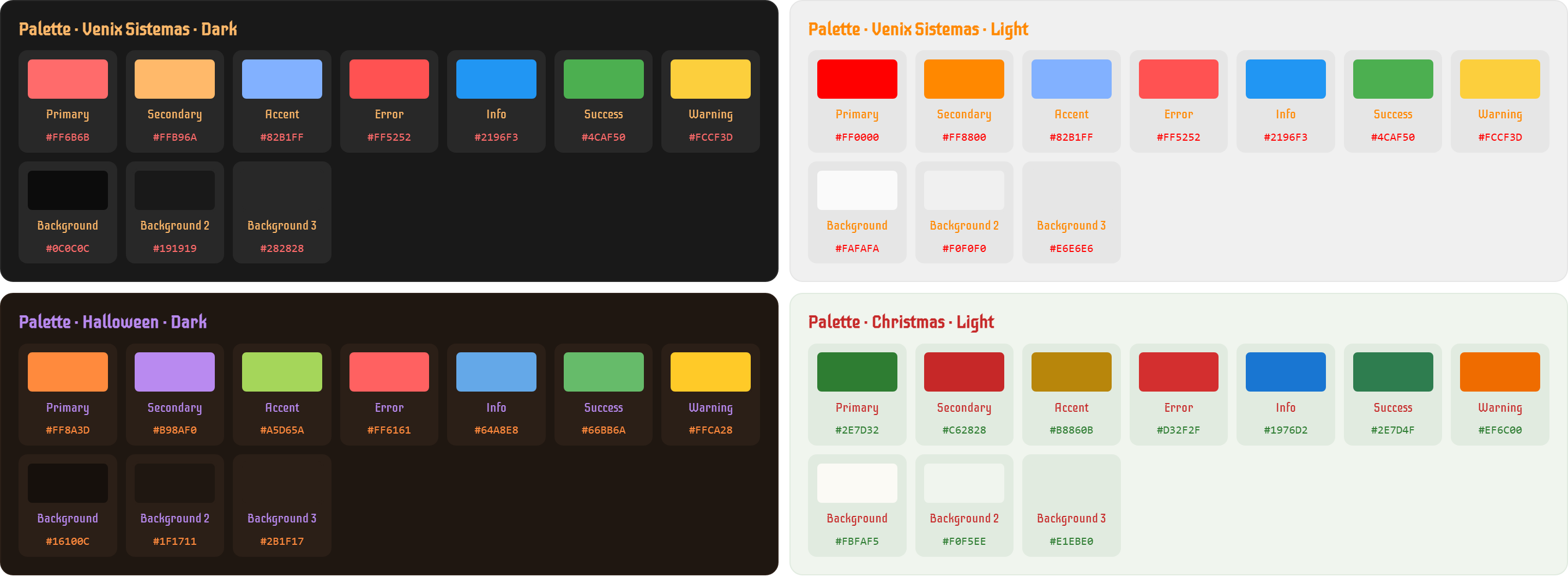
Every theme has a light and a dark palette, exposed as CSS variables (--color-primary, --color-background2…):
| Option | Type | Default | Description |
|---|---|---|---|
apply |
boolean |
true |
Apply the resolved theme to <html> (data-theme and class) |
defaultColor |
string |
'dark' |
Initial choice with no saved preference: a theme (mode follows the OS), a variant id like 'dark' (that theme in that mode) or 'system' |
themes |
object |
{} |
Override or add themes — see Themes |
iconFormat |
'emote' | 'css' | 'svg' |
'svg' |
Preferred theme icon variant — see Theme icons |
requireConsent |
boolean |
true |
Only save the chosen theme after cookie consent — see Saving preferences |
seasonal |
boolean |
true |
Seasonal themes — false removes them entirely, see Seasonal themes |
Themes
Each theme has a light and a dark variant, plus a name (translations) and an icon shared by both. The module ships with Venix (venix) and the seasonal themes, all in both modes. color.themes extends that set:
- An existing name overrides only the properties you set; the rest of the theme (the other variant, other colors, translations, icon) stays as shipped.
- A new name adds a theme that works like a built-in one: its own CSS variables, an entry in
useVenixTheme().themes(so it appears in<VenixThemeSwitcher>), and UnoCSS/Vuetify support when enabled. A theme with only one variant uses it in both modes.
color: {
  themes: {
    // Overrides only `primary` of the built-in theme in dark mode
    venix: {
      dark: { primary: '#FF6B6B' },
    },

    // Adds a project-specific theme
    summerSale: {
      translations: { 'en-US': 'Summer sale', 'pt-BR': 'Liquidação de verão' },
      icon: '🏖️',
      light: { primary: '#FF8A00', background: '#FFF8EE' },
      dark: { primary: '#FFB04C', background: '#1A1206' },
    },
  },
}
Available colors: primary, secondary, accent, error, info, success, warning, background, background2, background3. Each becomes a --color-<name> CSS variable, plus --color-inverse (white on dark variants, black on light ones).
Each variant is applied as <html data-theme="<id>">, and the id is also its Vuetify theme name. It defaults to <theme>-<mode> (summerSale-light); set id on a variant to choose it. The built-in themes keep the ids they had before light/dark became separate: dark and light for Venix, carnaval, natal and halloween for the dark seasonal variants (their light ones are carnaval-light and so on). Easter, added later, uses the default pascoa-light and pascoa-dark.
Seasonal themes
Built in: 🎭 Carnival, 🐰 Easter, 🎃 Halloween and 🎄 Christmas, each in light and dark. While the theme is 'system' (Automatic) and today is inside a seasonal theme's dateRange, it replaces the base theme, in the variant matching the mode. Seasonal themes can also be picked directly, any day.
Add your own with seasonal: true and a dateRange. The range is inclusive and wraps across the new year when end comes before start. Each bound is a fixed MM-DD date or, for movable holidays, a number of days relative to Easter Sunday (easter, easter-47, easter+1):
color: {
  themes: {
    blackFriday: {
      seasonal: true,
      dateRange: { start: '11-24', end: '11-30' },
      dark: { primary: '#FFD400', background: '#000000' },
      light: { primary: '#111111', background: '#FFF8D6' },
    },
    corpusChristi: {
      seasonal: true,
      dateRange: { start: 'easter+60', end: 'easter+60' }, // a single day, every year
      light: { primary: '#B8860B', background: '#FFFBEF' },
      dark: { primary: '#F2C94C', background: '#17130A' },
    },
  },
}
A seasonal theme with a single variant only takes over automatically when the mode matches it.
To turn seasonal themes off, set color.seasonal: false. All of them, built-in and custom, are removed: they get no CSS, aren't listed in pickers and never take over by date. "Automatic" then always means the base theme, so it's left out of the theme list too.
The built-in Carnival theme uses easter-65 to easter-46: 20 days, from the pre-Carnival weeks up to Ash Wednesday. Easter uses easter-7 to easter+1: from Palm Sunday to Easter Monday.
Theme transition
Every theme switch — manual, through the switcher, or an automatic system/seasonal change — cross-fades using the browser's native View Transitions API, with no setup. Browsers without support switch instantly, and the animation is skipped for users with prefers-reduced-motion: reduce.
Flat format (deprecated)
Before themes had two variants, each one was a single flat set of colors with a dark flag (summerSale: { dark: false, primary: '#FF8A00' }), and built-in themes were overridden by variant name (dark: { primary: '#FF6B6B' }). Both still work: a flat theme becomes a theme with only that variant (same data-theme id as before), and an override by variant name lands on that variant. Each one logs a [jade] warning at build time pointing at the new format; the flat format will be removed in 2.0.
Typography


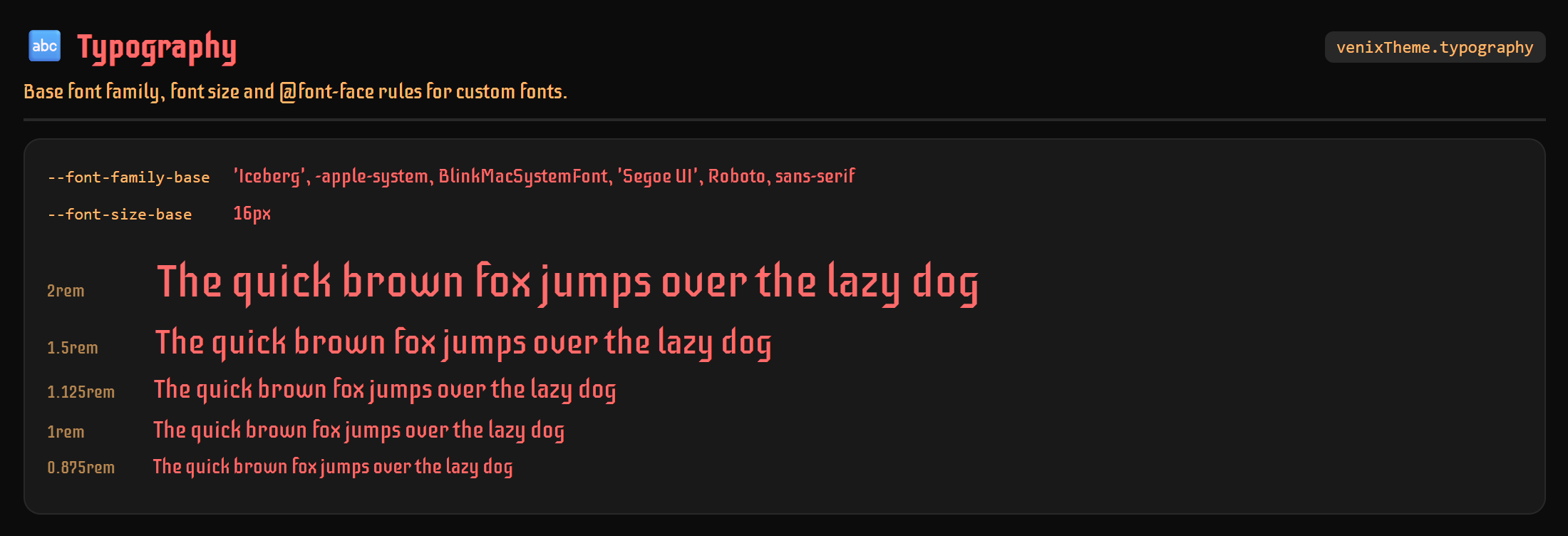
Sets the base font for the whole app: --font-family-base and --font-size-base on :root, plus an @font-face rule for each custom font.
venixTheme: {
  typography: {
    defaultFonts: "-apple-system, BlinkMacSystemFont, 'Segoe UI', Roboto, sans-serif", // default
    fontSize: '16px', // default
    customFonts: [
      { name: 'MyFont', sources: { woff2: '/fonts/MyFont.woff2' }, weight: 'normal', style: 'normal', preload: true },
    ],
  },
}
preload: true adds a <link rel="preload"> for the font's first source to the page <head>, so it downloads with the page instead of after the CSS, avoiding a flash of the fallback font. The module's own Iceberg font is preloaded.
Custom fonts come first in --font-family-base, with defaultFonts as the fallback. The same font list also goes to Vuetify's --v-font-body/--v-font-heading, since Vuetify components don't inherit font-family from the page.
Visitors can turn the custom fonts off in the switcher's settings, or you can with font.set(false): the module sets data-venix-font="off" on <html>, and those three variables keep only the defaultFonts (or become unset without them, so your var(--font-family-base, …) fallback applies).
Scrollbar

-6E7781?style=for-the-badge)
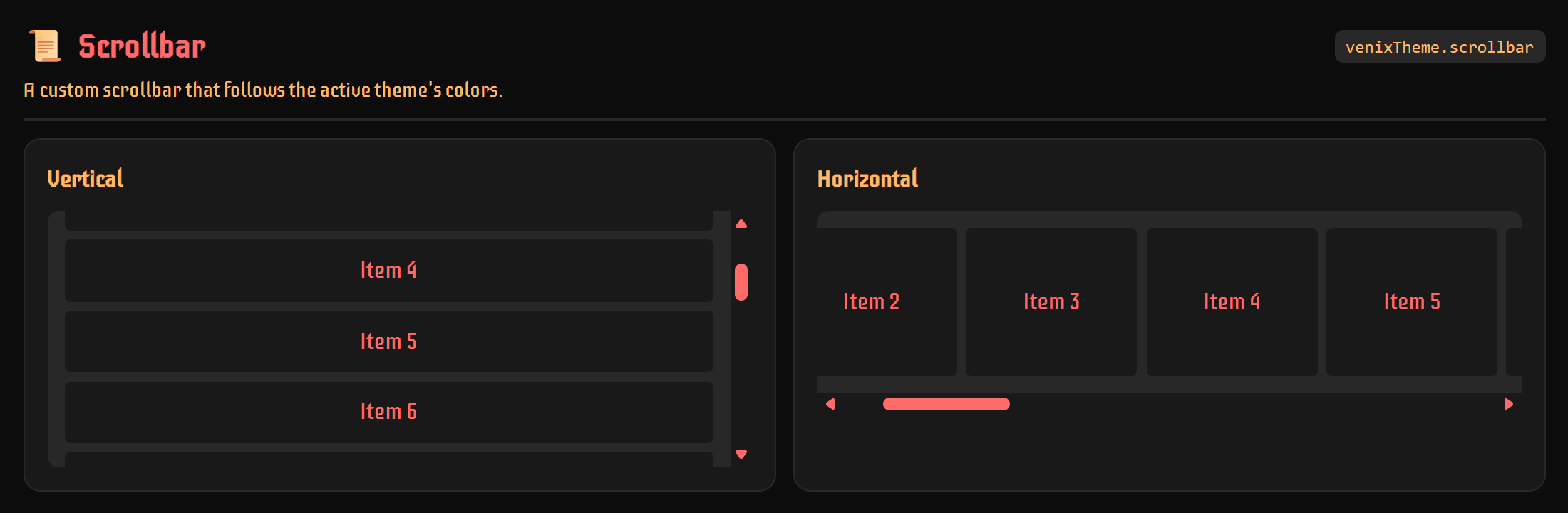
A custom scrollbar whose colors follow the active theme. The values below are the defaults:
venixTheme: {
  scrollbar: {
    // Draws the scrollbars with OverlayScrollbars, so the custom cursor shows over them (see below)
    overlay: false,
    width: 'auto', // 10px for the overlay scrollbar
    borderRadius: '8px',
    borderWidth: '3px', // native scrollbar only
    // A theme color name (follows the active theme) or any CSS color; `border` is native only
    colors: { thumb: 'primary', thumbHover: 'secondary', track: 'background2', border: 'background3' },
  },
}
The scrollbars are the browser's own, styled with CSS. The CSS-styled scrollbar uses ::-webkit-scrollbar in Chromium-based browsers and Safari, and scrollbar-color in Firefox, which only takes the colors (no border, radius or hover color). Chromium-based browsers (Chrome, Edge, Brave, Opera) draw a scrollbar styled this way as part of the page, so the custom cursor shows over it too, the pointer over the thumb.
Visitors can turn it off in the switcher's settings, or you can with scrollbar.set(false) from useVenixTheme(): the module then sets data-venix-scrollbar="off" on <html> and the browser's own scrollbar comes back.
Overlay scrollbar (optional)
Firefox draws its scrollbar outside the page, and so does every browser for an unstyled one: those ignore the CSS cursor, so hovering them shows the system cursor even with the custom cursor on. With overlay: true the scrollbars are drawn by OverlayScrollbars instead, as page elements, which the custom cursor applies to (the pointer, since they can be dragged and clicked). It's off by default while it gets tried out in more sites and on phones.
OverlayScrollbars doesn't come with the module (it's an optional peer dependency): add it to your project, then turn the option on. With the option on and the package missing, the build warns and keeps the CSS-styled scrollbar.
pnpm add overlayscrollbars
venixTheme: {
  scrollbar: { overlay: true },
}
It covers:
- the page itself (
window.scrollToand the like keep working); - Vuetify's scroll containers: navigation drawers, scrollable dialogs,
v-selectmenus and tables, including the page and containers behind an open dialog staying locked; - any element of yours that scrolls, marked with
data-venix-scroll:
<div data-venix-scroll style="height: 300px; overflow: auto">…</div>
Everything else keeps the browser's scrollbar, styled with CSS. Scrolling itself stays the browser's own, so smooth scrolling (scroll-behavior: smooth, scrollTo({ behavior: 'smooth' })), GSAP's ScrollTrigger, ScrollToPlugin and ScrollSmoother, and Lenis keep working. With overlay: false OverlayScrollbars isn't added to the bundle at all.
Cursor

Replaces the default, pointer and text cursors. On by default; set cursor: false to keep the system's cursors. Visitors can also turn it off for themselves in the switcher's settings (or you with cursor.set(false)), which sets data-venix-cursor="off" on <html>:
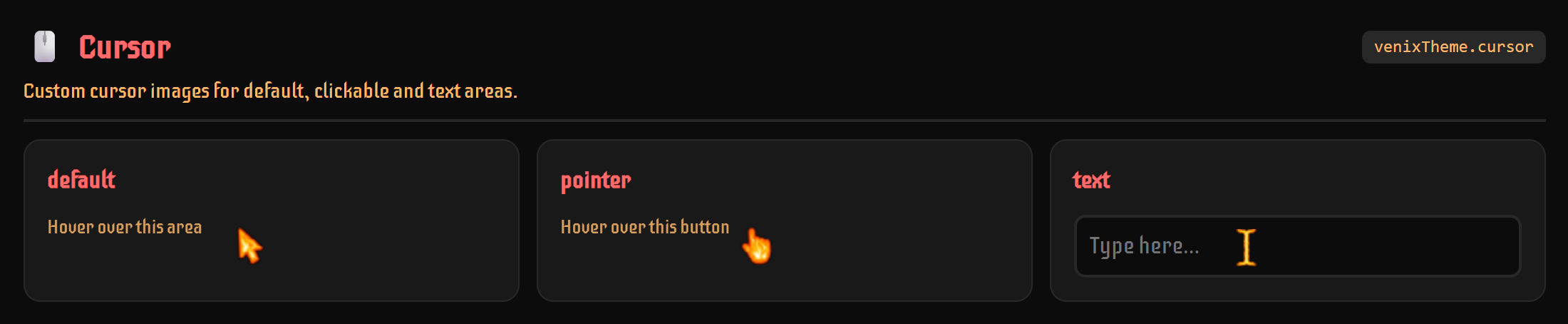
defaultCursors: the default cursors, the module's fire images unless you set your own. They show withthemed: false, in browsers that can't load the drawn cursors and for themes without aprimary.themed(on by default): draws each cursor as an SVG in the active color theme'sprimary, so it changes along with the theme. Custom themes get one too, with nothing to draw.themeCursors: the cursor of a single color theme, by theme name (both modes) or variant id (just that one, which wins over the theme name). It is merged with the module's own entry,venix: 'base', which keeps the Venix theme on the default cursors.
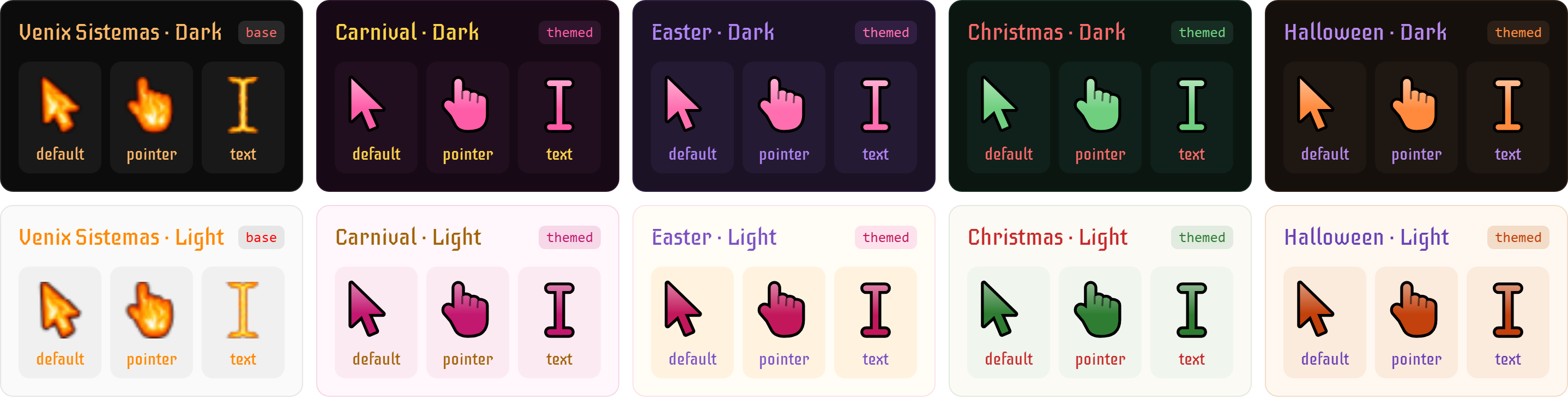
themeCursors value |
Cursor shown |
|---|---|
'base' |
the defaultCursors (the module's fire cursors, unless you set your own) |
'themed' |
drawn in the theme's primary |
'none' |
no custom cursor: the operating system's own |
{ pointer: { path, hotspot } } |
its own images; the cursors left out show as if the theme had no entry |
venixTheme: {
  cursor: {
    // `false` shows the default cursors in every theme without an entry in `themeCursors`
    themed: true,
    // Images served from `public/`; `hotspot` is the click point ("x y")
    defaultCursors: {
      default: { path: '/cursors/default.png', hotspot: '0 0' },
      pointer: { path: '/cursors/pointer.png', hotspot: '0 0' },
      text: { path: '/cursors/text.png', hotspot: '0 0' },
    },
    themeCursors: {
      // Its own pointer; default and text are still drawn in its color
      'halloween': { pointer: { path: '/cursors/pumpkin.png', hotspot: '8 0' } },
      'natal': 'none',
      // Drawn in its color, instead of the default cursors
      'venix': 'themed',
      // Only the light variant of Carnival
      'carnaval-light': 'base',
    },
  },
}
[!NOTE]
defaultCursorswas calledcursorsup to 1.2. The old name still works, with a warning, until 2.0.
[!NOTE] Keep cursor images at 32×32 pixels or smaller. Browsers accept larger cursors (Chromium up to 128×128), but Chromium falls back to the system cursor whenever a cursor larger than 32×32 would overlap the browser UI, so it flickers near the edges of the window.
Browser-drawn UI ignores the CSS
cursorproperty and always shows the system cursor. That includes native scrollbars,<select>dropdowns, date and color pickers, and the<textarea>resize handle.
Theme switcher


<VenixThemeSwitcher> (see Quick Setup) takes these props:
| Prop | Type | Default | Description |
|---|---|---|---|
label |
string |
translated, per locale | Accessible label for the button and the menu |
showLabel |
boolean |
false |
Show the theme and mode names next to the icon |
hideConsent |
boolean |
false |
Leave "Save changes" out of the settings, when your own cookie banner already asks |
The gear next to the title opens the settings, a few switches for the visitor:

- Save changes — whether their choices are remembered on the next visit: it grants or revokes cookie consent (
persistence.grant()/revoke()). Shown only whilecolor.requireConsentis on, and not withhideConsent. - Custom scrollbar, Custom cursor and Custom font — turn the module's scrollbar, cursor or custom fonts off and back on (
scrollbar.set()/cursor.set()/font.set()). Each shown only when the project has it on (for the font:typographywith at least onecustomFontsentry).
Without any of them, the gear isn't shown. At the bottom, in small faint print, the settings credit the module with a link to its repository.
- Accessible: arrow keys, Home/End and Esc navigate the menu, focus returns to the button on close, and each change is announced to screen readers.
- Always legible: the menu uses fixed neutral colors (dark surface, light text) instead of the active theme's, so every option stays readable whatever theme is applied. The button itself follows the active theme.
- Seasons at a glance: each seasonal theme shows its dates in small faint print beside its name (e.g.
01/10 a 31/10in Portuguese,10/01 – 10/31in English) — the running occurrence, or the next one once this year's is over, so themes relative to Easter show the right year's dates. - Lively: animated icons (e.g.
line-md) replay on every switch, and the button fades in on mount. The button shows the mode's icon on the base theme, and the theme's own icon when a seasonal or other theme is in effect. - Quick: picking a mode or a theme keeps the menu open, so both can be set in one go; it closes on the button, a click or tap outside, or Esc.
- Fits on phones: the menu always stays on screen: it opens upward when there's more room above the button, shifts sideways near an edge, and scrolls inside itself when it's taller than the space left (refitted when the screen rotates). On touch screens its targets are bigger, hover highlights are off, and the custom cursor's switch is hidden, since there's no cursor to show.
It ships with minimal CSS of its own. To restyle it, target .venix-theme-switcher, .venix-theme-switcher__trigger, .venix-theme-switcher__menu, .venix-theme-switcher__subheading, .venix-theme-switcher__item (--mode for the mode buttons, --toggle for the settings), .venix-theme-switcher__icon-button (the gear and back buttons) and .venix-theme-switcher__switch (see VenixThemeSwitcher.vue).
useVenixTheme()
-00A86B?style=for-the-badge)

The auto-imported useVenixTheme() composable gives access to the theme. It isn't called useTheme to avoid colliding with UI libraries (like Vuetify) that auto-import a composable with that name.
The theme (Venix, Carnival, Christmas…) and the mode (light or dark) are chosen independently; the applied colors are the theme's variant for that mode. Either can be 'system': an automatic theme follows the calendar (seasonal themes), an automatic mode follows the OS.
<template>
  <button @click="mode.set('dark')">Dark</button>
  <button @click="mode.set('light')">Light</button>
  <button @click="theme.set('natal')">Christmas</button>
</template>

<script setup lang="ts">
const { theme, mode } = useVenixTheme()
</script>
It returns:
theme— the theme choice:preference: the chosen theme ('system','venix','carnaval'…)value: the variant actually applied, as indata-theme(e.g.'natal-light', or'dark'for Venix in dark mode)data: the chosen theme's{ value, name, icon }set(name): picks a theme, keeping the modetoggle(name?): kept for compatibility — without a name switches the mode;'dark'/'light'select Venix in that mode;'system'makes both theme and mode automaticisSeasonalActive,activeSeasonalTheme: whether a seasonal theme is currently in effect, and which oneshouldApplyColors,colors: whether the module applies colors, and the resolved color config
themes— every selectable theme as{ value, name, icon, custom }, ready to render a picker (see Theme icons);customistruefor themes your project added incolor.themes.mode— the mode choice:preference('system','light','dark'),value(the mode applied,'light'or'dark'),data,set(mode)andtoggle().modes— the three mode options with names and icons, ready to render.scrollbar/cursor/font— the visitor's switch for the custom scrollbar, cursor and font:available(the project has it on),enabled(aRef<boolean>,trueunless the visitor turned it off) andset(enabled).locale—current,set()andtranslate()(see Translation).persistence— cookie consent controls (see Saving preferences).
The state is shared app-wide (via Nuxt's useState): every component calling useVenixTheme() reads and writes the same theme, so they never go out of sync.
Saving preferences (cookie consent)


These cookies remember the visitor's choices between visits, for a year:
| Cookie | Stores |
|---|---|
venix-theme-preference |
The chosen theme ('system', 'venix', a custom theme…) |
venix-theme-mode |
The chosen mode ('system', 'light', 'dark') |
venix-theme-resolved |
The variant last applied (e.g. 'natal-light') — lets SSR guess light or dark when the mode is 'system' |
venix-scrollbar, venix-cursor, venix-font |
'off' when the visitor turned the custom scrollbar, cursor or font off, 'on' otherwise |
The theme itself is always recomputed from the first two (with 'system', by today's date and the OS color scheme), so a saved seasonal theme never outlives its season.
Choices saved before theme and mode were separate (e.g. a theme cookie of 'dark') are read as the equivalent theme and mode, so users keep their theme.
By default, none of them is written without consent. Switching themes always works; without consent it just isn't remembered on the next visit. In development, the first unsaved theme change logs a [jade] warning in the console, so a missing consent setup doesn't go unnoticed.
Consent is read from localStorage['venix-cookie-consent'], a JSON object with a functionality: boolean field — the "functional cookies" category most consent banners already use. The module never writes this key by itself. For a minimal banner, use the built-in helpers:
<script setup lang="ts">
const { persistence } = useVenixTheme()
</script>

<template>
  <p>Cookies: {{ persistence.hasConsent.value ? 'allowed' : 'not allowed' }}</p>
  <button @click="persistence.grant()">Allow cookies</button>
  <button @click="persistence.revoke()">Revoke cookies</button>
</template>
persistence.required—color.requireConsent: whether anything waits for consent at all.persistence.hasConsent— reactiveRef<boolean>, shared app-wide.persistence.grant()— records consent and saves the current theme to the cookies right away.persistence.revoke()— records the refusal and deletes the theme cookies right away.persistence.enable()/persistence.disable()— lower-level: write or delete the cookies directly (enable()still does nothing without consent).
If you already have a consent banner or CMP, have it write the same key and then dispatch venix-cookie-preferences-updated on window, so the module re-syncs immediately:
localStorage.setItem('venix-cookie-consent', JSON.stringify({ functionality: true }))
window.dispatchEvent(new Event('venix-cookie-preferences-updated'))
For apps without a consent banner — e.g. an internal tool — turn the requirement off, and the theme is always saved:
venixTheme: {
  color: {
    requireConsent: false,
  },
}
Consent is then ignored for the theme cookies and for the locale cookie written by locale.set() (see Translation): persistence.revoke() no longer deletes them. Whether that's acceptable is a decision for each app.
Translation


Detects the user's locale to translate the theme names (each theme's translations), <VenixThemeSwitcher>'s own strings and, optionally, your own strings.
| Option | Type | Default | Description |
|---|---|---|---|
locale |
string |
— | Force a locale, skipping detection |
defaultLocale |
string |
'en-US' |
Fallback when no locale can be detected |
cookieSync |
string |
'i18n_redirected' |
Cookie the locale is read from (and written by locale.set()) |
manageHtmlLang |
boolean |
false |
Keep <html lang> in sync — see below |
The locale is detected in this order:
translation.locale, if set (skips every other step)- The locale cookie (
translation.cookieSync) - The URL's locale prefix (e.g.
/en/...), if a theme has a translation for it - The
Accept-Languageheader (SSR) ornavigator.language(client) translation.defaultLocale
With translation: false, detection is off: theme names and the switcher's strings always use defaultLocale, and locale.set() never writes the cookie. When it's on, locale.set() only writes the cookie after cookie consent, unless color.requireConsent is false.
Using your own translations
locale.translate() applies the same matching and fallbacks to your own strings:
const { locale } = useVenixTheme()

locale.translate({ 'en-US': 'Hello', 'pt-BR': 'Olá' }, 'Hello') // second argument: fallback
Integrating with a routing-based i18n module (e.g. @nuxtjs/i18n)
translation.cookieSync defaults to 'i18n_redirected', the same cookie @nuxtjs/i18n uses, so theme names follow your app's locale with no extra setup. If you renamed the cookie on either side, point cookieSync at the same name.
<html lang> isn't touched by default. If your app has no routing i18n module, turn on manageHtmlLang so lang reflects the resolved locale (WCAG 3.1.1 — screen readers pronounce the theme names correctly):
venixTheme: {
  translation: {
    manageHtmlLang: true,
  },
}
Keep it off with @nuxtjs/i18n or similar: that module follows the current route and should own lang, while this module's detection can briefly disagree with it (e.g. right after navigating to a localized route) and the two would fight over the attribute.
Icons




Installs and configures @nuxt/icon, so every Iconify icon is available in your app.
For regular icons, use @nuxt/icon's own <Icon> — Jade doesn't replace it, and the Iconify aliases from icon.aliases work there too:
<template>
  <Icon name="mdi:home" />
  <Icon name="line-md:home" mode="svg" /> <!-- `mode="svg"` is needed for line-md's animations -->
</template>
For special cases, use <VenixIcon> (or the matching useVenixIcon() composable): when the same value may be an Iconify name, an emoji or an inline SVG — for example an icon that comes from configuration or data, like the theme icons:
<template>
<VenixIcon icon="line-md:home" />
<VenixIcon icon="<svg viewBox="0 0 24 24">...</svg>" />
<VenixIcon icon="🎨" />
</template>
- Iconify name —
collection:name(e.g.line-md:home,mdi:home), rendered with<Icon>in CSS mode by default (lighter, but never animated); passmode="svg"for a real<svg>, needed for animations. - Inline SVG — a string starting with
<svg, rendered withv-html. It isn't sanitized, so only pass SVGs you control, never user input. - Emoji or text — anything else.
| Option | Type | Default | Description |
|---|---|---|---|
collections |
string[] |
['line-md'] |
Iconify collections bundled whole — see below |
aliases |
Record<string, string> |
{} |
Short names for any icon value — see below |
Set icon: false to skip @nuxt/icon entirely, e.g. if your project already configures it. <VenixIcon> isn't registered then, and theme icons always use their emoji (emote), so <VenixThemeSwitcher> keeps working.
Aliases
icon.aliases gives short names to any of the three formats:
venixTheme: {
  icon: {
    aliases: {
      home: 'line-md:home',
      favorite: 'line-md:heart-filled',
      brand: '🎨',
    },
  },
}
<VenixIcon icon="home" />
Offline icon collections
Icons are bundled at build time, so they work offline instead of being fetched from the Iconify API:
line-mdis bundled whole by default.- Icons used in theme
icons or inicon.aliasesare detected automatically, and only those icons are bundled, not their whole collection. That's how the built-in themes'mdiicons are included. The collection is looked up in this module's dependencies first, then in your project'snode_modules. - To use any icon of a collection anywhere in your app, install its
@iconify-json/<collection>package and list it inicon.collectionsto bundle it whole. The list replaces the default, so keepline-mdin it if you still want it:
venixTheme: {
  icon: {
    collections: ['line-md', 'tabler'],
  },
}
If a referenced collection can't be found, @nuxt/icon fetches it from the Iconify API at runtime, which needs internet.
Theme icons
A theme's icon (shown by pickers such as <VenixThemeSwitcher>) is either a plain emoji, like "icon": "🌙", or an object with up to three variants:
"natal": {
  "icon": {
    "emote": "🎄",
    "css": "mdi:pine-tree-variant",
    "svg": "line-md:star-filled"
  }
}
emote— an emoji. Required, it's the fallback.css— an Iconify name rendered in CSS mode: lighter, but never animated.svg— an Iconify name rendered as a real<svg>, needed for animated icons likeline-md's.
color.iconFormat picks the variant for every theme (default 'svg', so the built-in line-md icons animate). When a theme doesn't define it, the other Iconify variant is tried before the emoji: svg → css → emote (or css → svg → emote). The mode options (Automatic, Light, Dark) use the same formats. useVenixTheme().themes and .modes already resolve it to { format, value }, ready for <VenixIcon>:
<VenixIcon
  v-if="item.icon"
  :icon="item.icon.value"
  :mode="item.icon.format === 'emote' ? undefined : item.icon.format"
/>
Integrations
UnoCSS preset


Add the preset to your uno.config.ts to use the theme colors as utilities (text-primary, bg-background2, border-accent, …):
// uno.config.ts
import { defineConfig } from 'unocss'
import { venixUnoPreset } from '@venix-sistemas/jade/unocss'

export default defineConfig({
  presets: [
    venixUnoPreset(),
    // ...your other presets
  ],
})
It maps every theme color, plus inverse, to its CSS variable (primary: 'var(--color-primary)', …), so utilities follow the active theme. Colors you define yourself in uno.config.ts take precedence.
The preset has to be added by hand: @unocss/nuxt re-reads uno.config.ts from disk and discards a theme injected by other modules whenever your file declares its own theme key. As a preset in your own file, the colors survive that.
Vuetify



With vuetify-nuxt-module installed, vuetify: true registers every color theme with Vuetify and keeps its active theme in sync — no hand-written theme.themes mapping:
export default defineNuxtConfig({
  modules: [
    '@venix-sistemas/jade', // must come before the Vuetify module
    'vuetify-nuxt-module',
  ],
  venixTheme: {
    vuetify: true,
  },
})
- Order matters: the themes are registered through Vuetify's
vuetify:registerModulehook, which only sees modules listed before Vuetify. - Real colors: Vuetify computes contrast and
on-*colors in JavaScript, so it receives the actual hex values, notvar(...).background2also fills Vuetify'ssurfaceslot (cards, toolbars, …). - Your values win: anything you set in
vuetify.vuetifyOptions.theme.themesis merged per color on top of the generated themes. - Always in sync: a small runtime plugin starts Vuetify on the same theme the page gets (so the first paint is right, with or without SSR) and applies every later switch with
theme.change(), inside the same View Transition as the rest of the page. - No flash in SPA mode (
ssr: false): Vuetify's theme stylesheet only reaches the DOM after the first render there, so the plugin writes a temporary copy into<head>before mount and removes it once Vuetify's own arrives.
It's opt-in because it adds a runtime plugin, and it does nothing if vuetify-nuxt-module isn't installed. Tested with Vuetify ^4.2.1 and vuetify-nuxt-module@1.0.0-rc.6; that module is still pre-1.0, so its hooks may change.
Content-Security-Policy

To avoid a wrong-theme flash, a small inline script in <head> applies the theme before the page renders. Under a strict CSP that blocks inline scripts, it needs the request's nonce: with nuxt-security and nonces enabled, the module adds it automatically (from event.context.security.nonce).
Third-party packages
Colors, typography, scrollbar, cursor, translation and the switcher are Jade's own code, with no package behind them (the overlay scrollbar aside). These come from third parties:
| Package | Used for | How it's included | License |
|---|---|---|---|
@nuxt/icon |
Renders Iconify icons for <Icon> and <VenixIcon> (Icons) |
Installed with Jade; skipped with icon: false |
MIT |
@iconify/utils |
Picks the icons to bundle offline (Offline icon collections) | Installed with Jade | MIT |
@iconify-json/line-md |
Animated Material Line Icons, by Vjacheslav Trushkin | Installed with Jade, bundled by default | MIT |
@iconify-json/mdi |
Material Design Icons, by Pictogrammers, used by the built-in themes | Installed with Jade, only the icons used are bundled | Apache 2.0 |
| Iceberg | The module's default custom font (Typography) | Shipped in the package | SIL OFL 1.1 |
| OverlayScrollbars | Scrollbars the custom cursor shows over (Overlay scrollbar) | Optional, installed by you | MIT |
| UnoCSS | Theme colors as utilities (UnoCSS preset) | Optional, installed by you | MIT |
Vuetify + vuetify-nuxt-module |
Theme sync with Vuetify (Vuetify) | Optional, installed by you | MIT |
nuxt-security |
Nonce for the theme script under a strict CSP (Content-Security-Policy) | Optional, installed by you | MIT |
@nuxtjs/i18n |
Shares its locale cookie with Translation | Optional, installed by you | MIT |
Development
| Command | Description |
|---|---|
pnpm install |
Install dependencies |
pnpm dev |
Start the playground |
pnpm test |
Run the tests |
pnpm lint |
Run the linter |
pnpm prepack |
Build the package |
Brand
The Jade logo, in the variants shipped with the repository (docs/images):
| Transparent | Dark background | Emblem (1254 px) |
|---|---|---|
|
 |
 |
License
Related Packages
Nuxt module for By Sages Elements — auto-imports the paper-and-ink Vue component...
Production-ready Nuxt 3/4 module with 50+ reusable UI components, built-in state...
Provides a design token-powered UI component library and styling system for Nuxt...
Nuxt module for easily integrating Solar Icons into your Nuxt 3+ applications.
Version History
| Version | Released | Vue | License |
|---|---|---|---|
| 1.3.0 | ^3.0 | MIT | |
| 1.2.0 | ^3.0 | MIT | |
| 1.1.0 | ^3.0 | MIT | |
| 1.0.1 | ^3.0 | MIT | |
| 1.0.0 | ^3.0 | MIT |